


What are Vectors?
Vectors convert your text data into numerical representations (embeddings) that capture semantic meaning. This enables:- Semantic search - Find relevant content based on meaning, not just keywords
- RAG applications - Enhance AI agents with contextual information from your data
- Similarity matching - Identify related documents or records
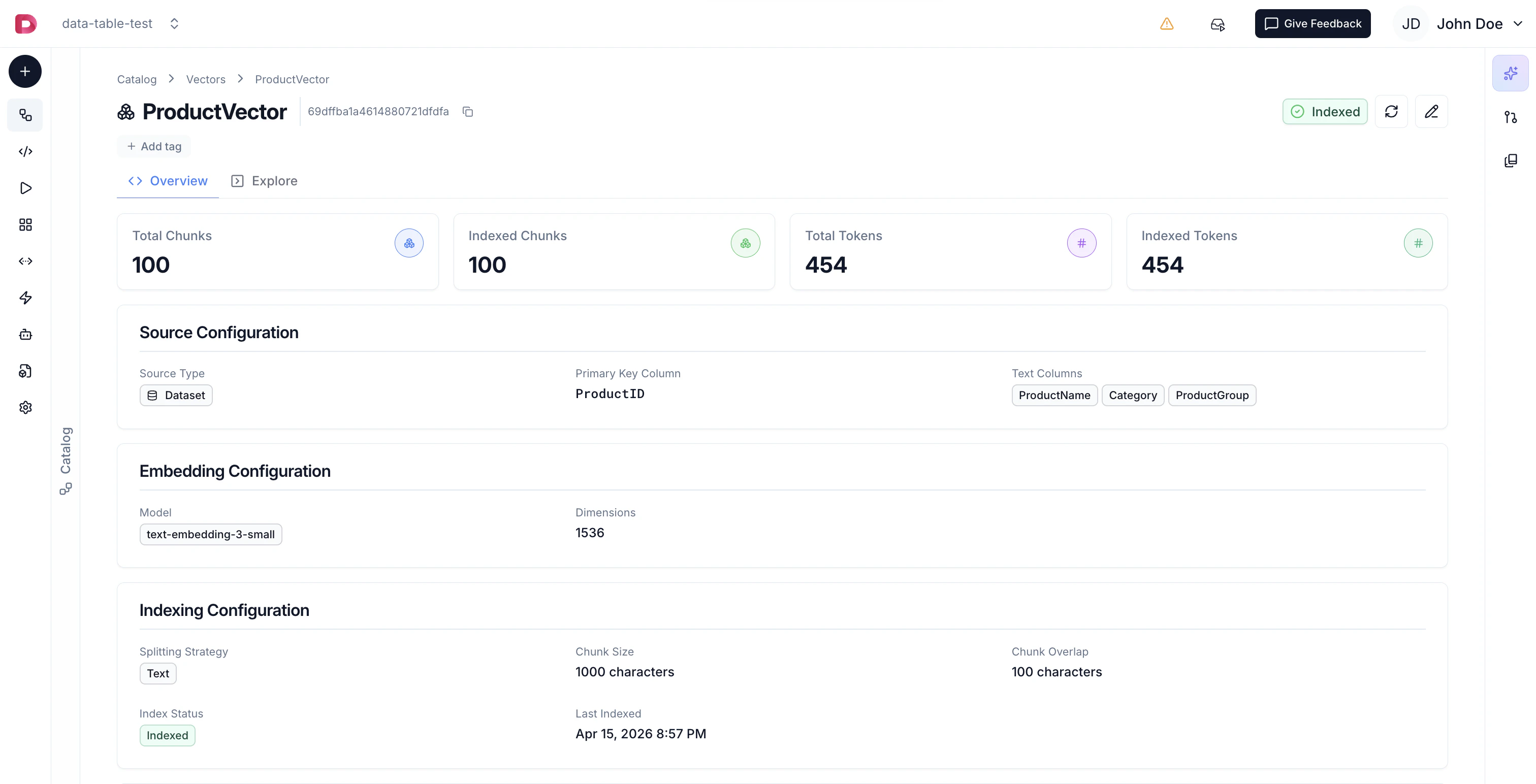
Creating a Vector Index
- Navigate to your Project page
- Click the Add button (+ icon)
- Select Vector from the dropdown
Step 1: Choose Data Source
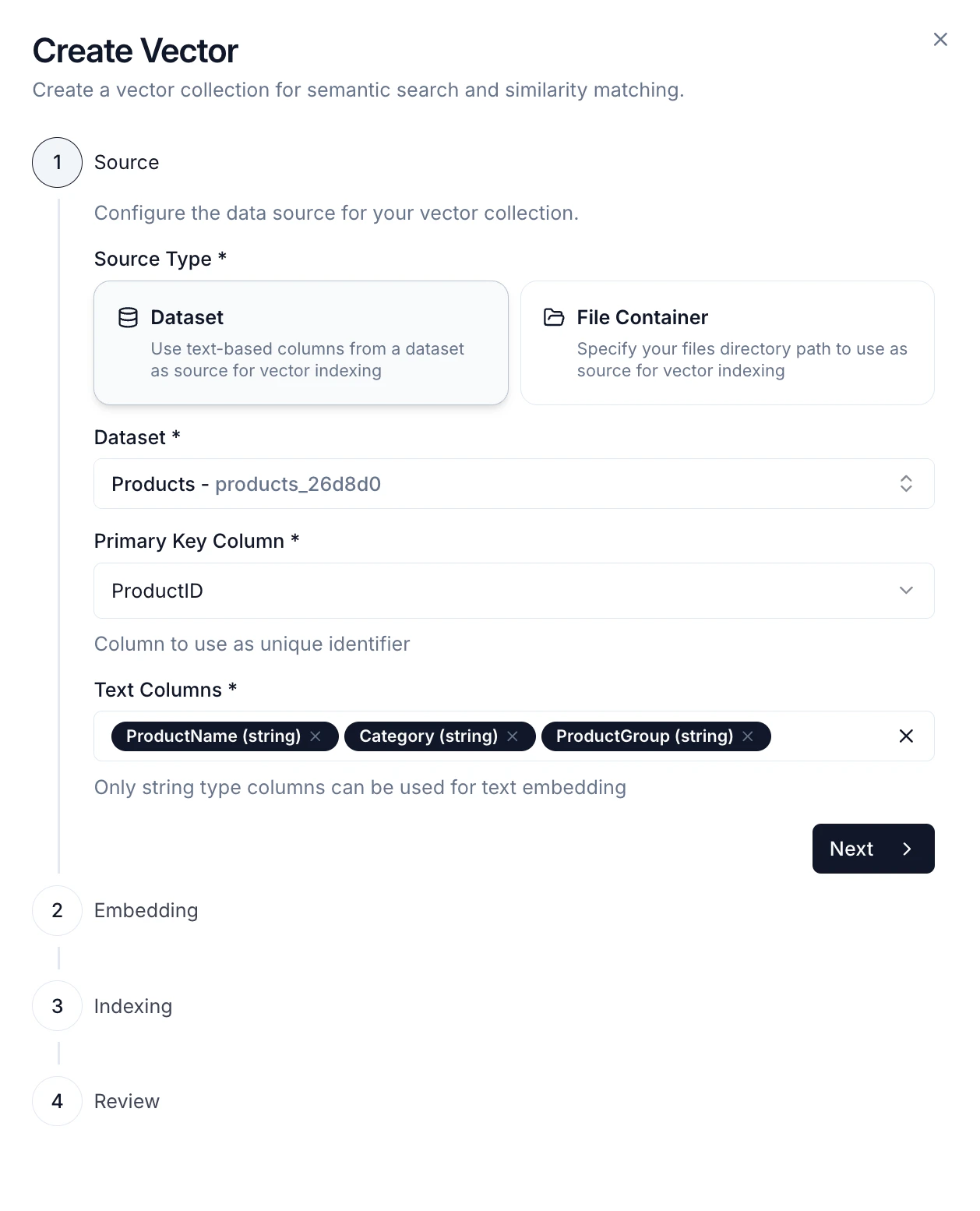
- Dataset - Index data from a dataset (CSV format)
- Select the dataset you want to vectorize
- Choose a primary key column to uniquely identify records
- Select one or more text columns to embed
- File Container - Index files from a file container path
- Supported formats: PDF, CSV, DOCX, XLSX, Markdown, TXT
- Files will be automatically processed and chunked
- Connected Source - Index documents from a SharePoint, OneDrive, or Google Drive source
- Select the source and the folder or file path to index (subfolders are included)
- Supported formats: PDF, CSV, DOCX, XLSX, XLS, Markdown, TXT
Step 2: Embedding Configuration
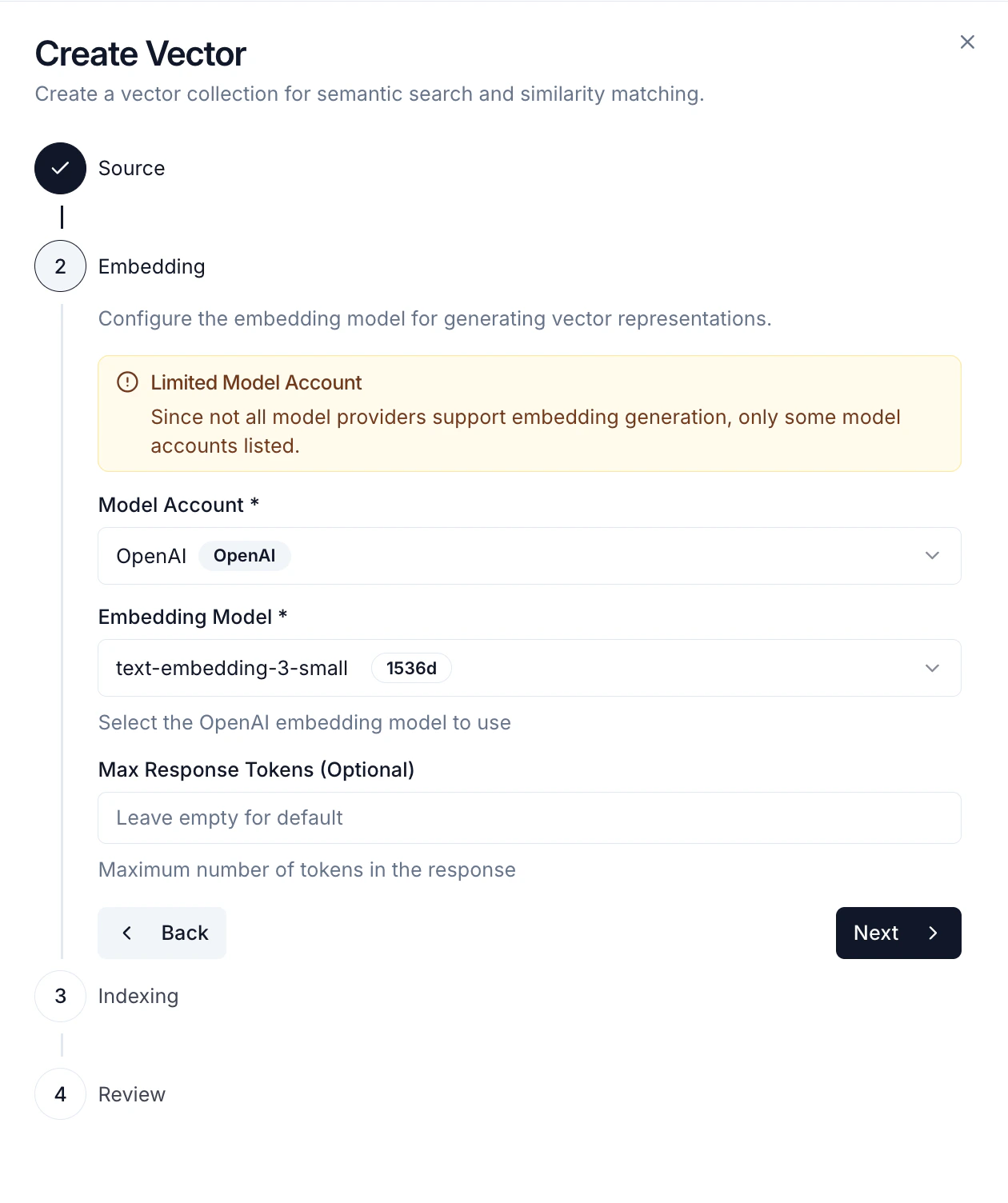
- Model Account - Select a configured Model Account with embedding support
- Embedding Model - Choose the embedding model (e.g.,
text-embedding-3-small,text-embedding-ada-002) - Vector Dimension - Embedding dimension (typically 1536 for OpenAI models)
Step 3: Chunking Strategy
Configure how your text is split into chunks before embedding:- Text Splitting - Split by character count
- Chunk Size - Number of characters per chunk
- Chunk Overlap - Characters shared between chunks (helps maintain context)
- Length Splitting - Split by token count using a specific encoding
- Encoding Name - Tokenizer to use (e.g.,
cl100k_basefor GPT models) - Chunk Size - Number of tokens per chunk
- Chunk Overlap - Tokens shared between chunks
- Encoding Name - Tokenizer to use (e.g.,
- Document Splitting - Split based on document structure
- Document Type - Choose format: Markdown, JSON, Code, or HTML
- Preserves logical document boundaries
Smaller chunks provide more precise search results but may lose broader context. Larger chunks retain more context but may be less specific. A typical chunk size is 500-1000 characters with 10-20% overlap.
Search Types
Each vector uses one search type. Set it when you create the vector, or change it later from the vector’s edit dialog. The vector Overview page shows the current search type and language.Keyword Language
Sparse and Hybrid search need a Keyword Language (default: English). Keyword search uses it to remove stopwords and to reduce words to their stems, so set it to the language of your content. Supported languages: Arabic, Danish, Dutch, English, Finnish, French, German, Greek, Hungarian, Italian, Norwegian, Portuguese, Romanian, Russian, Spanish, Swedish, and Turkish.Hybrid Weights
With Hybrid, two extra fields set how much each ranking counts when the results are merged:- Semantic Weight — weight of the semantic (dense) ranking
- Keyword Weight — weight of the keyword (sparse) ranking
1 and accept values greater than 0 and up to 100. Equal weights treat both rankings the same.
Weights apply to ranks, not scores. With a semantic weight of 3 and a keyword weight of 1, a 3rd-place semantic match counts the same as a 1st-place keyword match. A higher weight lets more of that method’s lower-ranked matches reach the top.
Changing the Search Configuration
- Changing the search type or keyword language rebuilds the index. Until the reindex finishes, searches keep using the current index.
- Changing the hybrid weights does not rebuild the index. The new weights apply from the next search.
- Sparse vectors still need an embedding model in their configuration, but keyword search does not call it, so there is no embedding cost.
- Semantic scores are between 0 and 1. Keyword and hybrid scores are not, so the Explore tab shows them as raw scores instead of percentages, and a score threshold only filters semantic results (for Hybrid, it applies to the semantic part).
Indexing Process
Once created, your vector index goes through several states:- Not Indexed - Initial state after creation
- Scheduled - Queued for indexing
- Indexing - Currently processing and embedding your data
- Indexed - Successfully completed, ready to use
- Failed - Error occurred during indexing (check error details)
- Total chunks created
- Total chunks indexed
- Total tokens processed
Using Vectors
Once indexed, your vectors can be used for:Search
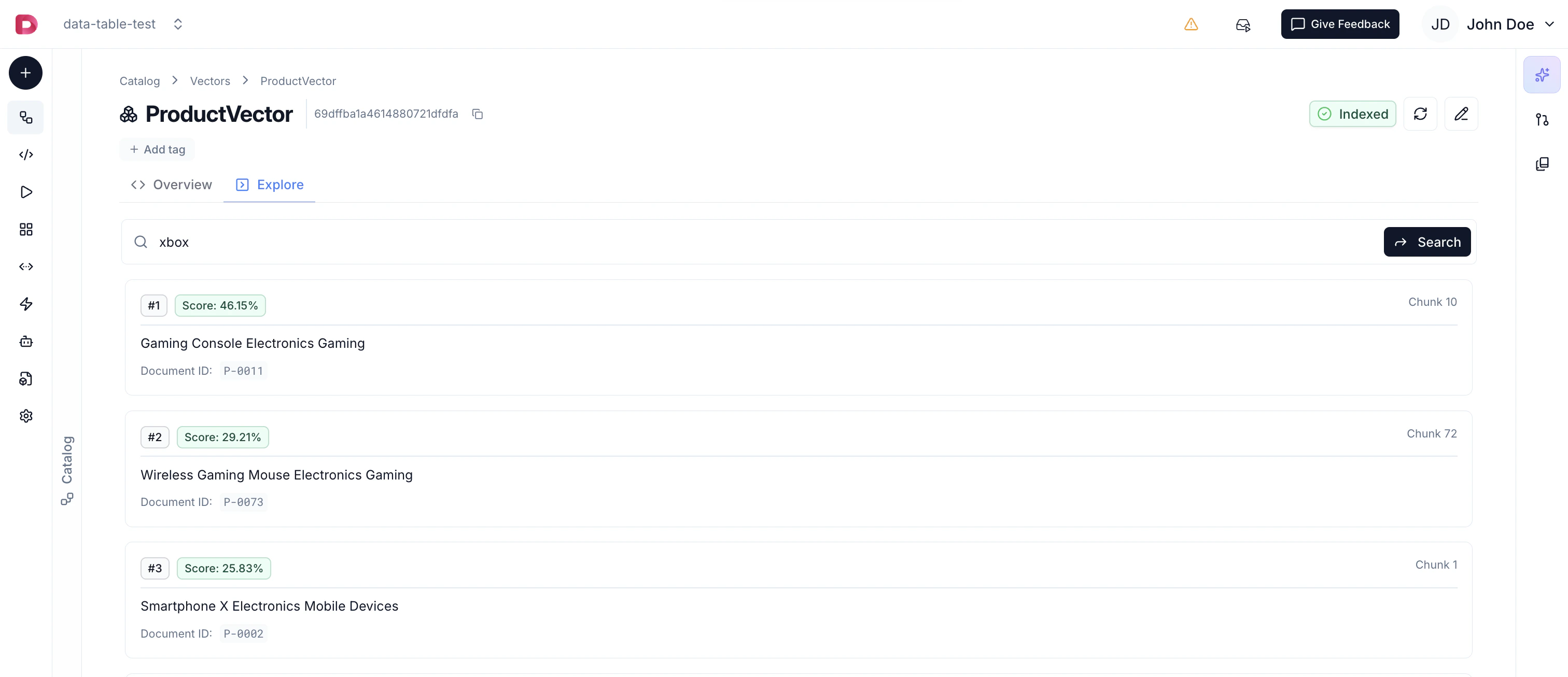
- Enter search queries in natural language
- View results ranked by relevance, using the vector’s search type
- See matching chunks with their context and metadata
- Test and refine your vector search results
Agent RAG
Attach vectors as data sources for your Agents, enabling them to retrieve relevant context from your data to provide more accurate and informed responses. Agents can automatically perform semantic search when answering questions.Similarity Endpoints
Create API endpoints that return similar records based on vector similarity, enabling semantic search in your applications. Perfect for building search features or recommendation systems.Best Practices
- Choose the Right Source - Use datasets for structured data and file containers for documents
- Optimize Chunk Size - Balance between context (larger chunks) and precision (smaller chunks)
- Add Overlap - Include 10-20% overlap to maintain context across chunk boundaries
- Select Appropriate Models - Smaller embedding models are faster and cheaper, larger models may provide better quality
- Use Cosine Similarity - Works well for most text similarity use cases
- Monitor Indexing - Check indexing status and statistics to ensure successful processing
Next Steps
- Configure Model Accounts for embedding models
- Create Agents to leverage your vectors
- File Containers for document management