

Overview
Model Accounts allow you to securely store and manage API credentials for AI model providers like OpenAI, Anthropic (Claude), and AWS Bedrock. Once configured, these credentials can be used across your Datazone projects to build intelligent applications, data pipelines with AI capabilities, and automated workflows.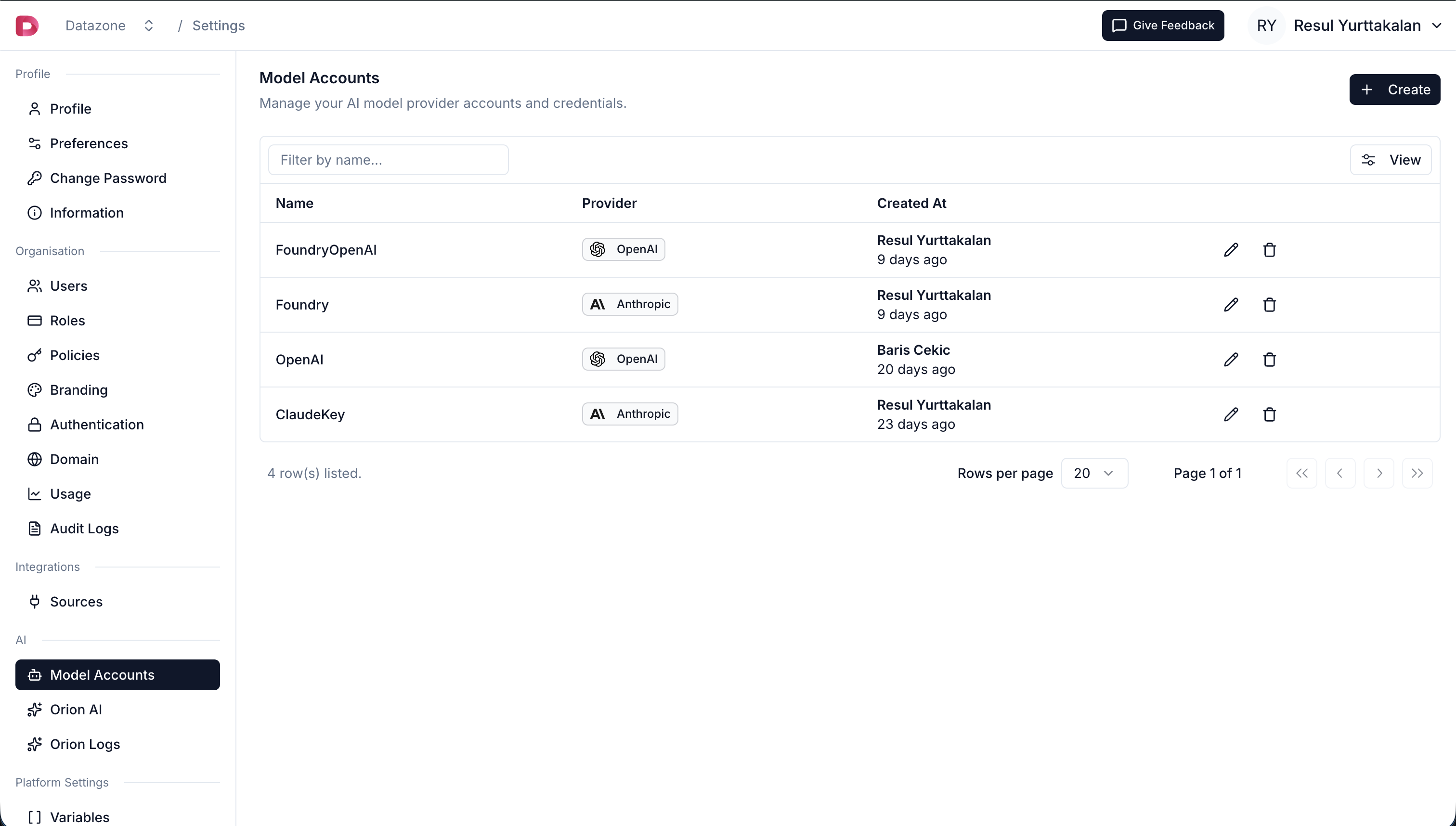
Supported Providers
Datazone supports the following AI model providers:Creating a Model Account
- Click Settings in the top right corner session context menu.
- Click Model Accounts in the left sidebar.
- Click Create Model Account to add a new provider.
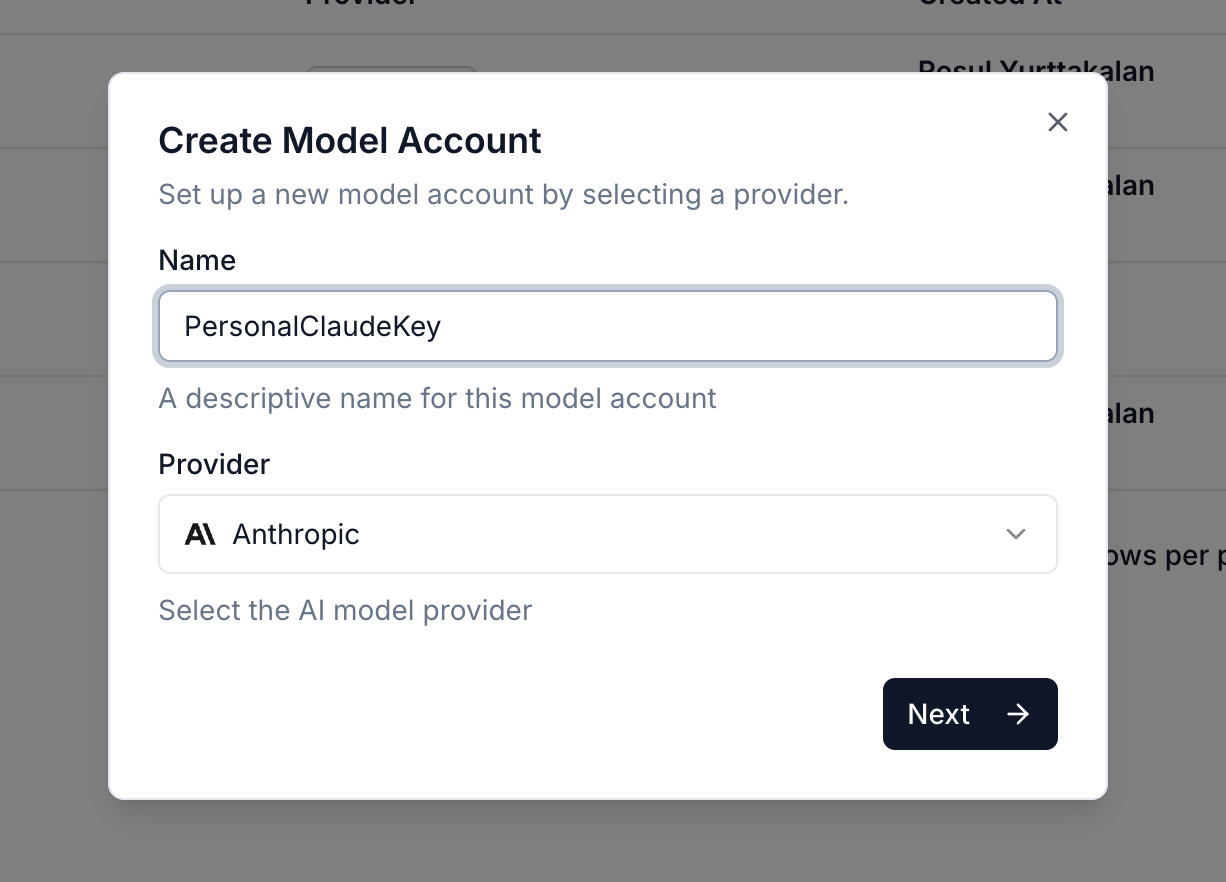
- Enter a descriptive name for your model account (e.g., “Production OpenAI”, “Development Claude”).
- Select your AI provider from the dropdown.
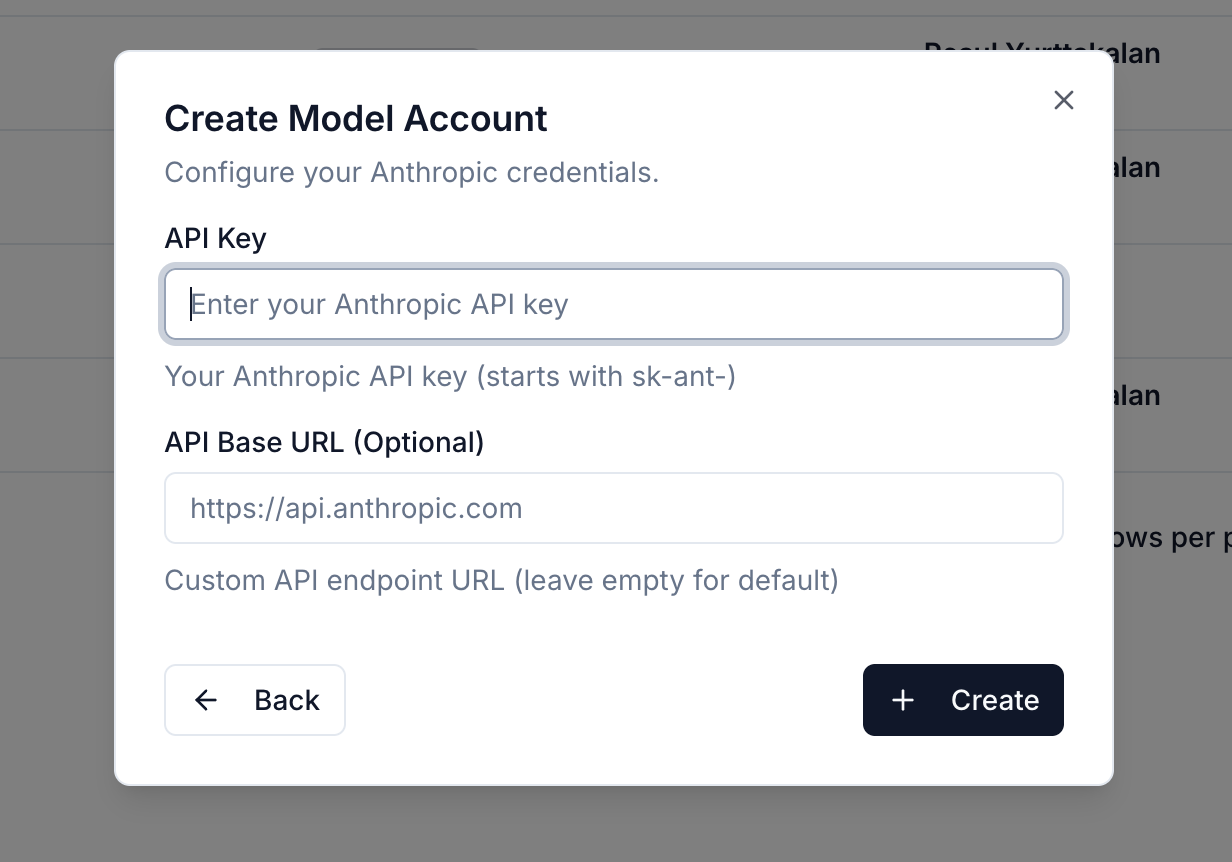
- Enter the required credentials based on the provider:
OpenAI Configuration
- API Key (required): Your OpenAI API key starting with
sk- - API Base (optional): Custom API endpoint if using a proxy or Azure OpenAI
Anthropic Configuration
- API Key (required): Your Anthropic API key starting with
sk-ant- - API Base (optional): Custom API endpoint if needed
AWS Bedrock Configuration
- AWS Access Key ID (required): Your AWS access key
- AWS Secret Access Key (required): Your AWS secret access key
- AWS Region (required): The AWS region for Bedrock (e.g.,
us-east-1,us-west-2) - AWS Session Token (optional): Temporary session token if using STS
- Click Create to save your model account.
Security
Datazone takes security seriously when handling your AI provider credentials:- Encrypted Storage: All API keys and sensitive credentials are encrypted at rest using industry-standard encryption.
- Access Control: Only organization members with MANAGE permissions can view or modify model accounts.
- Organization Isolation: Model accounts are scoped to your organization and cannot be accessed by other organizations.
Managing Model Accounts
Viewing Model Accounts
All your configured model accounts are listed in the Model Accounts page. Each entry shows:- Account name
- Provider type
- Creation date
- Last updated date
Updating Credentials
To update a model account:- Click on the account you want to update.
- Modify the account name or credentials as needed.
- Click Update to save changes.
Updating credentials will affect all projects and pipelines currently using this model account. Ensure the new credentials are valid before saving.
Deleting Model Accounts
To delete a model account:- Click on the account you want to remove.
- Click the Delete button.
- Confirm the deletion.
Next Steps
- Build Intelligent Apps powered by AI
- Create Data Pipelines with AI transformations
- Manage Variables to reference model accounts in projects