

UI Overview
Datazone’s interface is organized into four main sections to help you efficiently manage projects, build intelligent apps, create agents, and configure settings.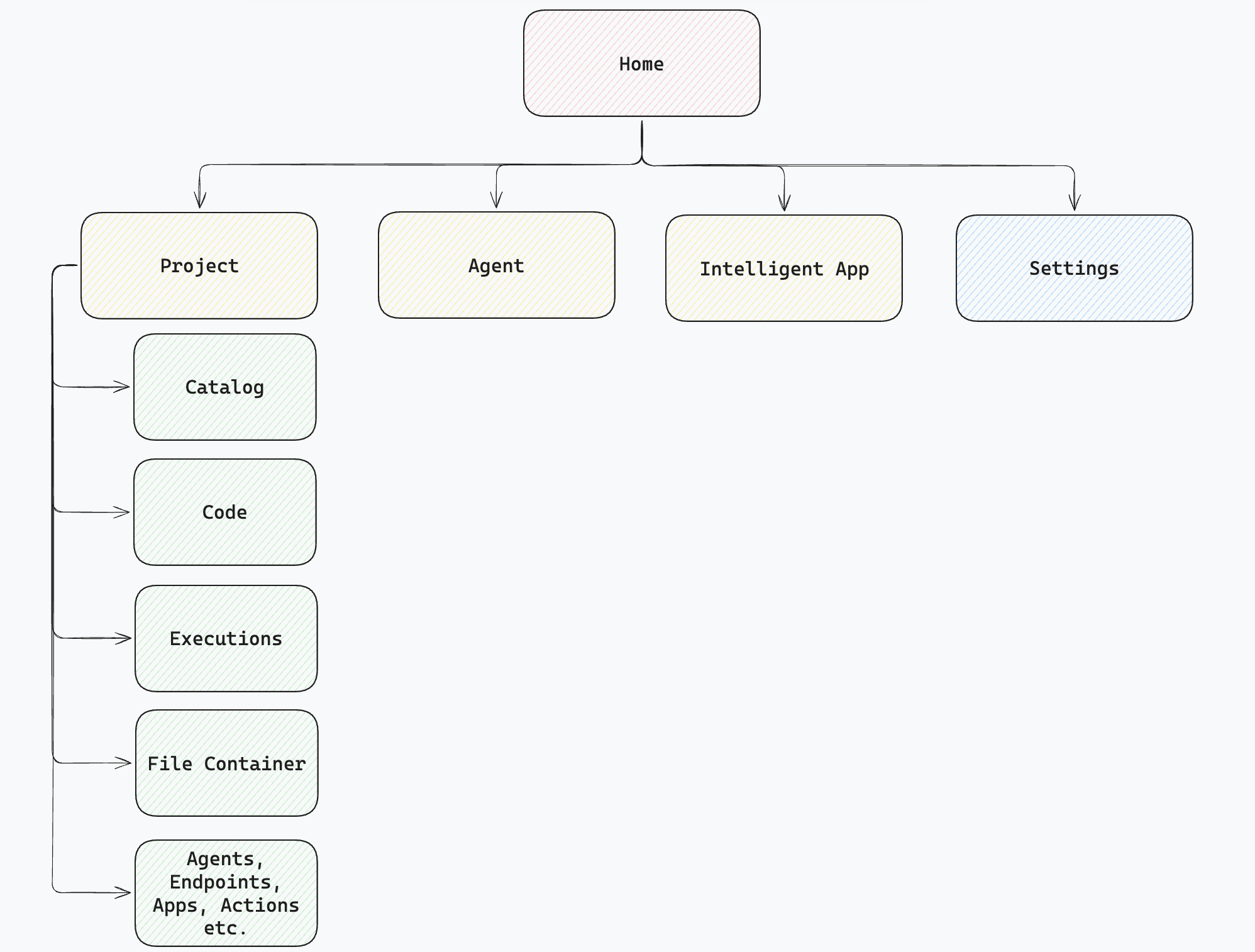
Home Page
The Home Page is your starting point, displaying all your resources as cards: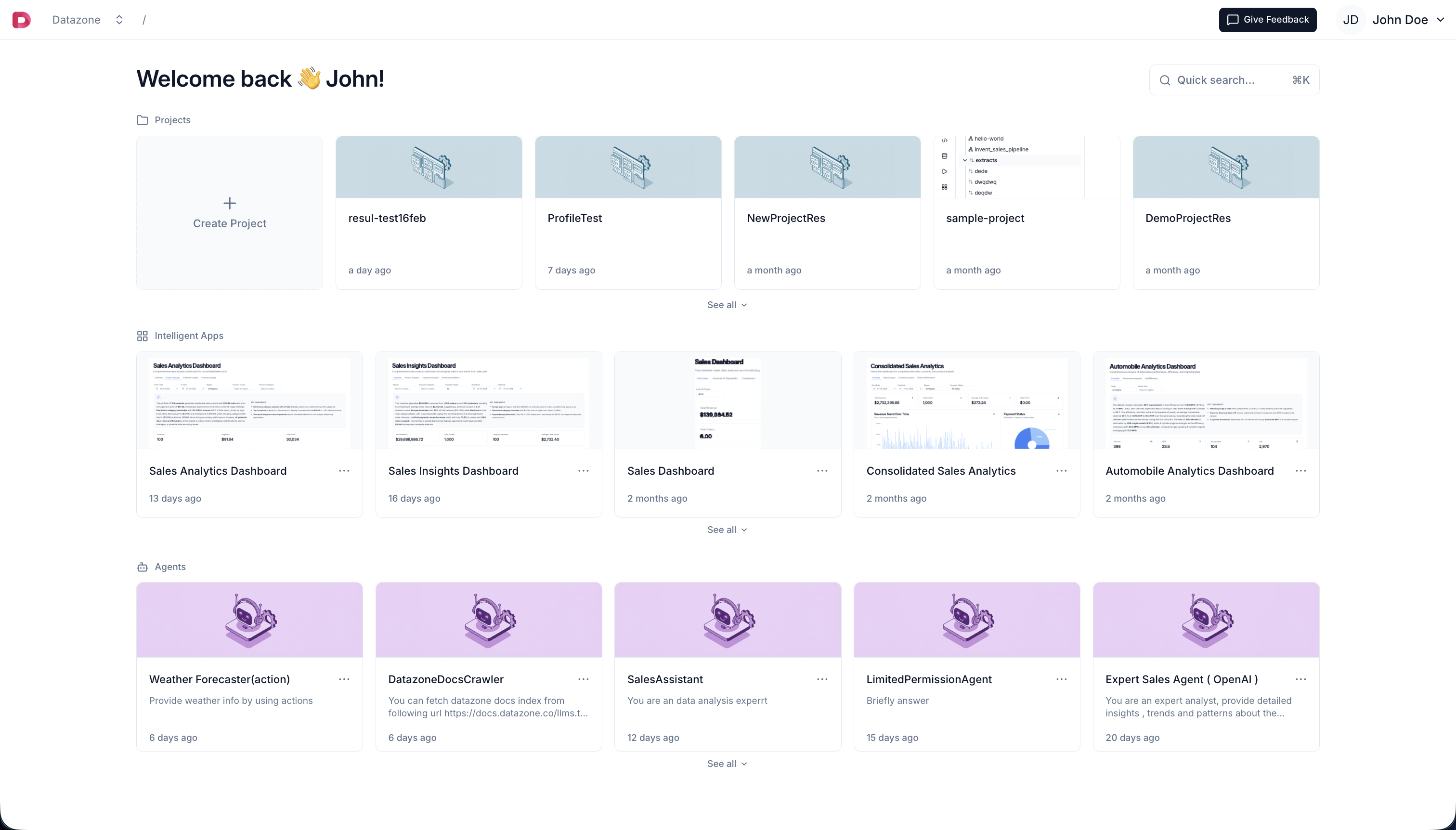
- Projects - All your data projects
- Intelligent Apps - Interactive dashboards and applications
- Agents - AI assistants for data analysis
Project Page
The Project Page is where you spend 90% of your time. This is your core development workspace where all data operations happen: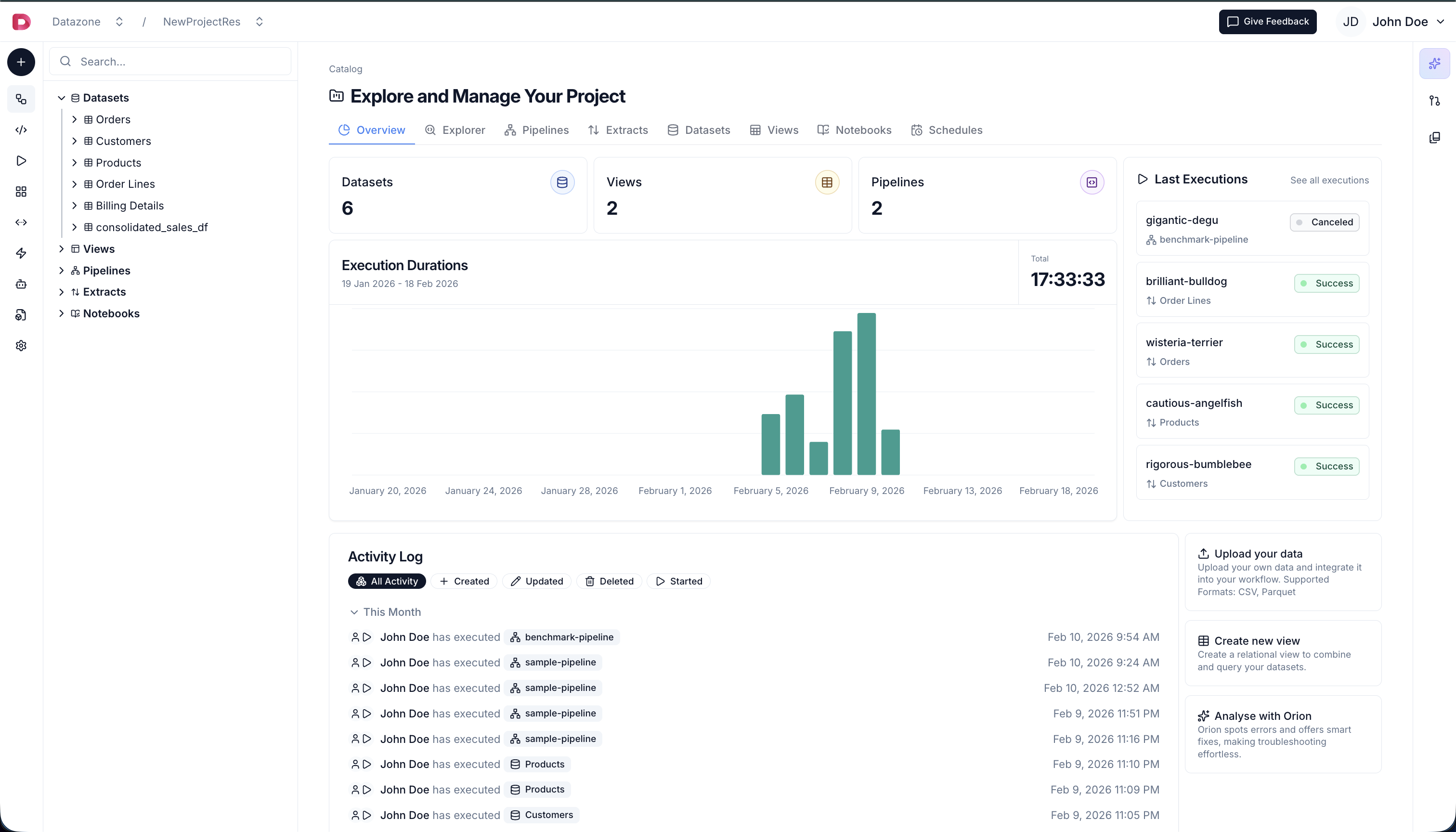
- Code Editor - Write transforms, pipelines, and notebooks
- Workflow Builder - Design and orchestrate data workflows
- Executions - Monitor running and completed jobs
- Builds - View build history and logs
- Data Sources - Manage datasets and views
- Agents - Create and configure AI agents
Intelligent App Page
When you open an Intelligent App, you see the interactive dashboard: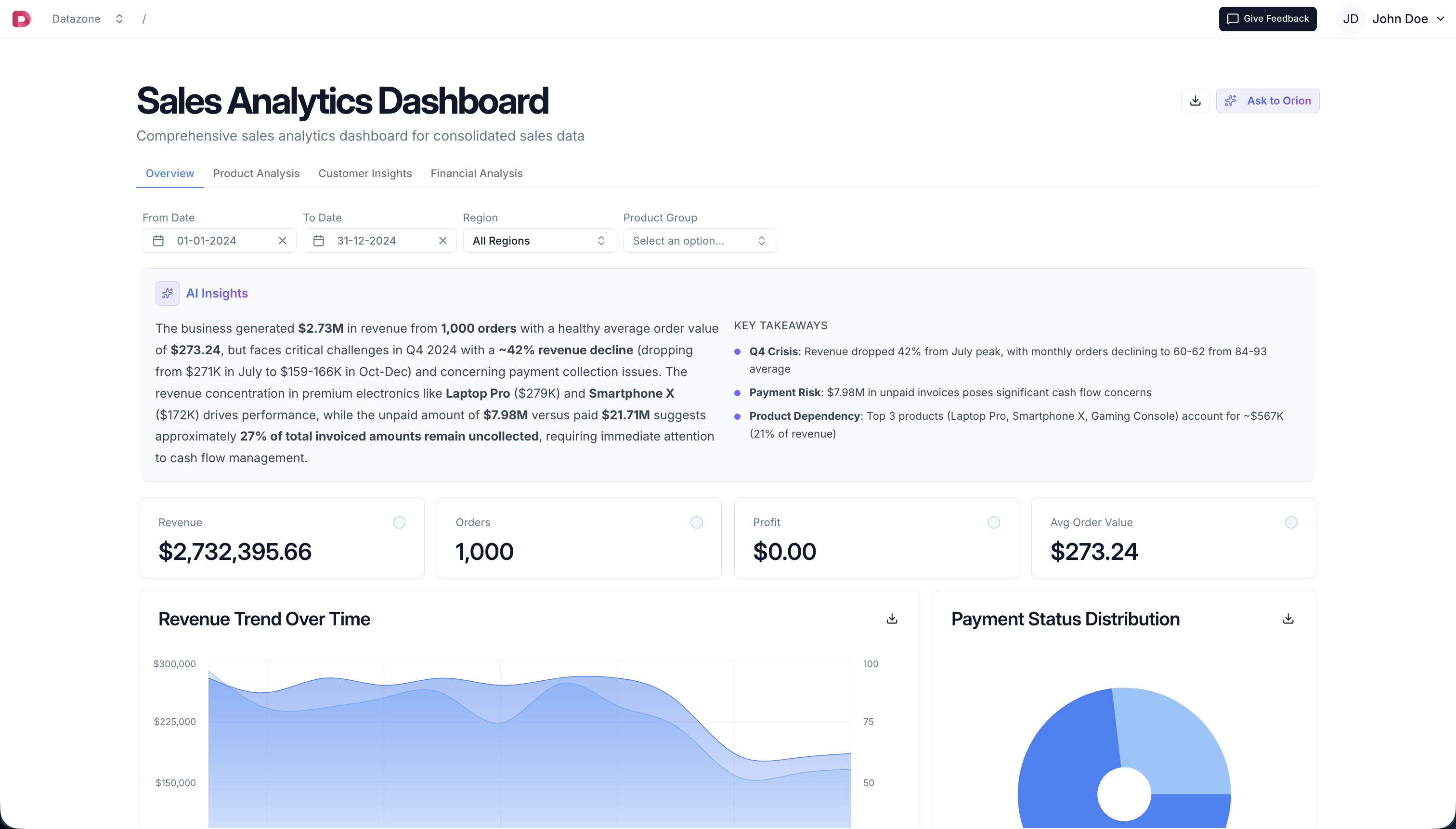
- Interactive Charts - Dynamic data visualizations
- Filters - Control what data is displayed
- AI Assistant - Ask questions about your data
- Multi-Tab Layout - Organize content logically
Settings
Access Settings from the user dropdown in the top-left corner: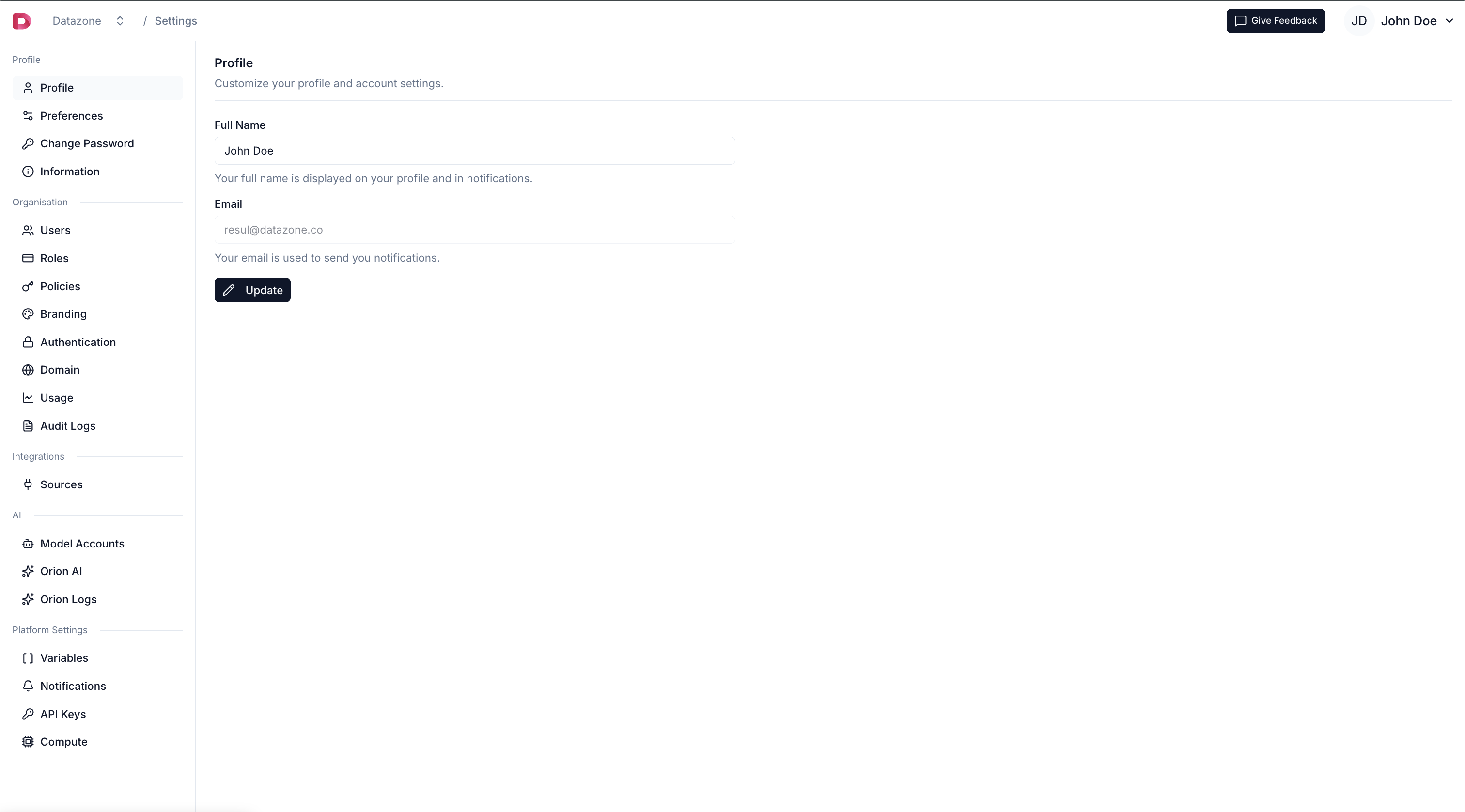
- Profile - Personal information and preferences
- Organizations - Manage teams and members
- Model Accounts - Configure AI providers
- API Keys - Generate authentication keys
- Integrations - SAML, OAuth, and external services
- Platform Settings - System configurations
Settings content varies based on your permissions. Some options are only visible to organization admins.
Quick Search (⌘K / Ctrl+K)
Access the Quick Search menu from anywhere in the app by pressing ⌘K (Mac) or Ctrl+K (Windows/Linux):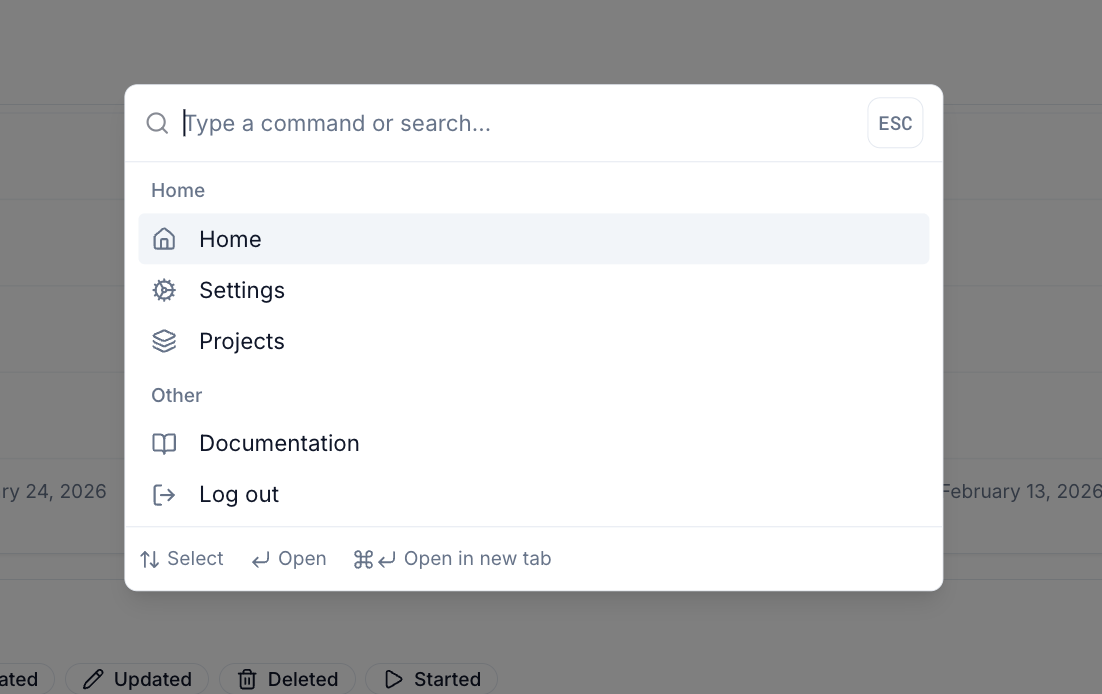
- Global Search - Find projects, agents, intelligent apps, datasets, and more
- Quick Navigation - Jump directly to any resource
- Command Palette - Execute actions without clicking
- Recent Items - Quick access to recently viewed resources
Navigation Tips
- Home - Click the logo to return to the home page
- Quick Access - Use the top navigation bar to switch between sections
- ⌘K Search - Press ⌘K anytime for quick search and navigation
- Context Menu - Right-click resources for quick actions