

Prerequisites
- Administrator access to your Google Workspace account
- Your Datazone instance domain (e.g.,
app.datazone.co)
Configuration Steps
1. Access Web and Mobile Apps
In your Google Admin Console, navigate to Apps > Web and mobile apps from the left sidebar menu.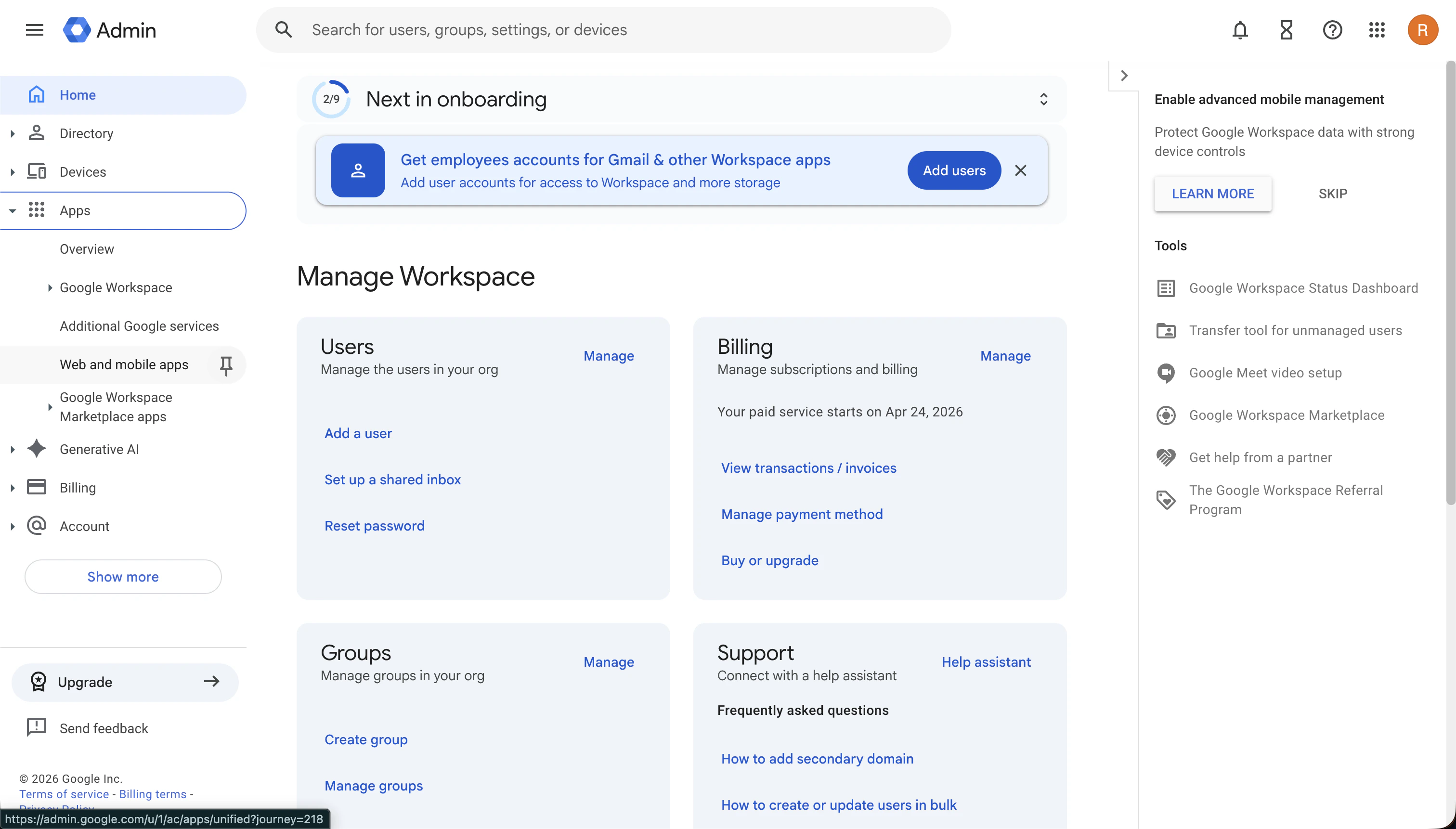
2. Add Custom SAML App
Click Add app and select Add custom SAML app from the dropdown menu.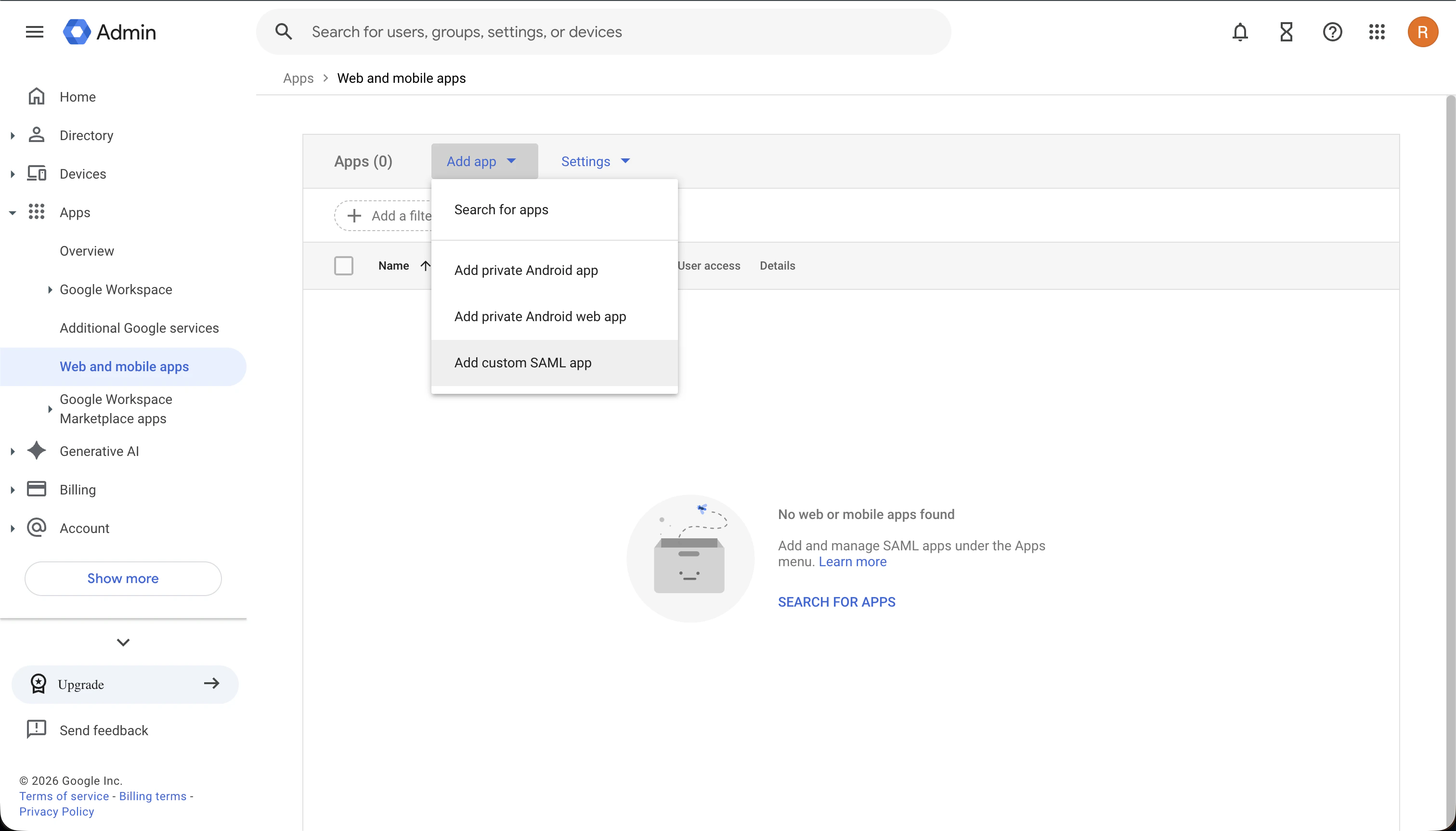
3. Configure App Details
Provide a name for the application (e.g., “Datazone SSO”). You can optionally add an icon for the application.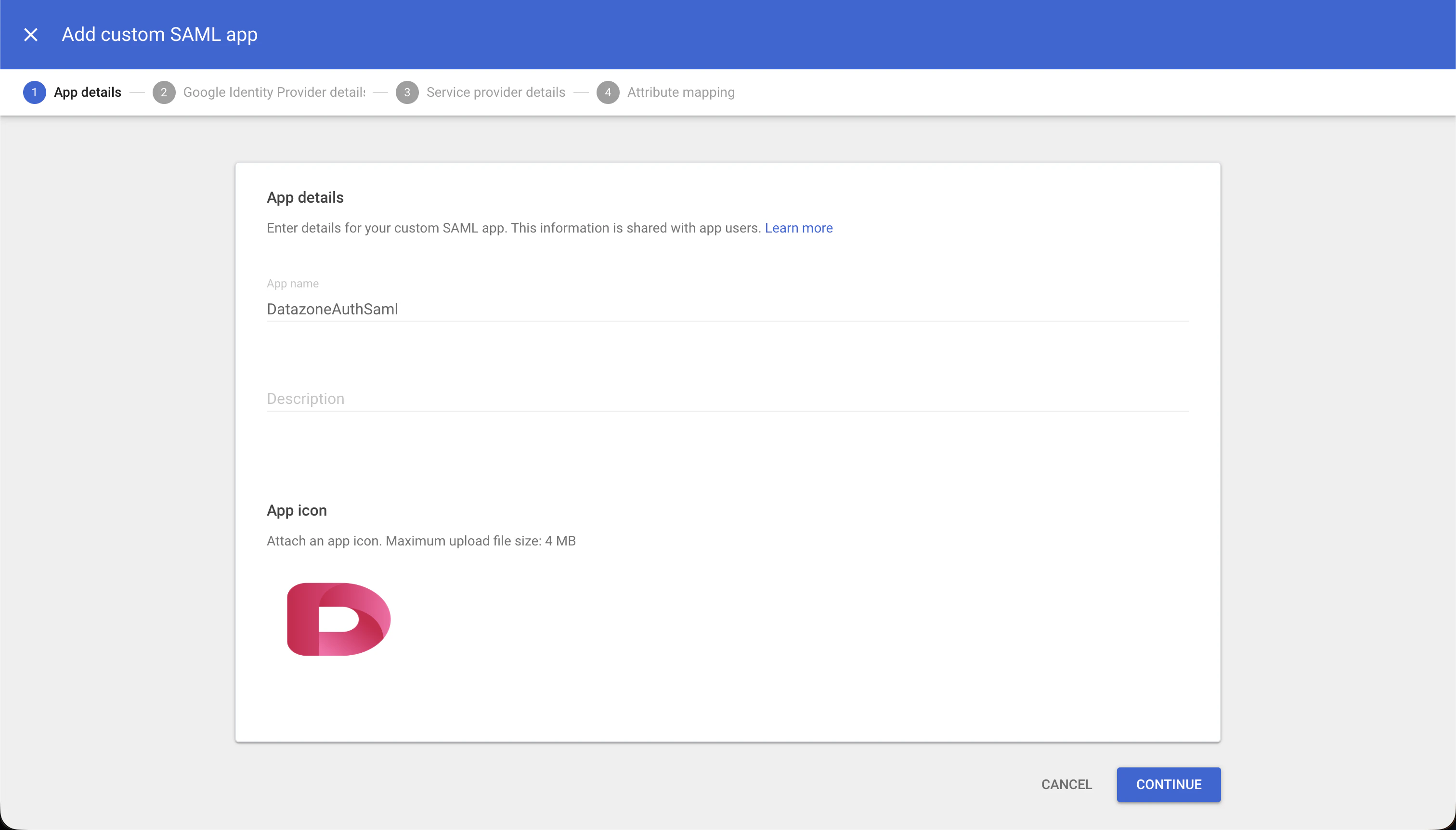
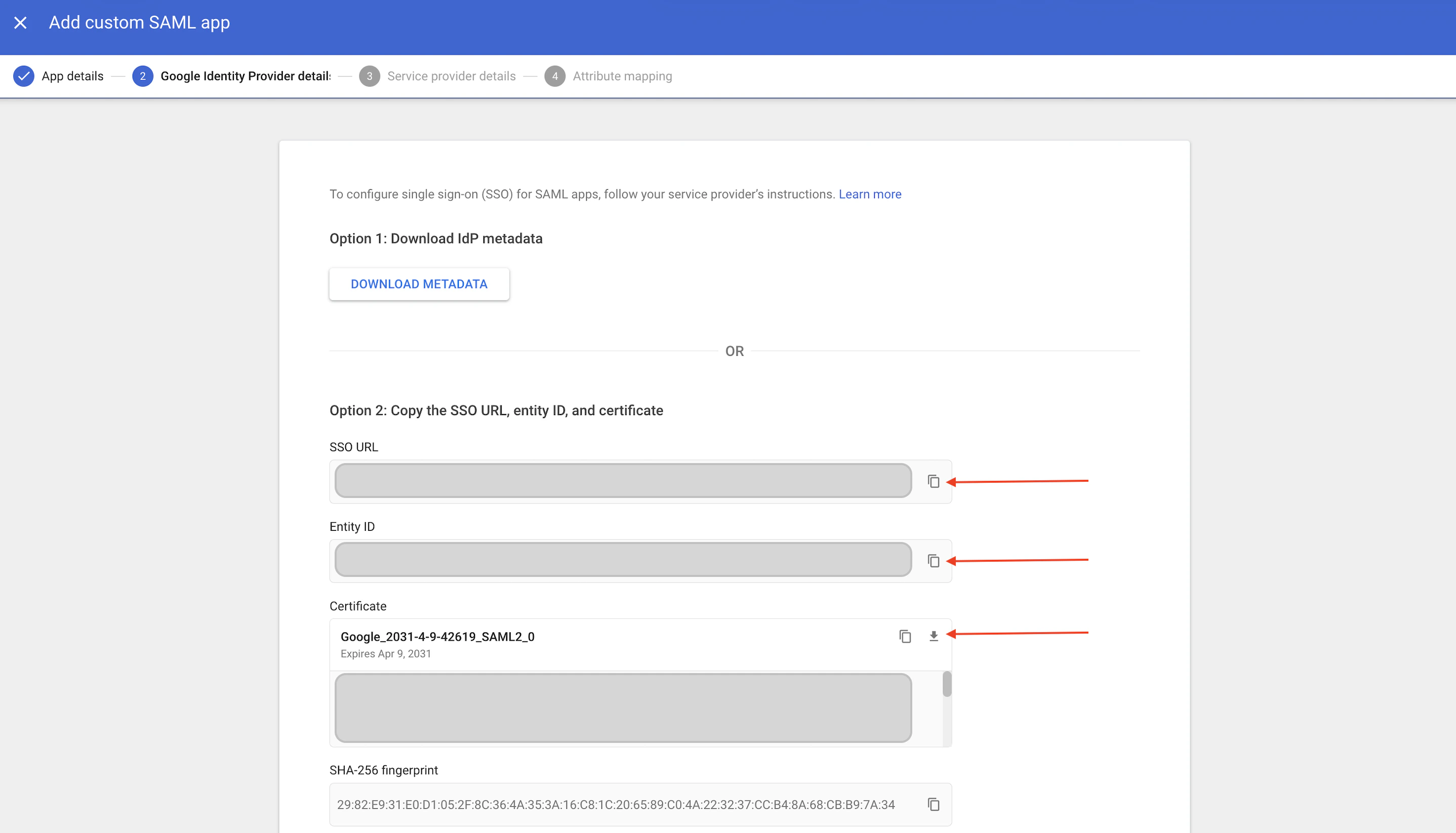
4. Collect Google Identity Provider Details
Google will display the following configuration details that you’ll need for Datazone:- SSO URL: Identity Provider Single Sign-On URL
- Entity ID: Identity Provider Issuer
- Certificate: Download the certificate (PEM format)
5. Configure Service Provider Details
In the Service provider details section, set the following parameters:- ACS URL:
https://YOUR_DATAZONE_DOMAIN/api/v1/auth/saml/acs - Entity ID:
https://YOUR_DATAZONE_DOMAIN/api/v1/auth/saml/acs
Replace
YOUR_DATAZONE_DOMAIN with your actual Datazone instance domain.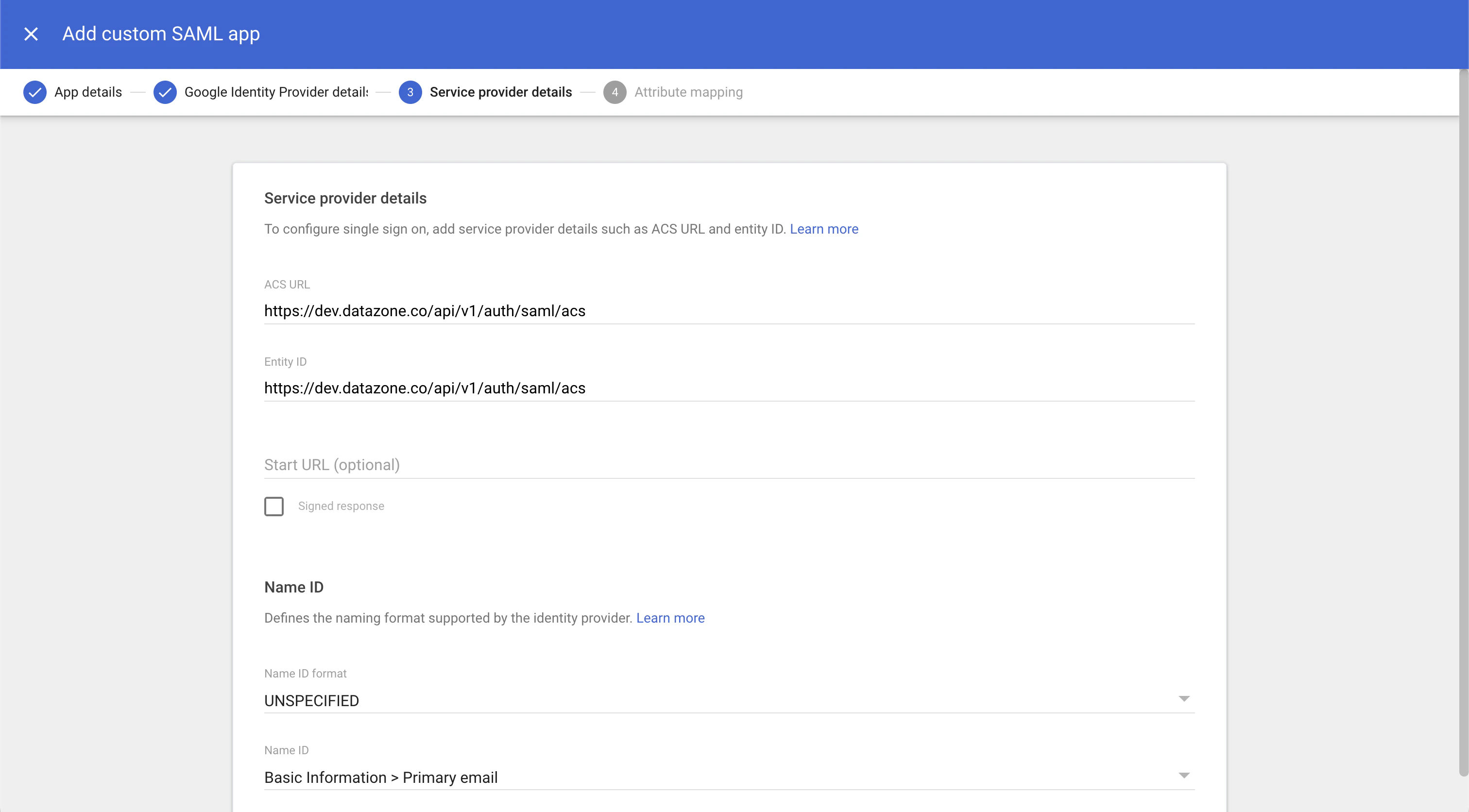
6. Add Attribute Mapping
In the Attribute mapping section, add the following mapping: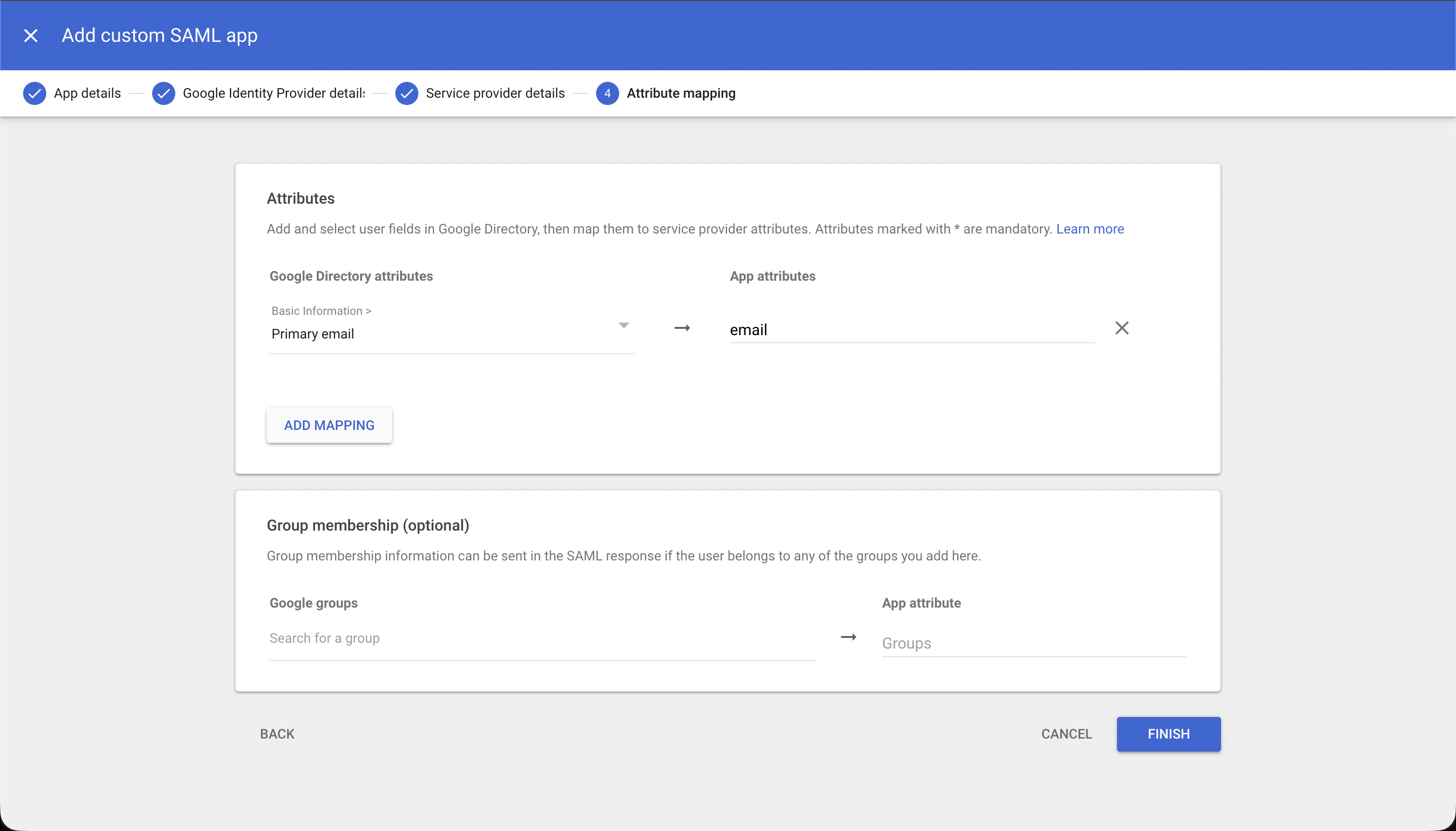
7. Configure User Access
After the app is created, you’ll see the User access section on the main app page. Configure which users or organizational units should have access to Datazone through Google SSO.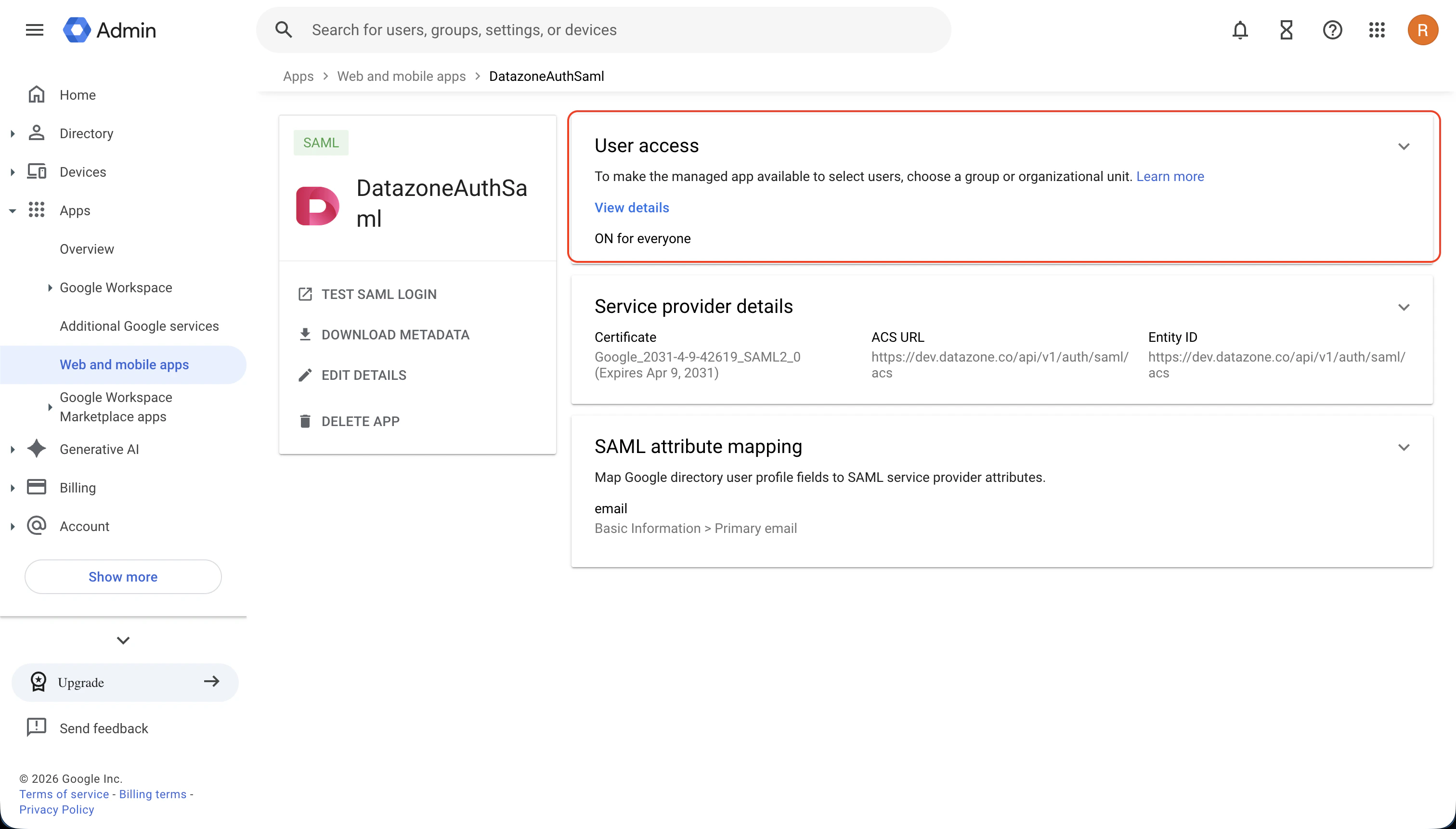
8. Assign Users to the App
Assign the appropriate users or groups to the application to control who can access Datazone through Google Workspace SSO.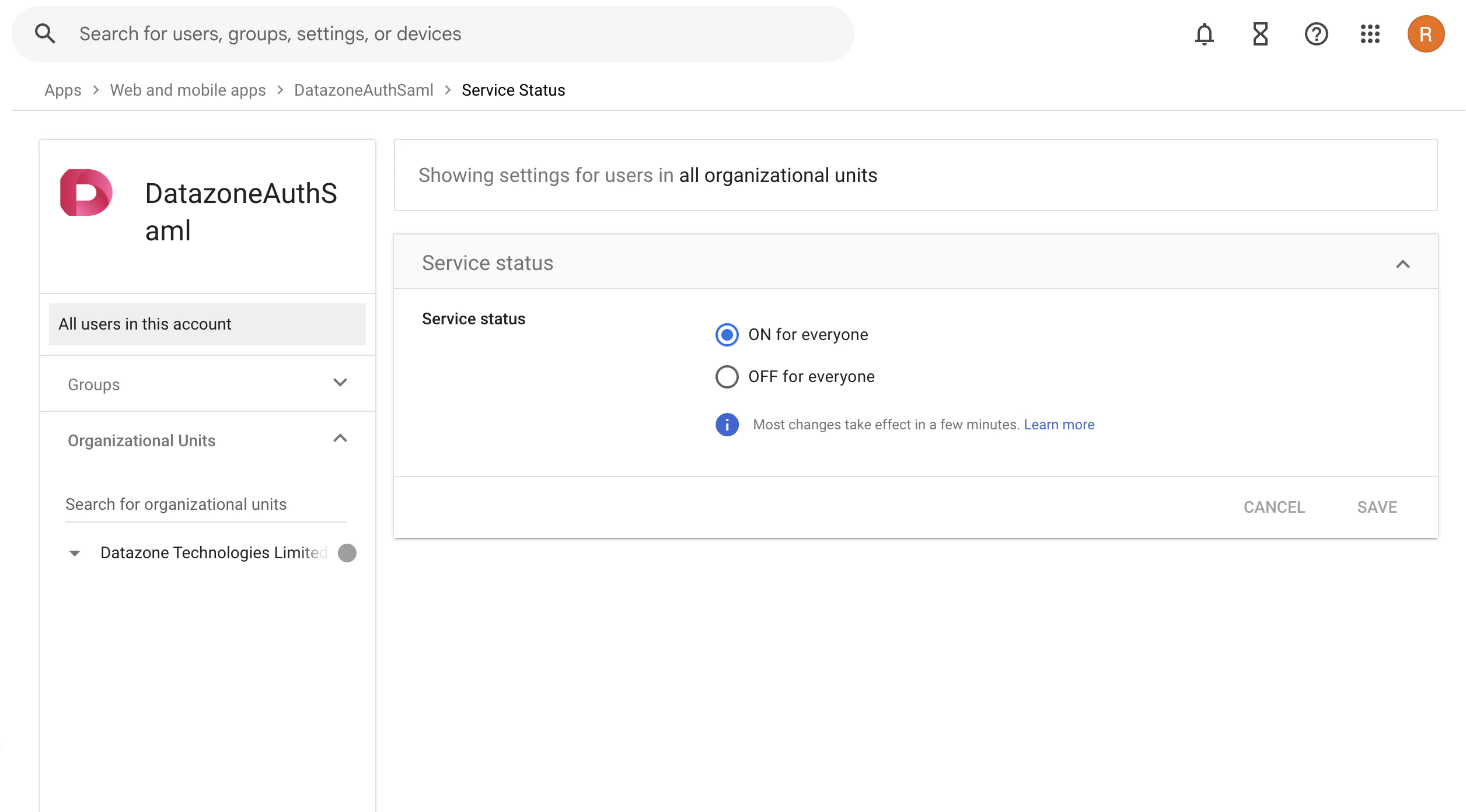
9. Enter Configuration in Datazone
Finally, enter the collected information from Step 4 into the Datazone SAML configuration settings as described in the SAML Overview guide:- Entity ID (Issuer): Use the Entity ID from Google
- SSO URL: Use the SSO URL from Google
- Certificate: Upload the downloaded certificate (PEM format)
Testing Your Configuration
After completing the setup:- Navigate to your Datazone login page
- Click on the SSO/SAML login option
- You should be redirected to Google for authentication
- Upon successful authentication, you’ll be redirected back to Datazone
Additional Resources
For more information about configuring custom SAML applications in Google Workspace, refer to Google’s official documentation.If you encounter any issues during setup, refer to the SAML troubleshooting
guide or contact support at support@datazone.co