

Overview
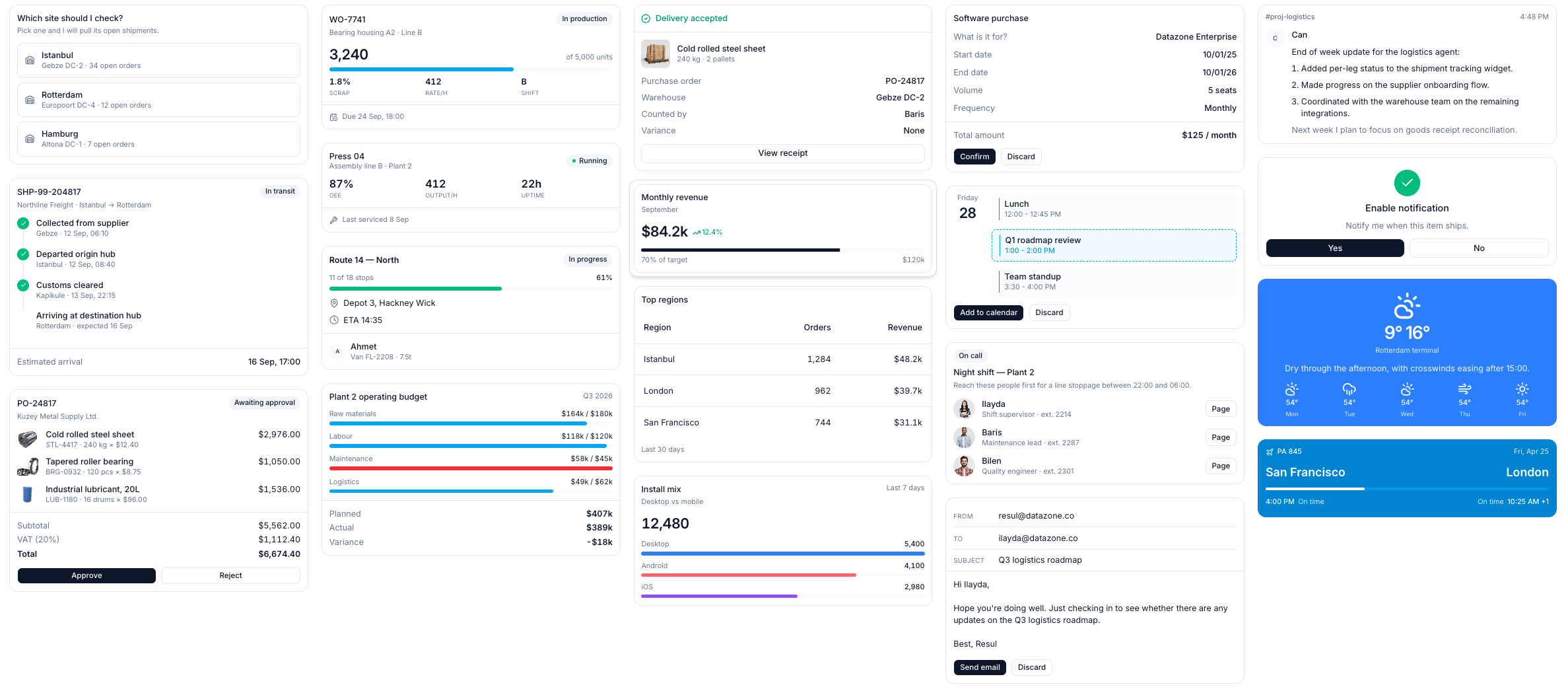
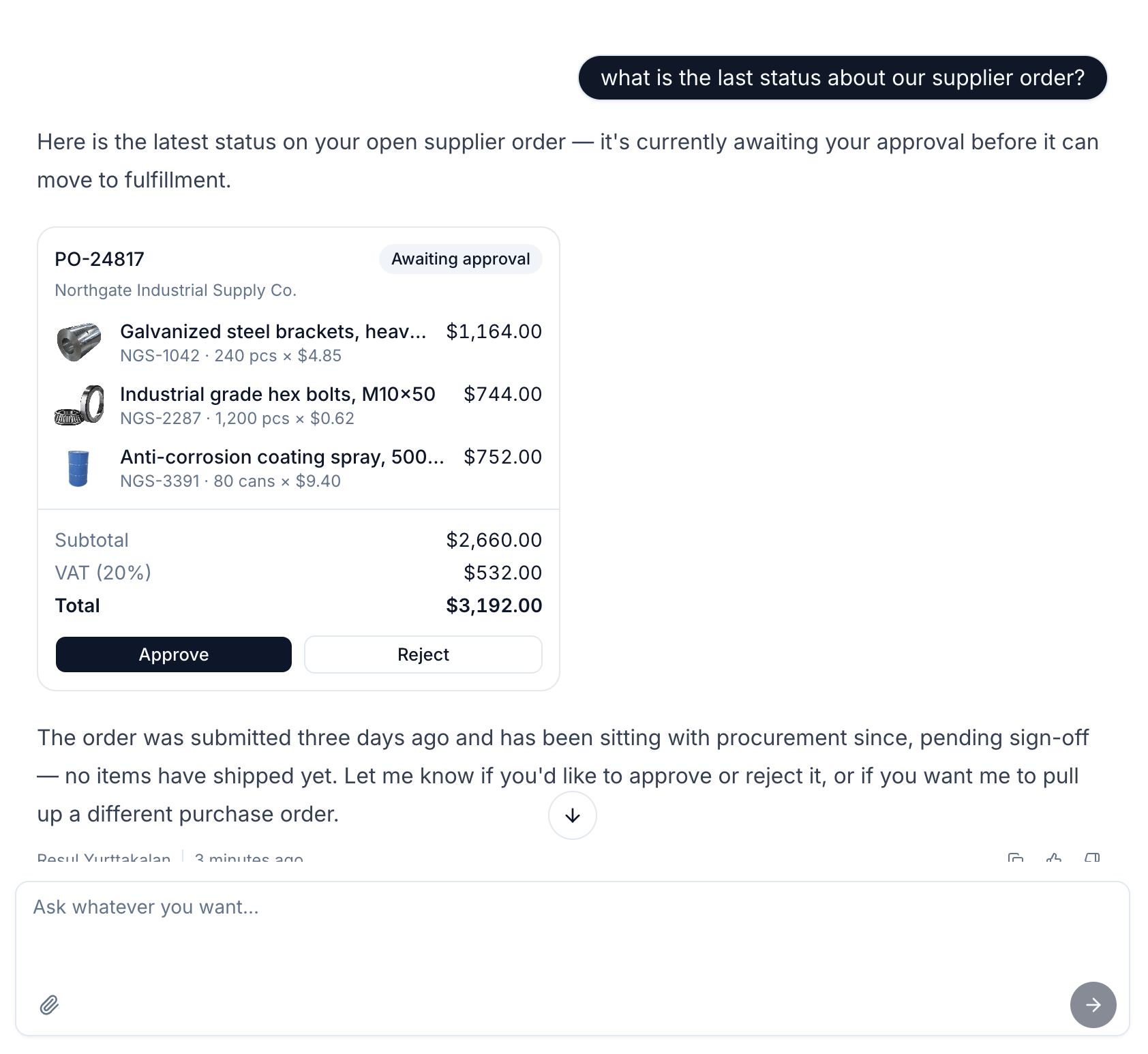
Widgets are React components that your agents render inside their answers. Instead of describing an order in a paragraph, an agent can show the order — line items, totals and an approve button — as a component that looks like the rest of your product. A widget’s only contract is its props. It has no query, no data fetching and no knowledge of who renders it: the agent chooses the values, the widget draws them. That keeps widgets small, testable and reusable across every agent in the project.Widgets are project resources, like actions and endpoints. A widget can only be used by agents
in the same project, and it is declared in
config.yml and deployed on push.What a Widget Is Made Of
Every widget is two files in your project repository plus one line inconfig.yml:
- Project Structure
my-project
config.yml
widgets
open_orders_a1b2c3.yml
open_orders_a1b2c3.tsx
The Declaration
Creating a Widget
Widgets are authored in the browser, at Project → Settings → Widgets. You have three ways to start:- From the gallery — open Gallery for ready-made widgets: purchase orders, shipment tracking, work orders, budget plans and more. Use this template creates an editable copy in your project.
- From a prompt — in New widget, describe what it should render and Orion writes the component and its props schema for you.
- From scratch — leave the prompt empty and you get a starter component to edit.
The Widget SDK
A widget imports its components from@datazone/widget-sdk:
Icon renders any Lucide icon by name — <Icon name="package" className="size-4" /> — so you
never need icon imports of your own.
Styling is Tailwind classes, the same ones the product uses, which is what keeps widgets looking
like Datazone.
Stick to common Tailwind utilities. Styles are generated when the product is built, and your
widget’s source is not part of that build — a very unusual utility class may simply have no effect.
For dynamic values such as a bar width, use an inline
style instead of an arbitrary class.Props and the Schema
You write the props schema in Zod, and Datazone compiles it to JSON Schema — the format the agent is given, the same one tool calling uses.- The schema file must
export defaulta Zod schema. - Use
.describe()on every field. The descriptions travel to the agent and are the main thing it has to go on when choosing values. A schema without them still validates, but the agent guesses.
Letting an Agent Use It
A widget is not available to an agent until you allow it, under Agent → Widgets. Only widgets from the same project can be allowed. Once allowed, the agent is told the widget’s id, description and props schema, and renders one by emitting a fenced block in its answer:Interactive Widgets
A widget can answer back. Give anyButton an onClickAction and clicking it sends a message
to the conversation as if the user had typed it:
"Rotterdam" as the next message and carries on.
send_message sends only text, and only what the widget declares — nothing a user could not
have typed themselves. Buttons disable themselves while an answer is still streaming, so a click
cannot queue a second question.Branches
Widgets are branch-aware, like every other project resource. A widget exists on the branches it has been deployed to, and each branch holds its own version of the component and the declaration. The branch selector on the widget list and in the editor decides which one you are looking at.Good to Know
- Widgets render in the viewer’s browser. Widget code is written by your team and runs for everyone who talks to the agent, including anonymous users of an embedded agent. Review widget source the way you review any other code you ship to a browser.
- Keep them presentational. A widget that needs data should receive it as props — from the agent, or from a tool the agent called first.
- Default props are a worked example. They render the preview, and they show the agent the shape you expect.