

Evaluating Conversations
Your users ask your agents, intelligent app chats and Orion questions every day. Conversation evaluations tell you how well those conversations went, without anyone reading them one by one. An AI reviewer reads each conversation once it is finished and gives it:- a score from 1 to 5 stars
- a verdict: Good, Needs review or Bad
- a short summary of what the conversation was about
- flags for the problems it found, such as an answer that is not backed by the data
- notes explaining the score, and up to three suggestions for improving the assistant
Turning Evaluations On
Evaluations are off by default, since they use tokens of your model account. To turn them on, go to Settings → Orion AI and use the Agent Evaluation card.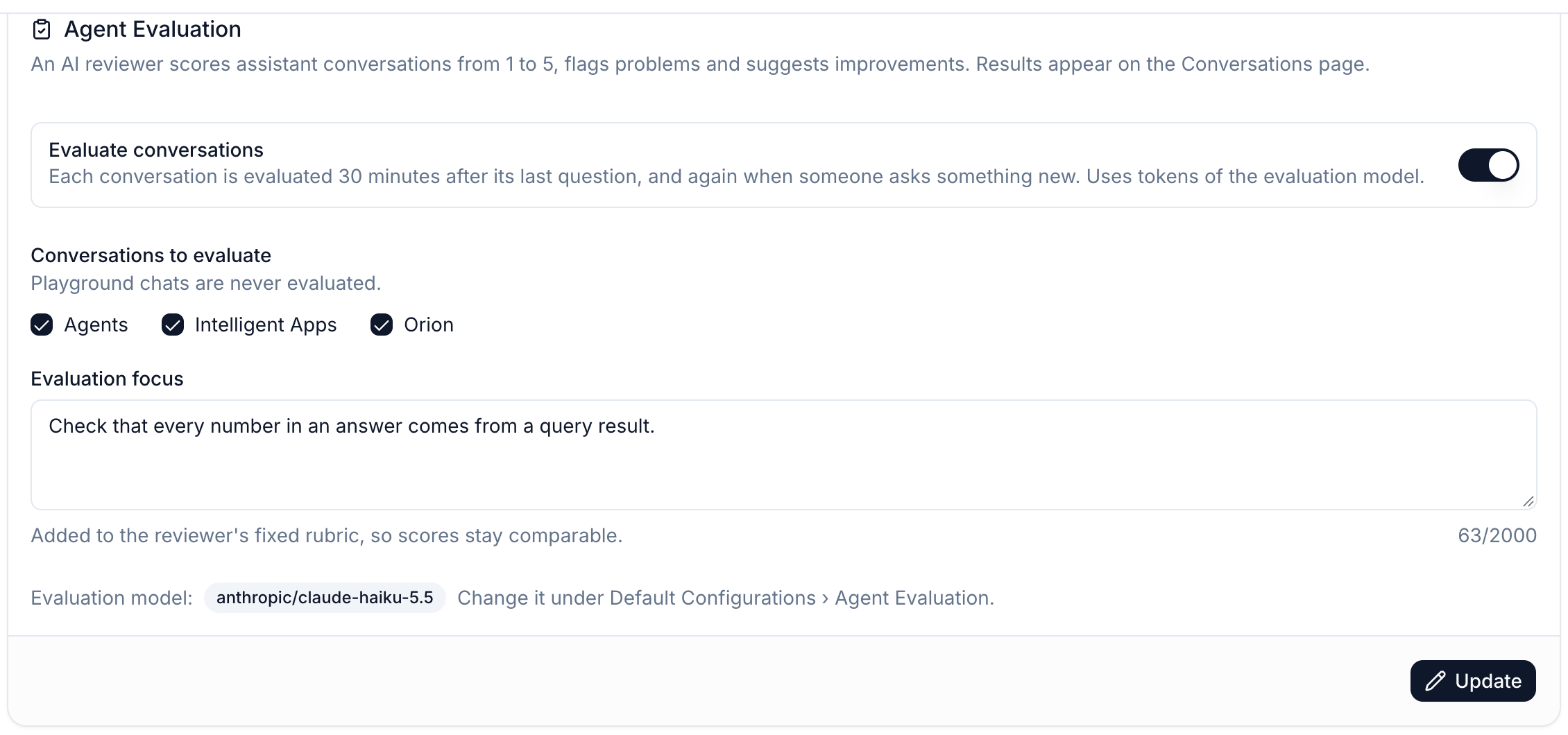
switch
default:"off"
Evaluates conversations automatically. When it is off, nothing is evaluated on its own, and you can still evaluate a single conversation by hand from the Conversations page.
checkboxes
default:"all"
Which assistants are evaluated: Agents, Intelligent Apps and Orion. Playground chats are never evaluated.
text
default:"empty"
Extra instructions for the reviewer, up to 2,000 characters. Use it for what matters in your organisation, for example “Check that every number in an answer comes from a query result” or “Revenue always means net revenue”. It is added to the reviewer’s fixed rubric, so scores stay comparable over time.
Choosing the Evaluation Model
The reviewer uses the model set in Settings → Orion AI → Default Configurations → Agent Evaluation. When nothing is set there, it uses the organisation’s default model. The card shows which model is currently used.When a Conversation Is Evaluated
- A conversation is evaluated 30 minutes after its last question, so a conversation that is still going is not scored halfway through.
- When someone asks something new in an evaluated conversation, it is evaluated again and the score is updated.
- When you turn evaluations on, conversations from the last day are evaluated. Older conversations are not, so you are not billed for your whole history; you can still evaluate them by hand.
Evaluations run in the background. A conversation shows Evaluating while the reviewer is working on it, which usually takes less than a minute.
The Conversations Page
Open Settings → Conversations. Every row is one conversation, the most recently asked first:Filtering
Narrow the list by date, user, assistant type and quality:- To review shows conversations judged Needs review or Bad that nobody has reviewed yet. This is the best place to start.
- Good, Needs review and Bad show conversations with that verdict.
Reading an Evaluation
Click a conversation to open it. The evaluation is at the top, followed by every question and answer in the conversation.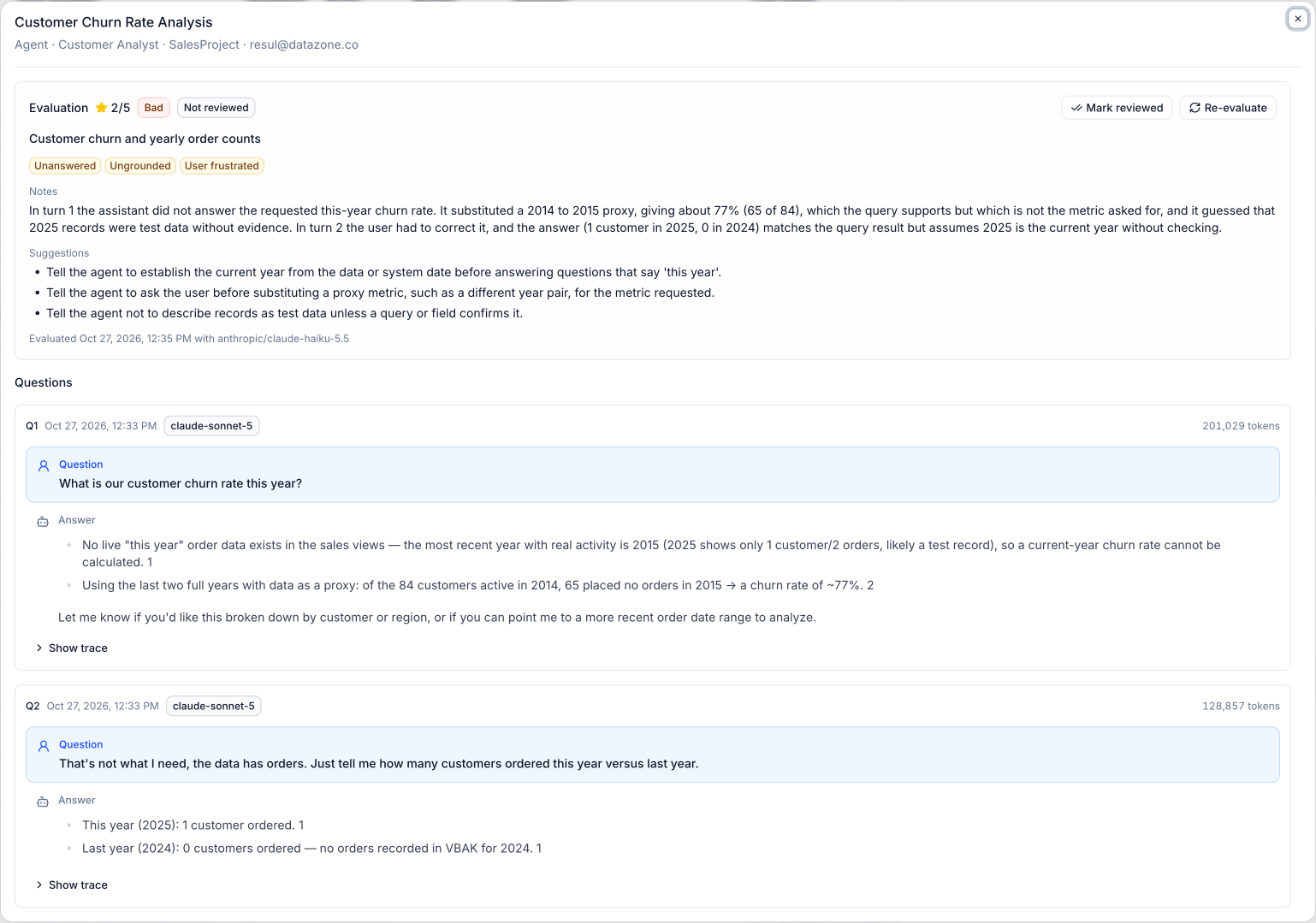
Score and Verdict
The verdict says whether a person should look at the conversation: Good (nothing to check), Needs review or Bad (the assistant failed the user).
Flags
The reviewer judges each conversation against a fixed rubric: did the assistant complete the task, are its answers backed by the data it queried, is it clear and helpful, and did it use its tools well. Problems become flags:
The last three are read directly from the conversation, without the reviewer.
Notes and Suggestions
Notes explain the score, often naming the turn where things went wrong. Suggestions are concrete changes to the assistant’s instructions or setup that would have made the conversation better, for example “Tell the agent to ask the user before substituting a proxy metric”. Adding a good suggestion to the agent’s instructions is often the quickest fix.Reviewing
- Mark reviewed records that you have looked at the evaluation, and takes the conversation out of the To review filter. Reopen puts it back.
- Re-evaluate evaluates the conversation again right away, for example after you change the evaluation focus. It also works when automatic evaluations are off.
- Show trace under a question opens everything the assistant did to answer it: the context it was given, its reasoning, every tool call and its result.
What the Reviewer Sees
For every question, the reviewer reads the question, each tool call with its arguments and a preview of its result, the final answer, whether the answer failed, and the user’s thumbs up or down. Long texts are shortened, and in a very long conversation the earliest turns are left out. The reviewer does not see the agent’s instructions or the full query results. It judges correctness from the tool results it is shown, and says so when it cannot verify something.Permissions
The Conversations page and the evaluation settings are available to users with the Orion manage permission.Agent Best Practices
Use what your evaluations show to write better instructions and pick the right model