

Overview
Channels provide a way to integrate Datazone with external communication platforms. You can configure channels to send scheduled reports, alerts, and notifications through Slack or email.Supported Channel Types
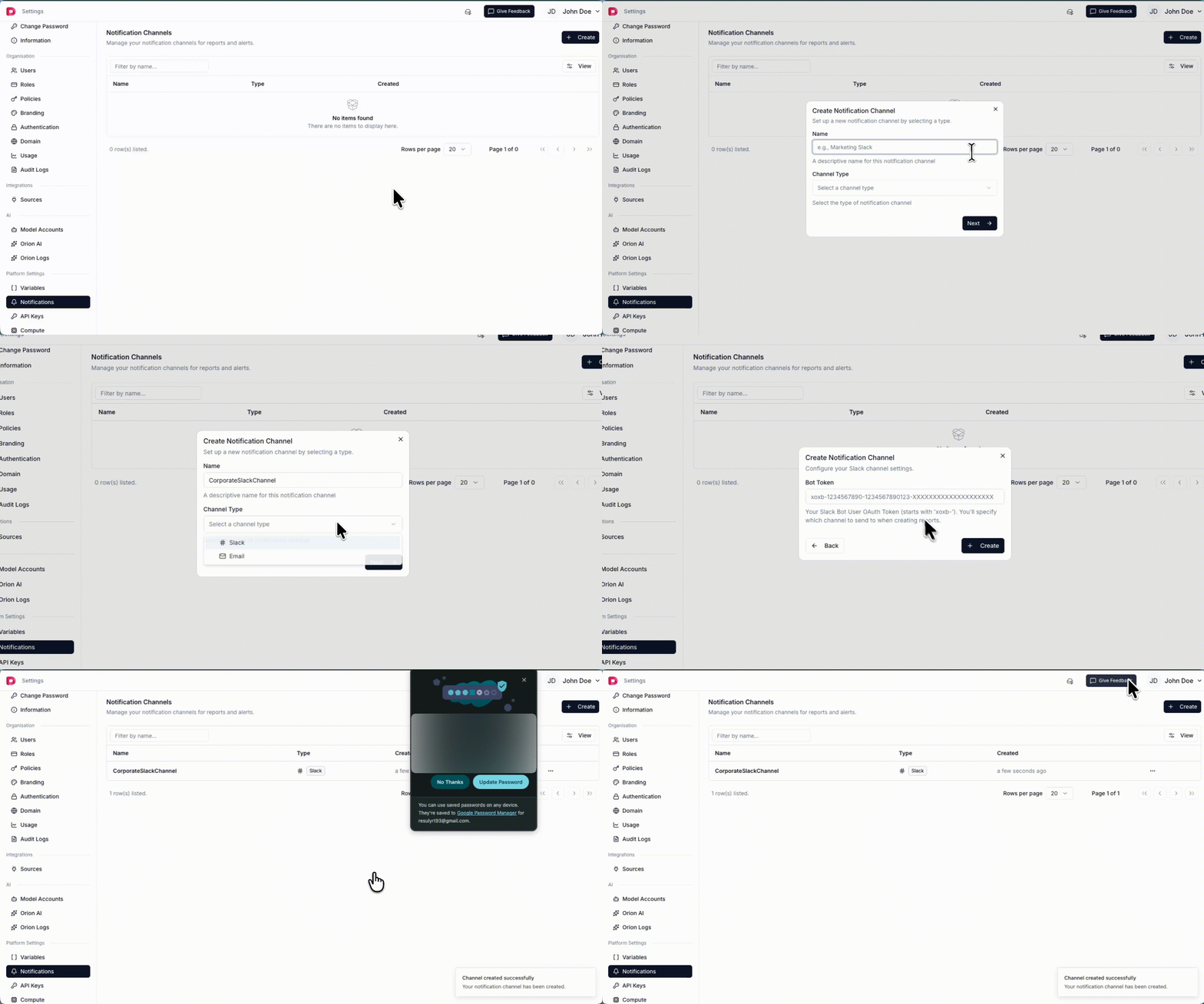
Slack Integration
To set up a Slack channel, you need to create a Slack App and obtain a Bot Token.Step 1: Create a Slack App
- Go to https://api.slack.com/apps
- Click “Create New App”
- Choose “From scratch”
- Enter an app name (e.g., “Datazone”)
- Select your workspace
- Click “Create App”
Step 2: Add Bot Token Scopes
- In your app settings, go to “OAuth & Permissions”
- Scroll to “Bot Token Scopes”
- Add the following required scopes:
channels:read- View basic information about public channelschat:write- Send messages as your appfiles:write- Upload files as your app
Step 3: Install App to Workspace
- Scroll to “OAuth Tokens for Your Workspace”
- Click “Install to Workspace”
- Review permissions and click “Allow”
- Copy the Bot User OAuth Token (starts with
xoxb-)
Step 4: Add App to Channels
For each Slack channel where you want to receive notifications:- Open the channel in Slack
- Click the channel name at the top
- Go to “Integrations” tab
- Click “Add an App”
- Select your Datazone app
Required Credential
- Bot User OAuth Token - The
xoxb-token from Step 3
Email Integration
To set up an Email channel, you need SMTP server credentials.Required Credentials
- SMTP Host - Your SMTP server address (e.g.,
smtp.gmail.com) - SMTP Port - Server port (typically
587for TLS or465for SSL) - Email Address - The email address to send from
- Username - SMTP authentication username (often same as email address)
- Password - SMTP authentication password or app-specific password
- Use TLS - Enable TLS/SSL encryption (recommended)
Common SMTP Settings
Gmail:- Host:
smtp.gmail.com - Port:
587 - Use TLS:
Yes - Note: Use an App Password instead of your regular password
- Host:
smtp.office365.com - Port:
587 - Use TLS:
Yes