
Intelligent App YAML Reference

This page provides a detailed reference for all attributes available in Intelligent App YAML definitions. Use this as a guide when authoring or reviewing your app configuration files.

Top-Level Structure

app:
  name: string                # App display name
  description: string         # App description
  icon: string                # (Optional) App icon (Lucide icon name)
  config:                     # App configuration (see below)
  layout:                     # Layout definition (see below)
  components:                 # App components (see below)

config Section

AttributeTypeDescription
cacheboolEnable/disable caching of query results (default: true)
cache_ttlintCache time-to-live in seconds (default: 3600)
hide_llmbool(Optional) Hide the LLM assistant (Orion AI) in the app UI (default: false)
hide_insightsbool(Optional) Hide the Insights panel in the app UI (default: false)
hide_filtersbool(Optional) Hide the filters panel in the app UI (default: false)
hide_headerbool(Optional) Hide the app header in the UI (default: false)
chart_export_enabledbool(Optional) Enable export functionality for charts (default: false)
llm_instructionstring(Optional) Custom instruction for the LLM (prompt customization)
insight_agent_instructionstring(Optional) Custom instruction for the insights agent
styleobject(Optional) Custom styling configuration (see below)

Style Configuration

AttributeTypeDescription
themestringUI theme color scheme (default: “default”)
custom_style_attributesobject(Optional) Custom CSS variables for advanced theme customization (see below)
Available themes: “default”, “teal”, “blue”, “green”, “purple”, “orange”, “amber”, “mono”

Custom Style Attributes

You can override theme colors using Tailwind CSS variables in HSL format. This allows fine-grained control over your app’s appearance:
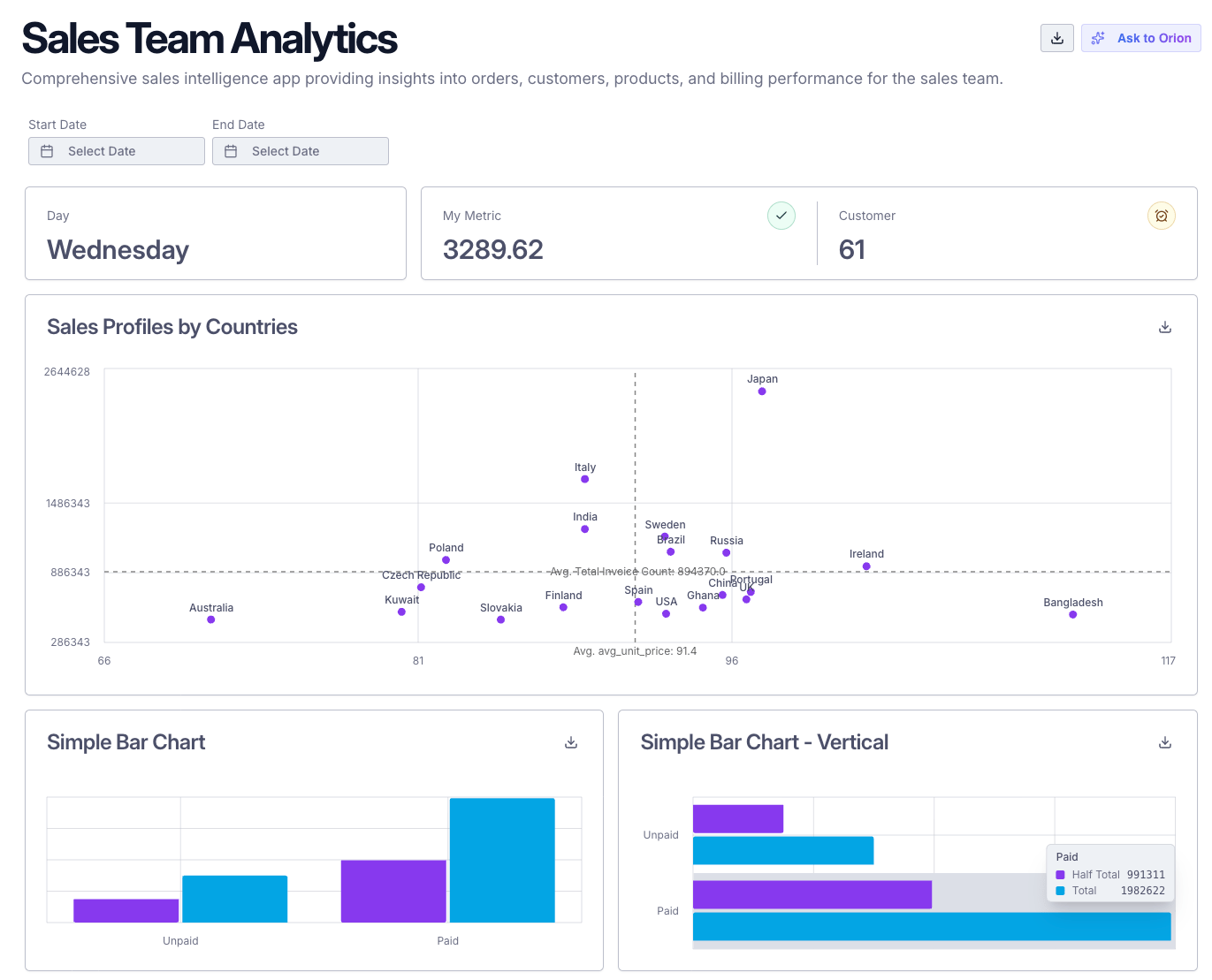
style:
  theme: blue
  custom_style_attributes:
    "--background": "220.0000 23.0769% 94.9020%"
    "--foreground": "233.7931 16.0221% 35.4902%"
    "--chart-1": "266.0440 85.0467% 58.0392%"
    "--chart-2": "197.0667 96.5665% 45.6863%"
    "--chart-3": "109.2308 57.6355% 39.8039%"
    "--chart-4": "21.9753 99.1837% 51.9608%"
    "--chart-5": "10.8000 58.8235% 66.6667%"
Custom Theme Example
Common customizable CSS variables:
VariableDescription
--backgroundMain background color
--foregroundMain text color
--chart-1 through --chart-5Chart color palette
--primaryPrimary accent color
--secondarySecondary accent color
--mutedMuted background color
--accentAccent color
Colors must be specified in HSL format without the hsl() wrapper (e.g., “220 23% 95%” instead of “hsl(220, 23%, 95%)”).

layout Section

Defines the structure of the app (tabs, items, chart groups).
layout:
  tabs:
    - name: string           # Tab identifier
      title: string          # Tab display title
      filters: [string]      # (Optional) List of filter names
      items:                 # List of layout items (see below)

Layout Items

AttributeTypeDescription
typestringchart, chart-group, text, table
namestringUnique item name
spanint(Optional) Grid span (width)
heightint(Optional) Height in px
entitieslist(For chart-group) Nested layout items

components Section

Holds the main building blocks: charts, variables, filters.

Charts

charts:
  - type: string             # `number`, `radial`, `line`, `bar`, `vertical_bar`, `pie`, `table`, `data_table`, `composed`, `heatmap`, `scatter`, `custom`
    name: string             # Unique chart name
    title: string            # Chart title
    description: string      # (Optional) Description
    query: string            # SQL query (Jinja supported)
    axis:                    # (Optional, for line, bar, vertical_bar, composed, heatmap)
      - name: string         # Axis name (e.g., left, right)
        position: string     # (Optional) Axis position: left, right, top, bottom (default: left)
        format: string       # (Optional) Number format for this axis
        hidden: bool         # (Optional) Whether to hide this axis
    dimensions:              # (Optional) List of dimensions
      - name: string
        label: string
        number_format: string      # (Optional) Number format for numeric dimensions
        table_align: left|right   # (Optional) Table alignment for this dimension
        affected_filter: string   # (Optional, bar/pie only) Filter to update when this dimension is clicked
    metrics:                 # (Optional) List of metrics
      - name: string
        label: string
        format: string            # (Optional) Number format string
        icon: string              # (Optional, number/radial charts only) Lucide icon name (see https://lucide.dev/icons/)
        icon_variant: string      # (Optional, number/radial charts only) One of: "default", "neutral", "success", "warning", "error"
        axis_name: string         # (Optional, for line, bar, vertical_bar, composed) Axis to use for this metric
        composed_type: string     # (Optional, for composed) "line" or "bar"
        submetric_name: string    # (Optional, number/radial charts only) Name of the submetric to display
        submetric_type: string    # (Optional, number/radial charts only) Type of submetric display: "plain", "change", "delta"
    pivot_by: [string]       # (Optional) List of columns to pivot by
    show_labels: bool        # (Optional, default: true)
    chart_config:            # (Optional) Chart configuration
      show_legend: bool      # (Optional) Whether to show the chart legend (default: false)
      show_labels: bool      # (Optional) Whether to show labels on the chart (default: false)
      fill_donut: bool       # (Optional, pie charts only) Whether to fill the donut chart (default: false)
      is_stacked: bool       # (Optional, pie/bar/vertical_bar charts) Whether to stack elements (default: false)
      line_type: string      # (Optional, line/composed charts) "linear", "monotone", "step", "natural"
      fill_area: bool        # (Optional, line charts only) Whether to fill the area under the line
      custom_chart_type: str # (Optional, custom charts only) Custom chart type identifier
      sub_expression: string # (Optional, number/radial charts) Sub-expression for metric calculation
      page_size: int         # (Optional, data_table charts) Number of rows per page
      layout: string         # (Optional, bar/vertical_bar charts) "horizontal" or "vertical"
      hide_expression: string # (Optional, all chart types) JavaScript expression to conditionally hide the chart based on data

Composed Chart Example

- type: composed
  name: top_products_composed
  title: Top Performing Products
  description: Top 10 products by revenue
  query: |
    SELECT 
      ProductName as product,
      SUM(OrderLineTotalAmount) as revenue,
      AVG(OrderLineTotalAmount) as avg_revenue
    FROM consolidated_sales_df_299ceb 
    WHERE 1=1
    {% if region_filter is defined %}
    AND CustomerRegion = '{{ region_filter }}'
    {% endif %}
    {% if product_group_filter is defined %}
    AND ProductGroup = '{{ product_group_filter }}'
    {% endif %}
    GROUP BY ProductName
    ORDER BY revenue DESC
    LIMIT 10;
  axis:
    - name: left
    - name: right
      position: right
  dimensions:
    - name: product
      label: Product
  metrics:
    - name: revenue
      label: Revenue
      axis_name: "left"
      composed_type: "bar"
      format: "$0,0.00"
    - name: avg_revenue
      label: "Average Revenue"
      axis_name: "right"
      composed_type: "line"
      format: "0,0[.]00 $"

Example: Bar Chart with Click-to-Filter

type: bar
name: sales_by_country
title: Sales by Country
query: SELECT country, sum(amount) as total FROM sales GROUP BY country
axis:
  - name: left
dimensions:
  - name: country
    label: Country
    affected_filter: country_filter
metrics:
  - name: total
    label: Total Sales

Example: Pie Chart with Click-to-Filter

type: pie
name: sales_distribution
title: Sales Distribution
query: SELECT category, sum(amount) as total FROM sales GROUP BY category
dimensions:
  - name: category
    label: Category
    affected_filter: category_filter
metrics:
  - name: total
    label: Total Sales

Example: Heatmap Chart

type: heatmap
name: sales_heatmap
title: Sales Heatmap by Region and Product
query: |
  SELECT region, product, sum(amount) as total 
  FROM sales 
  GROUP BY region, product
dimensions:
  - name: region
    label: Region
  - name: product
    label: Product
metrics:
  - name: total
    label: Total Sales
    format: "$0,0.00"
Heatmap charts require exactly 2 dimensions and at least 1 metric.

Example: Conditional Chart Visibility

You can conditionally hide charts based on the query result data using hide_expression. The expression receives the data array and should return true to hide the chart:
type: bar
name: sales_by_category
title: Sales by Category
query: SELECT category, sum(amount) as total FROM sales GROUP BY category
dimensions:
  - name: category
    label: Category
metrics:
  - name: total
    label: Total Sales
chart_config:
  hide_expression: "(data) => {return data.length < 5}"
In this example, the chart will only be displayed if the query returns 5 or more rows. This is useful for hiding charts when there’s insufficient data to display meaningfully.
The hide_expression is a JavaScript function that receives the data parameter (an array of query results) and must return a boolean value. Return true to hide the chart, or false to show it.

Example: Scatter Plot Chart

type: scatter
name: example_scatter_chart
title: Sales Profiles by Countries
query: |
  SELECT 
    CustomerCountry,
    ROUND(AVG(UnitPrice), 2) as avg_unit_price,
    ROUND(SUM(InvoiceTotalAmount), 2) as total_invoice_count
  FROM consolidated_sales_df_9cb4a3
  GROUP BY CustomerCountry
  ORDER BY total_invoice_count DESC
  LIMIT 20;
dimensions:
  - name: CustomerCountry
    label: "Country"
metrics:
  - name: avg_unit_price
    label: Average Unit Price
  - name: total_invoice_count
    label: Total Invoice Count
chart_config:
  show_labels: true
Scatter plot charts require exactly 1 dimension and 2-3 metrics. The first metric is plotted on the x-axis, the second metric on the y-axis, and an optional third metric can be used for additional visualization properties.

Example: Custom Chart

type: custom
name: custom_visualization
title: Custom Visualization
query: SELECT * FROM custom_data
chart_config:
  custom_chart_type: my_custom_chart

Variables

variables:
  - name: string             # Variable name
    type: string             # `string`, `integer`, `float`, `boolean`, `date`

Filters

filters:
  - type: string             # `text`, `number`, `dropdown`, `date`
    name: string             # Filter name
    title: string            # Display label
    affected_variable: str   # Variable updated
    default_value: any       # (Optional) Default value
    multiple: bool           # (Optional, dropdown only) Enable multi-select (default: false)
    options:                 # (For dropdown)
      type: string           # `static` or `sql`
      values:                # (For static)
        - value: string
          label: string
      query: string          # (For sql)
    placeholder: string      # (Optional)

Texts

Markdown text components allow adding rich textual content to your apps.
texts:
  - name: string             # Unique text component name
    title: string            # (Optional) Display title
    content: string          # Markdown content (supports GFM and fenced code blocks)
Layout usage with a text item:
layout:
  tabs:
    - name: overview
      title: Overview
      items:
        - type: text          # Layout item type must be 'text'
          name: overview_md   # References a component from components.texts
          span: 12            # (Optional) Grid span 1–12
          height: 240         # (Optional) Height in px; enables scroll when set
Text layout item properties:
AttributeTypeDescription
typestringMust be text
namestringReferences a component from components.texts
spanint(Optional) Grid span (width)
heightint(Optional) Height in px; when set, content becomes scrollable

Example:
config:
  cache: true
  cache_ttl: 3600
  llm_instruction: "You are a helpful assistant."
  hide_filters: false
  hide_header: false
  chart_export_enabled: true
  style:
    theme: "teal"

Example

app:
  name: Billing Collection Dashboard
  description: Dashboard showing billing and collection metrics
  config:
    cache: true
    cache_ttl: 3600
    chart_export_enabled: true
    style:
      theme: "blue"
  layout:
    tabs:
      - name: billing_data
        title: Billing Data
        filters: [product_group, membership_type_filter]
        items:
          - type: chart-group
            name: kpis
            span: 12
            entities:
              - type: chart
                name: total_count
                span: 4
          - type: chart
            name: detailed_table
            span: 12
  components:
    charts:
      - type: number
        name: total_count
        title: Total Row Count
        query: select count(*) as row_count from sales_data;
        metrics:
          - name: row_count
            label: Row Count
    variables:
      - name: order_date
        type: date
    filters:
      - type: date
        name: order_date_filter
        title: Order Date Filter
        affected_variable: order_date
        default_value: '2024-04-01'

Example for Number Chart Metrics

charts:
  - type: number
    name: completed_tasks
    title: Completed Tasks
    query: SELECT count(*) as completed FROM tasks WHERE status = 'done';
    metrics:
      - name: completed
        label: Completed Tasks
        icon: check
        icon_variant: success
        format: "0"
  • number charts support 1-2 metrics: one main metric and optionally one secondary metric (submetric)
  • radial charts support the same metric configuration as number charts
  • Use submetric_name and submetric_type to display a secondary metric below the main value
  • submetric_type options: plain (just show the value), change (show percentage change), delta (show difference)
  • For a full list of Lucide icons, see lucide.dev/icons
  • icon_variant must be one of: default, neutral, success, warning, error

Value Format Strings

All Intelligent App value formattings use Numeral.js formatting strings. Examples:
NumberFormatResult
100000,0.000010,000.0000
10000.230,010,000
10000.23+0,0+10,000
-100000,0.0-10,000.0
1000.234$0,0.00$1,000.23
1000.20,0[.]00 $1,000.20 $
1001$ 0,0[.]00$ 1,001
1230974($ 0.00 a)$ 1.23 m
1000b100B
10240b1KB
20480 ib2 KiB
30720.0 b3.1 KB
78844862130.00b7.88GB
10%100%
0.9748782340.000%97.488%
0.43(0.000 %)43.000 %
2500:00:000:00:25
6384600:00:0017:44:06

Notes