> ## Documentation Index
> Fetch the complete documentation index at: https://docs.datazone.co/llms.txt
> Use this file to discover all available pages before exploring further.
# UI Overview
> Navigate Datazone's main interface sections
# UI Overview
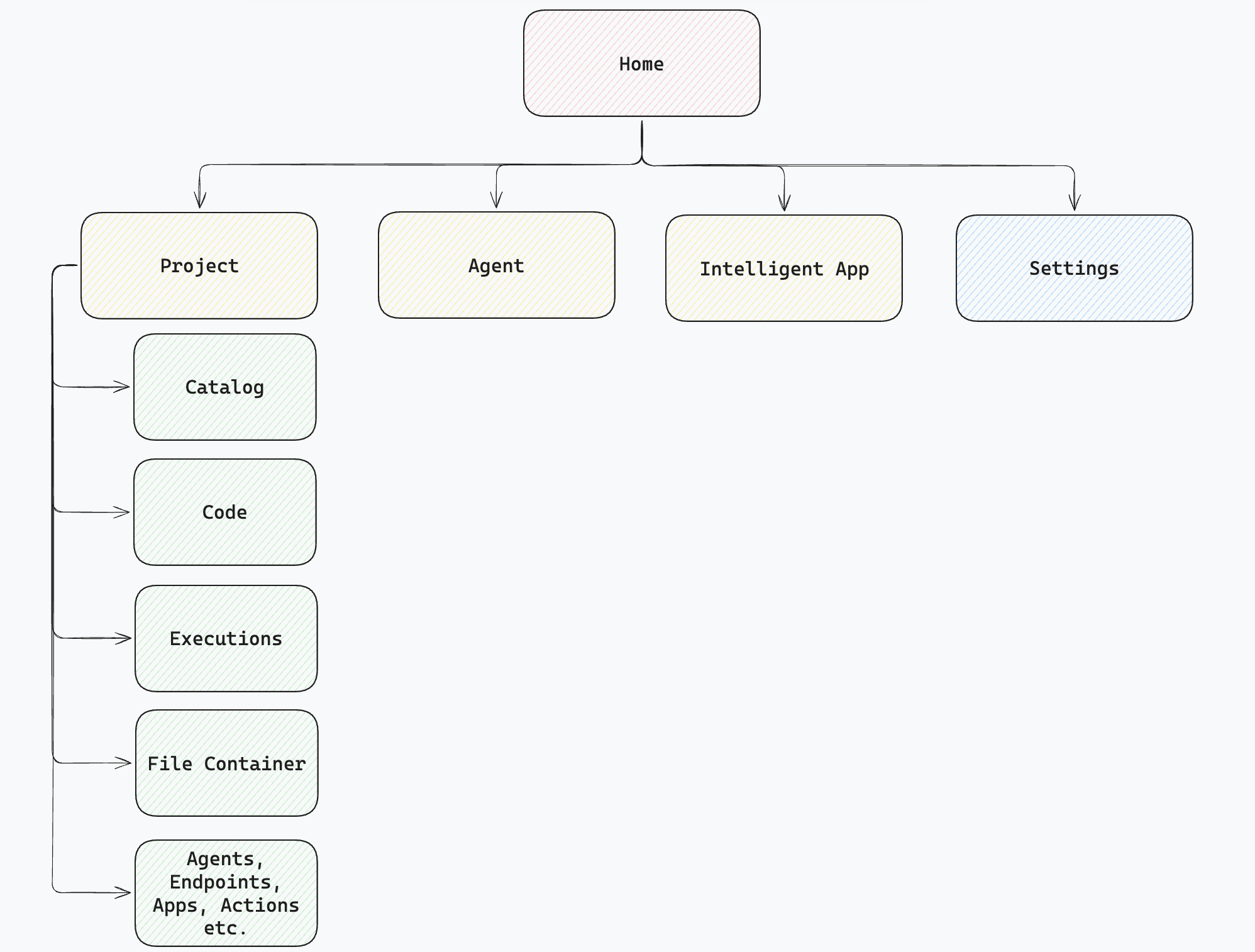
Datazone's interface is organized into **four main sections** to help you efficiently manage projects, build intelligent apps, create agents, and configure settings.
 ## Home Page
The **Home Page** is your starting point, displaying all your resources as cards:
## Home Page
The **Home Page** is your starting point, displaying all your resources as cards:
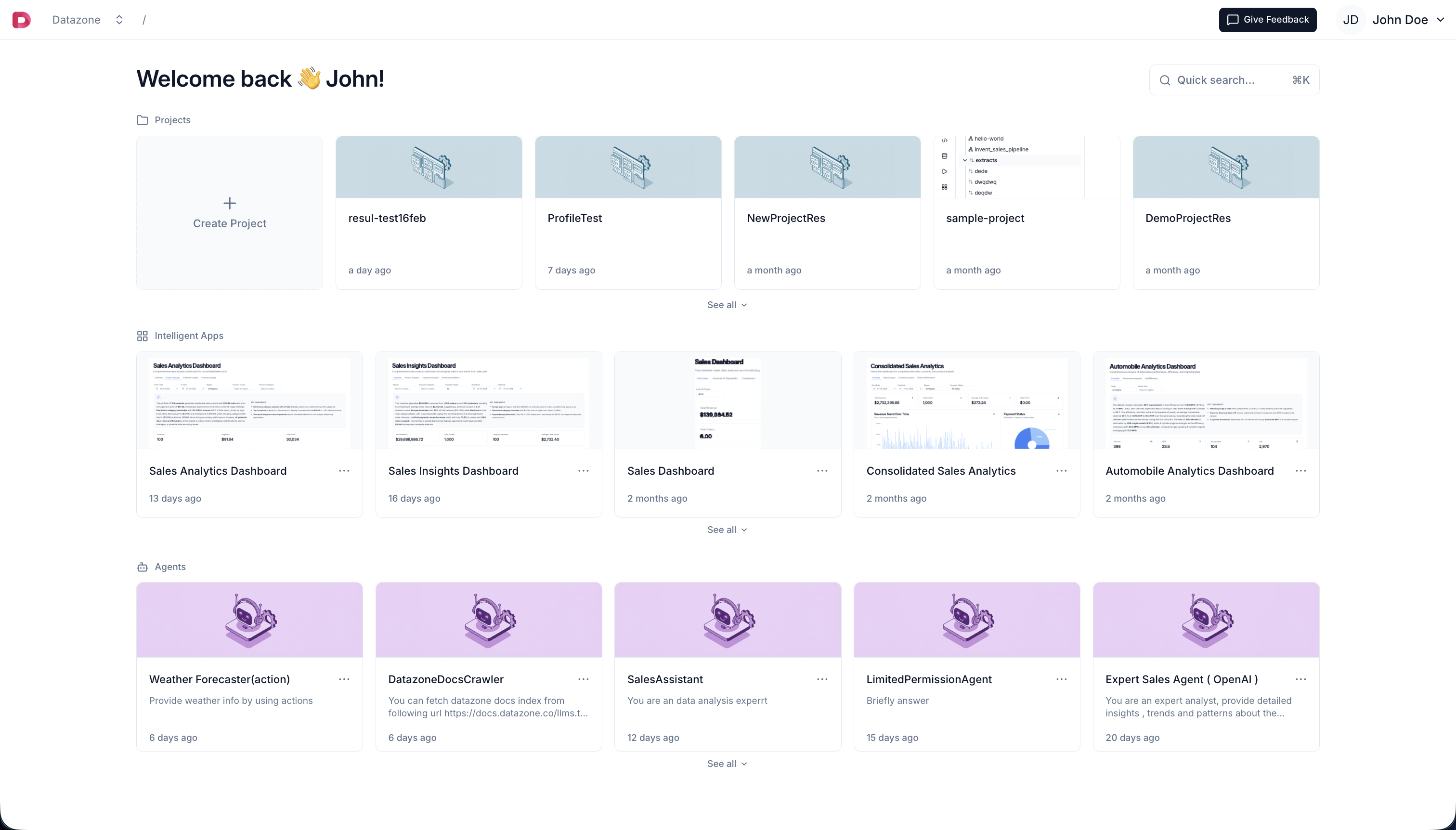 * **Projects** - All your data projects
* **Intelligent Apps** - Interactive dashboards and applications
* **Agents** - AI assistants for data analysis
Click any card to open the resource.
## Project Page
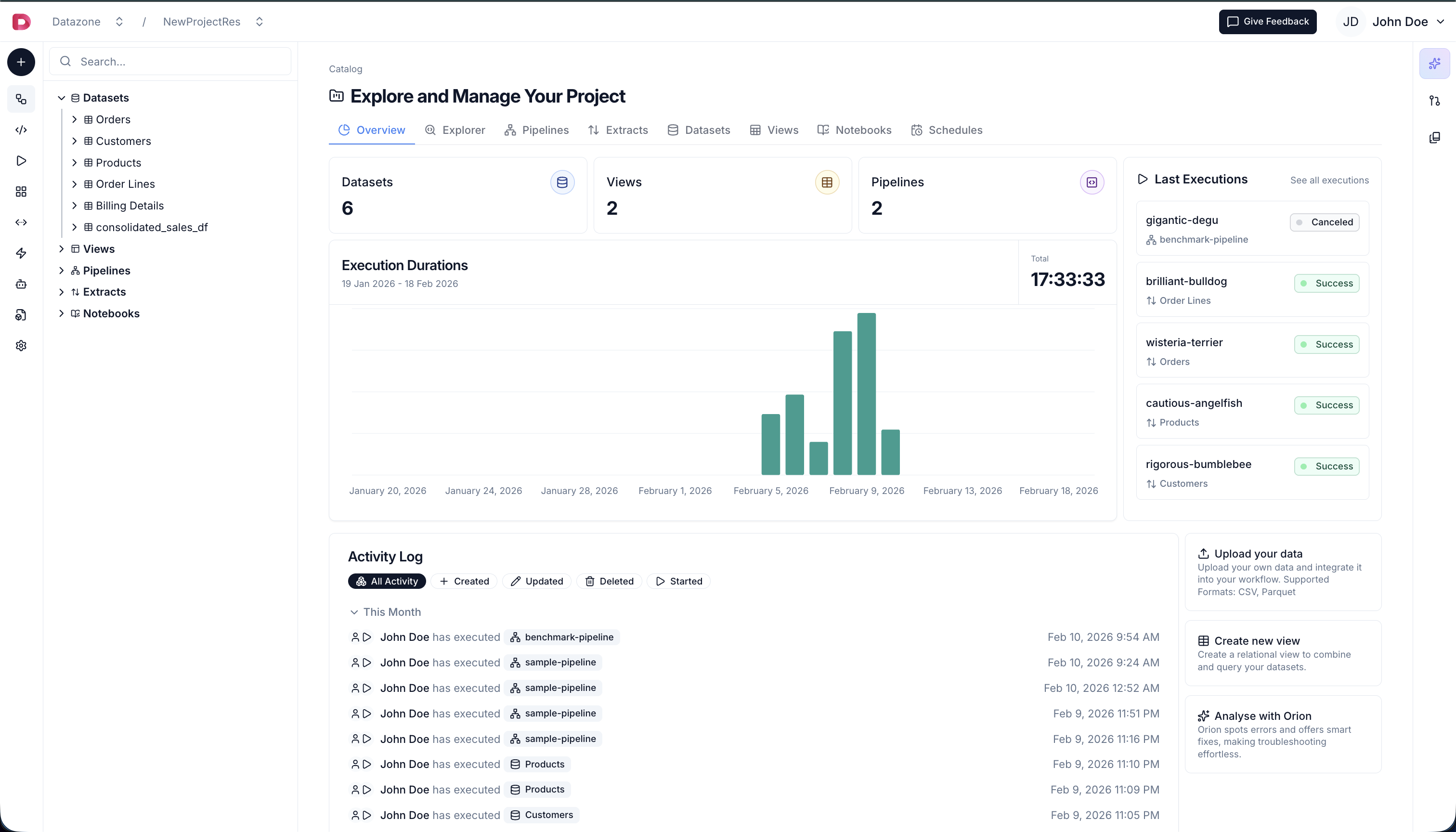
The **Project Page** is where you spend **90% of your time**. This is your **core development workspace** where all data operations happen:
* **Projects** - All your data projects
* **Intelligent Apps** - Interactive dashboards and applications
* **Agents** - AI assistants for data analysis
Click any card to open the resource.
## Project Page
The **Project Page** is where you spend **90% of your time**. This is your **core development workspace** where all data operations happen:
 **Key Features:**
* **Code Editor** - Write transforms, pipelines, and notebooks
* **Workflow Builder** - Design and orchestrate data workflows
* **Executions** - Monitor running and completed jobs
* **Builds** - View build history and logs
* **Data Sources** - Manage datasets and views
* **Agents** - Create and configure AI agents
All **mutations and development** happen here - from writing code to executing pipelines.
## Intelligent App Page
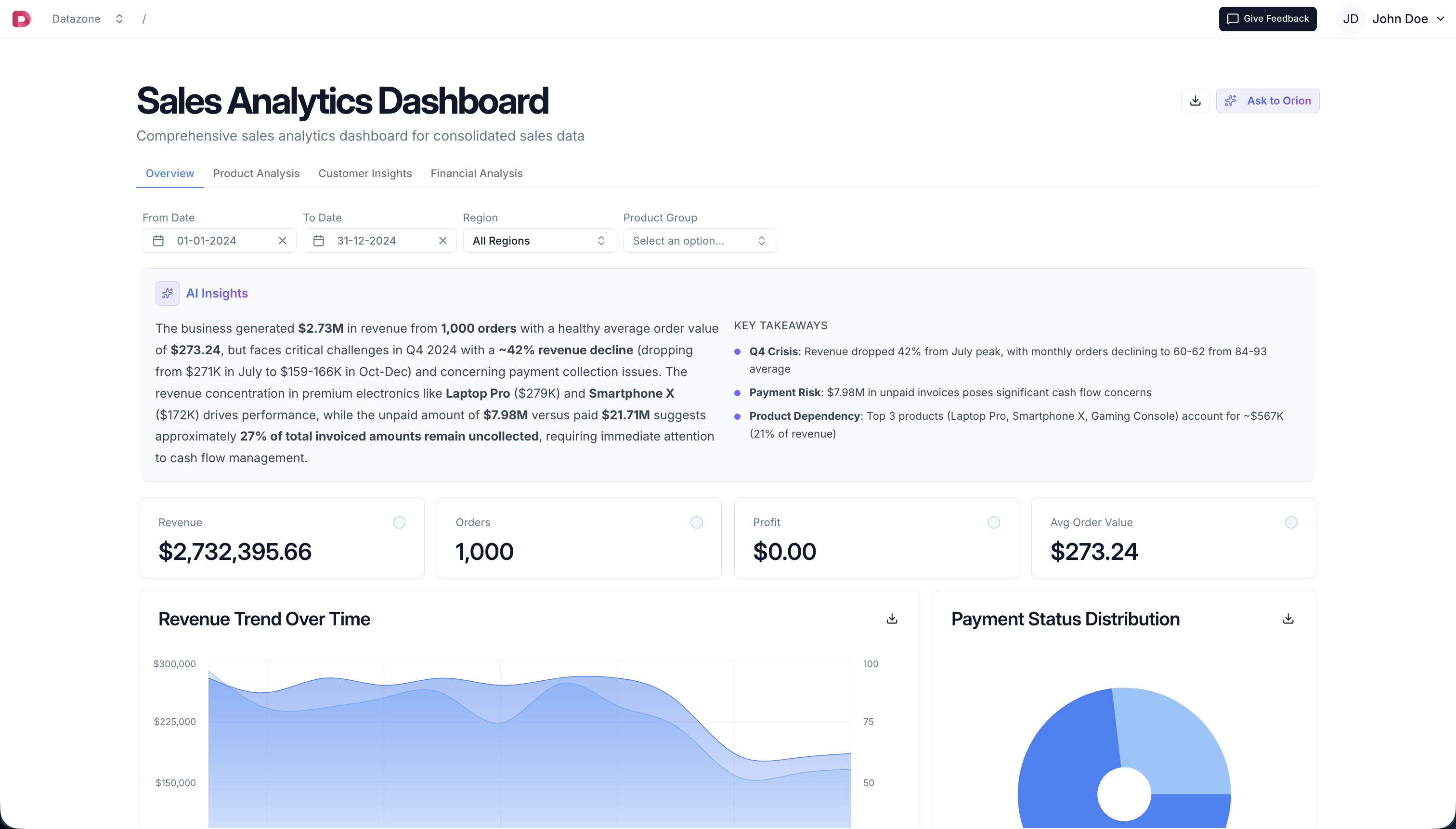
When you **open an Intelligent App**, you see the interactive dashboard:
**Key Features:**
* **Code Editor** - Write transforms, pipelines, and notebooks
* **Workflow Builder** - Design and orchestrate data workflows
* **Executions** - Monitor running and completed jobs
* **Builds** - View build history and logs
* **Data Sources** - Manage datasets and views
* **Agents** - Create and configure AI agents
All **mutations and development** happen here - from writing code to executing pipelines.
## Intelligent App Page
When you **open an Intelligent App**, you see the interactive dashboard:
 **Features:**
* **Interactive Charts** - Dynamic data visualizations
* **Filters** - Control what data is displayed
* **AI Assistant** - Ask questions about your data
* **Multi-Tab Layout** - Organize content logically
Learn more in the [Intelligent Apps documentation](/reference/intelligent-apps/overview).
## Settings
Access **Settings** from the **user dropdown** in the top-left corner:
**Features:**
* **Interactive Charts** - Dynamic data visualizations
* **Filters** - Control what data is displayed
* **AI Assistant** - Ask questions about your data
* **Multi-Tab Layout** - Organize content logically
Learn more in the [Intelligent Apps documentation](/reference/intelligent-apps/overview).
## Settings
Access **Settings** from the **user dropdown** in the top-left corner:
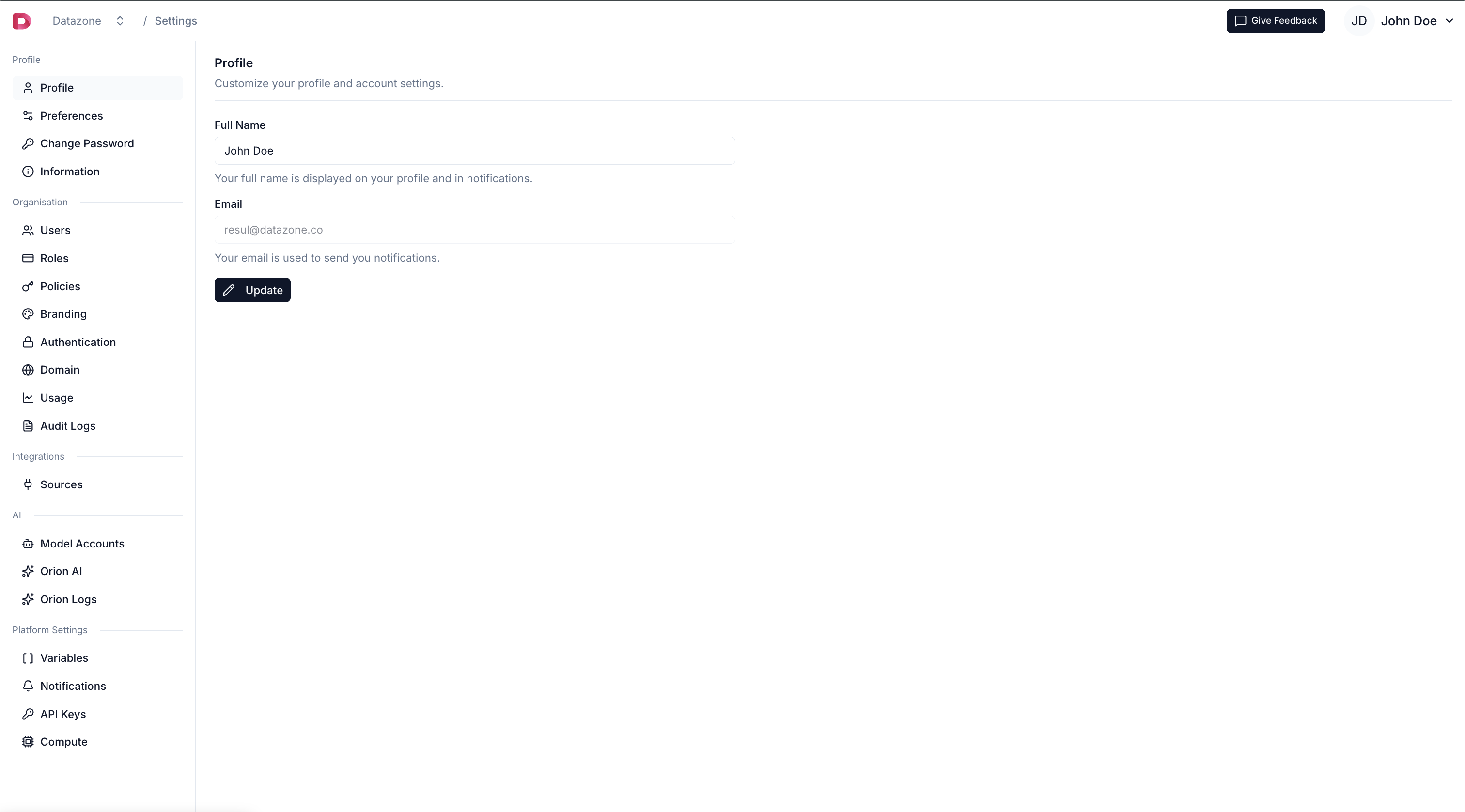 **Available Settings:**
* **Profile** - Personal information and preferences
* **Organizations** - Manage teams and members
* **Model Accounts** - Configure AI providers
* **API Keys** - Generate authentication keys
* **Integrations** - SAML, OAuth, and external services
* **Platform Settings** - System configurations
Settings content **varies based on your permissions**. Some options are only visible to organization admins.
## Quick Search (⌘K / Ctrl+K)
Access the **Quick Search** menu from anywhere in the app by pressing **⌘K** (Mac) or **Ctrl+K** (Windows/Linux):
**Available Settings:**
* **Profile** - Personal information and preferences
* **Organizations** - Manage teams and members
* **Model Accounts** - Configure AI providers
* **API Keys** - Generate authentication keys
* **Integrations** - SAML, OAuth, and external services
* **Platform Settings** - System configurations
Settings content **varies based on your permissions**. Some options are only visible to organization admins.
## Quick Search (⌘K / Ctrl+K)
Access the **Quick Search** menu from anywhere in the app by pressing **⌘K** (Mac) or **Ctrl+K** (Windows/Linux):
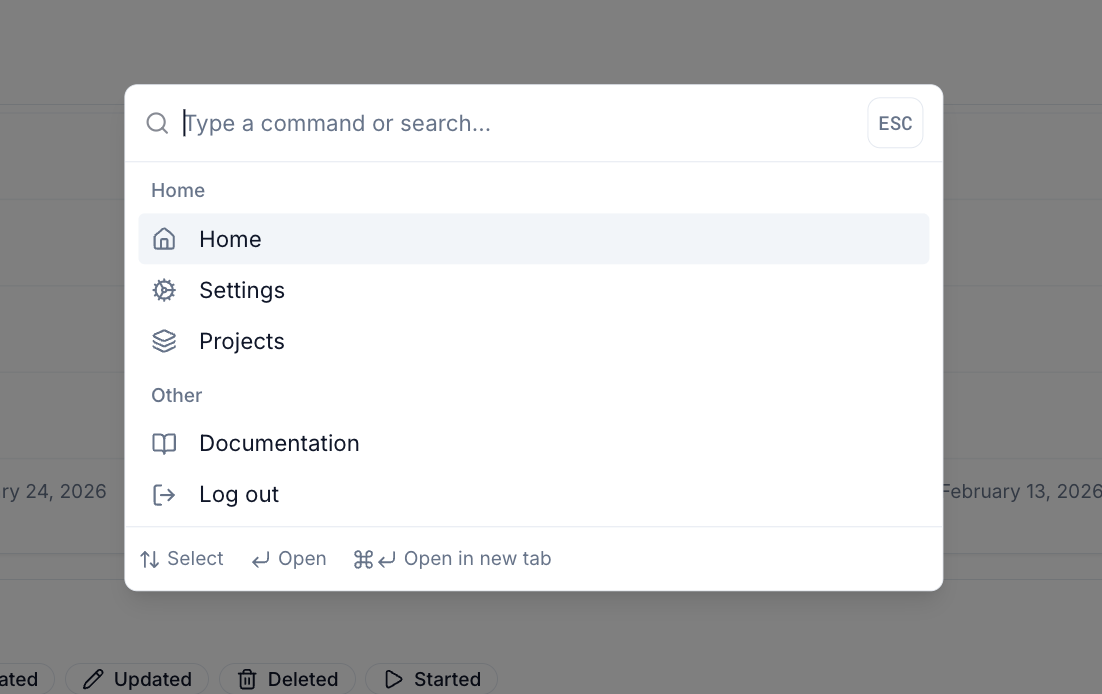 **Search Features:**
* **Global Search** - Find projects, agents, intelligent apps, datasets, and more
* **Quick Navigation** - Jump directly to any resource
* **Command Palette** - Execute actions without clicking
* **Recent Items** - Quick access to recently viewed resources
Simply press **⌘K** anywhere and start typing to find what you need.
## Navigation Tips
* **Home** - Click the logo to return to the home page
* **Quick Access** - Use the top navigation bar to switch between sections
* **⌘K Search** - Press ⌘K anytime for quick search and navigation
* **Context Menu** - Right-click resources for quick actions
## Next Steps
* [Create Your First Project](/reference/development/project)
* [Build an Intelligent App](/reference/intelligent-apps/overview)
* [Set Up an AI Agent](/reference/agents/overview)
**Search Features:**
* **Global Search** - Find projects, agents, intelligent apps, datasets, and more
* **Quick Navigation** - Jump directly to any resource
* **Command Palette** - Execute actions without clicking
* **Recent Items** - Quick access to recently viewed resources
Simply press **⌘K** anywhere and start typing to find what you need.
## Navigation Tips
* **Home** - Click the logo to return to the home page
* **Quick Access** - Use the top navigation bar to switch between sections
* **⌘K Search** - Press ⌘K anytime for quick search and navigation
* **Context Menu** - Right-click resources for quick actions
## Next Steps
* [Create Your First Project](/reference/development/project)
* [Build an Intelligent App](/reference/intelligent-apps/overview)
* [Set Up an AI Agent](/reference/agents/overview)