> ## Documentation Index
> Fetch the complete documentation index at: https://docs.datazone.co/llms.txt
> Use this file to discover all available pages before exploring further.
# Channels
> Configure notification channels for sending reports and alerts
## Overview
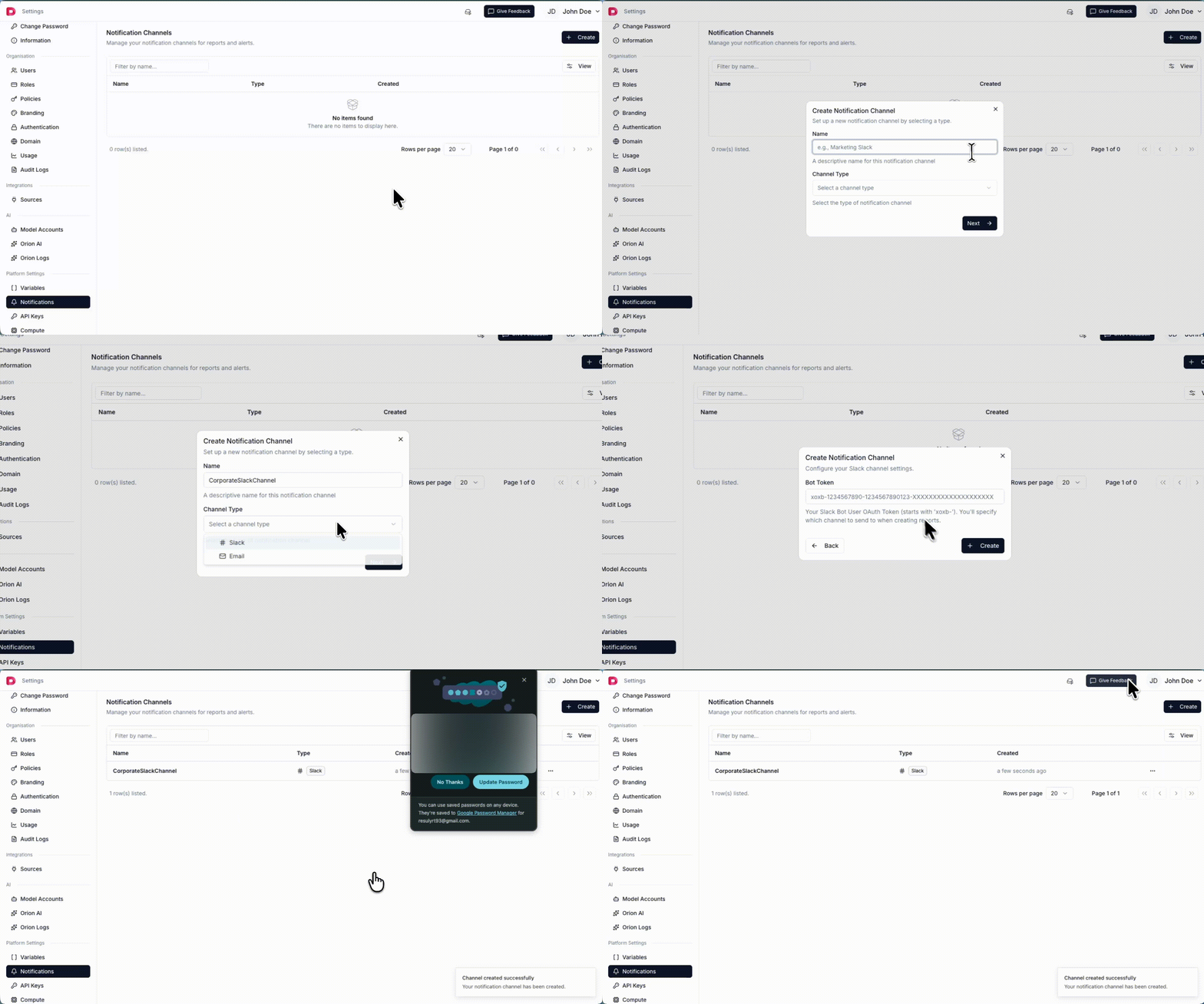
Channels provide a way to integrate Datazone with external communication platforms. You can configure channels to send scheduled reports, alerts, and notifications through Slack or email.
## Supported Channel Types
 ### Slack Integration
To set up a Slack channel, you need to create a Slack App and obtain a Bot Token.
#### Step 1: Create a Slack App
1. Go to [https://api.slack.com/apps](https://api.slack.com/apps)
2. Click **"Create New App"**
3. Choose **"From scratch"**
4. Enter an app name (e.g., "Datazone")
5. Select your workspace
6. Click **"Create App"**
#### Step 2: Add Bot Token Scopes
1. In your app settings, go to **"OAuth & Permissions"**
2. Scroll to **"Bot Token Scopes"**
3. Add the following required scopes:
* `channels:read` - View basic information about public channels
* `chat:write` - Send messages as your app
* `files:write` - Upload files as your app
#### Step 3: Install App to Workspace
1. Scroll to **"OAuth Tokens for Your Workspace"**
2. Click **"Install to Workspace"**
3. Review permissions and click **"Allow"**
4. Copy the **Bot User OAuth Token** (starts with `xoxb-`)
#### Step 4: Add App to Channels
For each Slack channel where you want to receive notifications:
1. Open the channel in Slack
2. Click the channel name at the top
3. Go to **"Integrations"** tab
4. Click **"Add an App"**
5. Select your Datazone app
#### Required Credential
* **Bot User OAuth Token** - The `xoxb-` token from Step 3
### Slack Integration
To set up a Slack channel, you need to create a Slack App and obtain a Bot Token.
#### Step 1: Create a Slack App
1. Go to [https://api.slack.com/apps](https://api.slack.com/apps)
2. Click **"Create New App"**
3. Choose **"From scratch"**
4. Enter an app name (e.g., "Datazone")
5. Select your workspace
6. Click **"Create App"**
#### Step 2: Add Bot Token Scopes
1. In your app settings, go to **"OAuth & Permissions"**
2. Scroll to **"Bot Token Scopes"**
3. Add the following required scopes:
* `channels:read` - View basic information about public channels
* `chat:write` - Send messages as your app
* `files:write` - Upload files as your app
#### Step 3: Install App to Workspace
1. Scroll to **"OAuth Tokens for Your Workspace"**
2. Click **"Install to Workspace"**
3. Review permissions and click **"Allow"**
4. Copy the **Bot User OAuth Token** (starts with `xoxb-`)
#### Step 4: Add App to Channels
For each Slack channel where you want to receive notifications:
1. Open the channel in Slack
2. Click the channel name at the top
3. Go to **"Integrations"** tab
4. Click **"Add an App"**
5. Select your Datazone app
#### Required Credential
* **Bot User OAuth Token** - The `xoxb-` token from Step 3
 ### Email Integration
To set up an Email channel, you need SMTP server credentials.
#### Required Credentials
* **SMTP Host** - Your SMTP server address (e.g., `smtp.gmail.com`)
* **SMTP Port** - Server port (typically `587` for TLS or `465` for SSL)
* **Email Address** - The email address to send from
* **Username** - SMTP authentication username (often same as email address)
* **Password** - SMTP authentication password or app-specific password
* **Use TLS** - Enable TLS/SSL encryption (recommended)
#### Common SMTP Settings
**Gmail:**
* Host: `smtp.gmail.com`
* Port: `587`
* Use TLS: `Yes`
* Note: Use an [App Password](https://support.google.com/accounts/answer/185833) instead of your regular password
**Outlook/Office 365:**
* Host: `smtp.office365.com`
* Port: `587`
* Use TLS: `Yes`
**Other Providers:**
Check your email provider's documentation for SMTP settings.
## Using Channels
Once you've configured a channel with the credentials above, you can use it to send [Reports](/reference/platform/reports) to your team via Slack or email.
## Security
All channel credentials (OAuth tokens, SMTP passwords) are encrypted at rest. Datazone uses industry-standard encryption to protect your sensitive integration data.
### Email Integration
To set up an Email channel, you need SMTP server credentials.
#### Required Credentials
* **SMTP Host** - Your SMTP server address (e.g., `smtp.gmail.com`)
* **SMTP Port** - Server port (typically `587` for TLS or `465` for SSL)
* **Email Address** - The email address to send from
* **Username** - SMTP authentication username (often same as email address)
* **Password** - SMTP authentication password or app-specific password
* **Use TLS** - Enable TLS/SSL encryption (recommended)
#### Common SMTP Settings
**Gmail:**
* Host: `smtp.gmail.com`
* Port: `587`
* Use TLS: `Yes`
* Note: Use an [App Password](https://support.google.com/accounts/answer/185833) instead of your regular password
**Outlook/Office 365:**
* Host: `smtp.office365.com`
* Port: `587`
* Use TLS: `Yes`
**Other Providers:**
Check your email provider's documentation for SMTP settings.
## Using Channels
Once you've configured a channel with the credentials above, you can use it to send [Reports](/reference/platform/reports) to your team via Slack or email.
## Security
All channel credentials (OAuth tokens, SMTP passwords) are encrypted at rest. Datazone uses industry-standard encryption to protect your sensitive integration data.