> ## Documentation Index
> Fetch the complete documentation index at: https://docs.datazone.co/llms.txt
> Use this file to discover all available pages before exploring further.
# Embedding
> You can build a Data Intensive Application in a couple of minutes with Datazone.
# Embedding Intelligent Apps
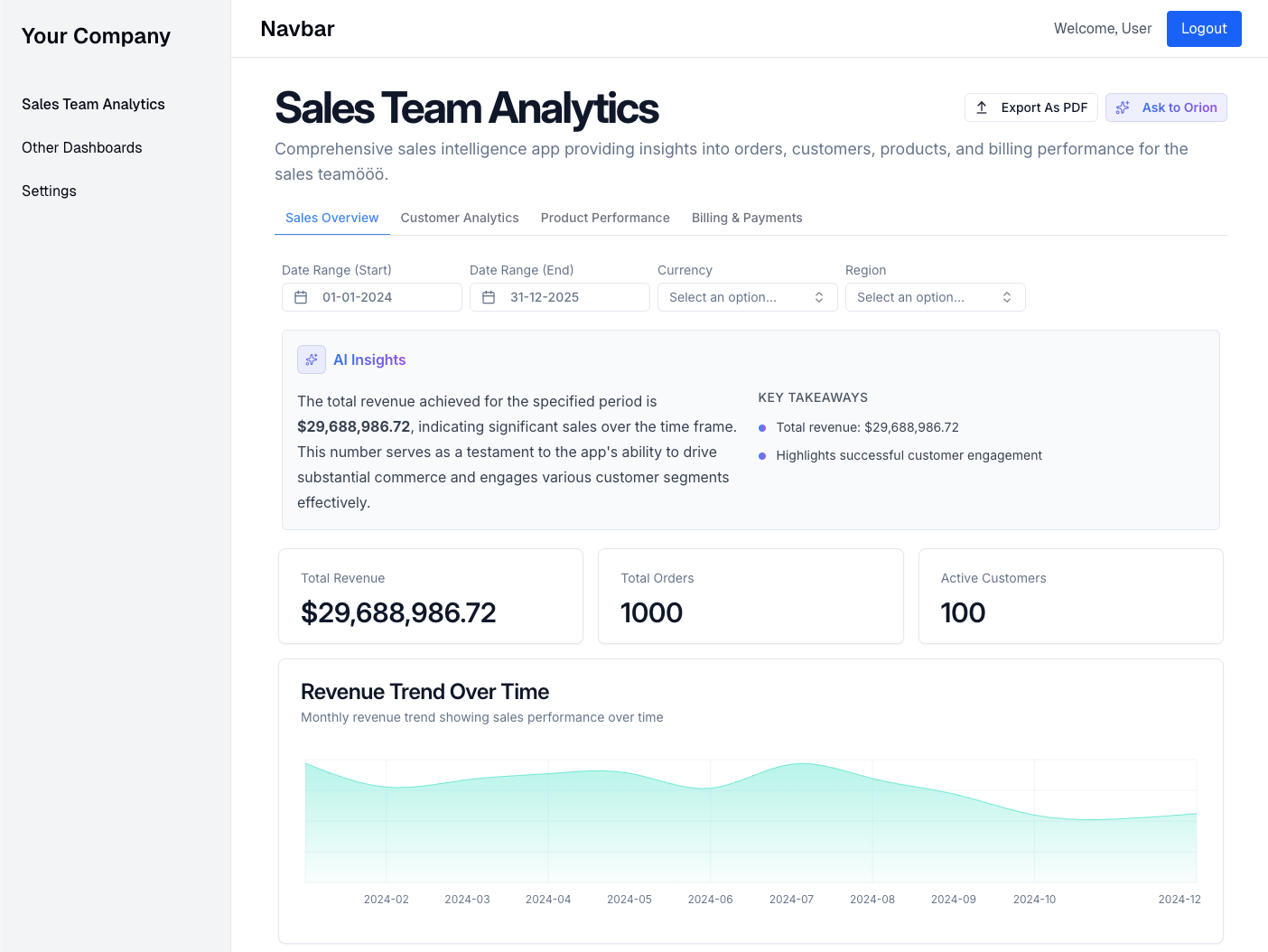
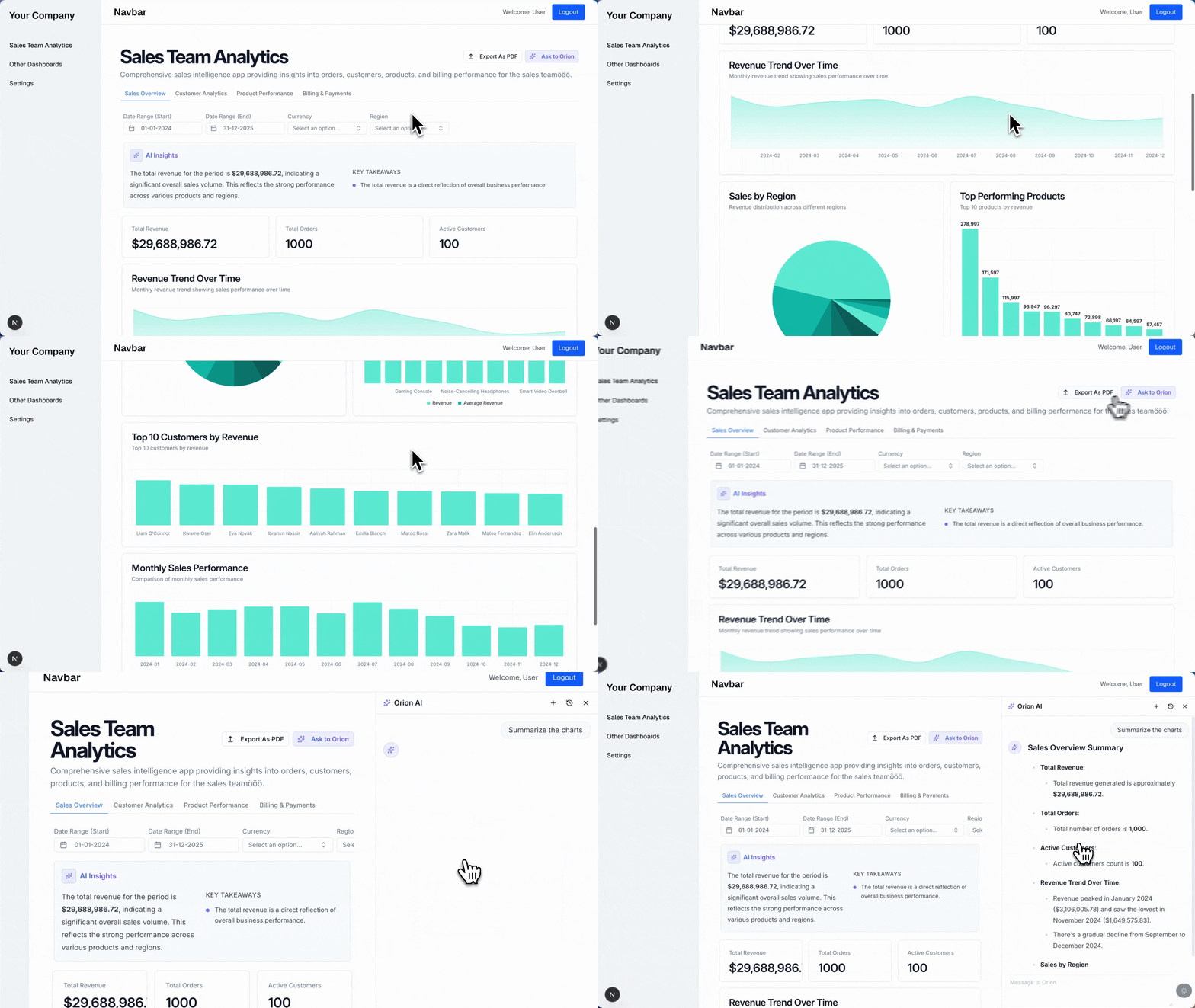
Datazone allows you to **embed** your Intelligent Apps directly into **your own applications** using a simple iframe approach. This enables you to integrate powerful data visualizations and dashboards into your product while maintaining your own application's user experience.
 ## Overview
Embedding works through a secure token-based authentication mechanism:
1. Your application generates a signed JWT token containing the necessary parameters
2. This token is used to construct an iframe URL
3. The iframe renders your Intelligent App inside your application
## Integration Steps
### 1. Prerequisites
* An Intelligent App in your Datazone account. You can look at [Intelligent Apps](/reference/intelligent-apps/overview) to create your first app.
* Go to Intelligent App settings page under the Project section and click the Access Control tab to enable embedding and get your code snippet.
* A web application where you want to embed the Intelligent App
### 2. Example Code Snippet
```javascript theme={null}
const jwt = require("jsonwebtoken");
const DATAZONE_SITE_URL = "https://comet.datazone.co";
const DATAZONE_SECRET_KEY = "your_secret_key"; // Replace with your actual secret key
const payload = {
intelligent_app_id: "your_app_id", // Replace with your app's ID
email: "user@example.com" // User's email.
};
const token = jwt.sign(payload, DATAZONE_SECRET_KEY);
const iframeUrl = DATAZONE_SITE_URL + "/app/embedding/" + token;
```
You can use `user_id` instead of `email` in the payload for user identification based on your application's needs.
### 3. Embed the App
Insert an iframe in your application pointing to the generated URL:
```html theme={null}
```
## Overview
Embedding works through a secure token-based authentication mechanism:
1. Your application generates a signed JWT token containing the necessary parameters
2. This token is used to construct an iframe URL
3. The iframe renders your Intelligent App inside your application
## Integration Steps
### 1. Prerequisites
* An Intelligent App in your Datazone account. You can look at [Intelligent Apps](/reference/intelligent-apps/overview) to create your first app.
* Go to Intelligent App settings page under the Project section and click the Access Control tab to enable embedding and get your code snippet.
* A web application where you want to embed the Intelligent App
### 2. Example Code Snippet
```javascript theme={null}
const jwt = require("jsonwebtoken");
const DATAZONE_SITE_URL = "https://comet.datazone.co";
const DATAZONE_SECRET_KEY = "your_secret_key"; // Replace with your actual secret key
const payload = {
intelligent_app_id: "your_app_id", // Replace with your app's ID
email: "user@example.com" // User's email.
};
const token = jwt.sign(payload, DATAZONE_SECRET_KEY);
const iframeUrl = DATAZONE_SITE_URL + "/app/embedding/" + token;
```
You can use `user_id` instead of `email` in the payload for user identification based on your application's needs.
### 3. Embed the App
Insert an iframe in your application pointing to the generated URL:
```html theme={null}
```
 ## Embedding Parameters
The JWT token payload can include the following parameters:
| Parameter | Type | Description |
| -------------------- | ------ | -------------------------------------------------------------------- |
| `intelligent_app_id` | string | **Required.** The ID of your Intelligent App |
| `email` | string | Email of the user viewing the app (for access control and analytics) |
| `user_id` | string | Optional, instead of email, a unique identifier for the user |
| `variables` | object | Initial values for app variables |
| `filter_values` | object | Initial values for filter components |
| `config_overwrite` | object | Override app configuration settings |
### Example: Setting Initial Variables and Filters
```javascript theme={null}
const payload = {
intelligent_app_id: "685ff04dab58322fd751e040",
email: "user@example.com",
variables: {
selected_region: "Europe",
time_period: "last_30_days"
},
filter_values: {
region_filter: "Europe",
date_range: "2025-08-01,2025-09-01"
}
};
```
### Example: Overriding App Configuration
You can override app configuration settings:
```javascript theme={null}
const payload = {
intelligent_app_id: "685ff04dab58322fd751e040",
email: "user@example.com",
config_overwrite: {
hide_header: true,
hide_filters: false,
style: {
theme: "orange"
}
}
};
```
## Security Considerations
* Keep your Datazone secret key secure and never expose it in client-side code
* Generate tokens server-side and pass the complete iframe URL to your frontend
* Set appropriate content security policies for iframe embedding
* Consider implementing additional authentication mechanisms if needed
## Example: Full Server-Side Implementation
Here's a more complete example using Node.js/Express:
```javascript theme={null}
const express = require('express');
const jwt = require('jsonwebtoken');
const app = express();
// Configuration
const DATAZONE_SITE_URL = "https://comet.datazone.co";
const DATAZONE_SECRET_KEY = process.env.DATAZONE_SECRET_KEY; // Store in environment variables
app.get('/embedded-dashboard', (req, res) => {
// Get user information from your auth system
const currentUser = req.user;
// Create the token
const payload = {
intelligent_app_id: "685ff04dab58322fd751e040",
email: currentUser.email,
variables: {
department: currentUser.department
}
};
const token = jwt.sign(payload, DATAZONE_SECRET_KEY);
const iframeUrl = DATAZONE_SITE_URL + "/app/embedding/" + token;
// Render your page with the iframe URL
res.render('dashboard', { iframeUrl });
});
app.listen(3000, () => console.log('Server running on port 3000'));
```
## Customizing the Embedded Experience
You can customize how your embedded app appears by overriding configuration settings in the token:
```javascript theme={null}
const payload = {
intelligent_app_id: "685ff04dab58322fd751e040",
config_overwrite: {
hide_header: true, // Hide the app header for a cleaner embed
hide_llm: true, // Hide the Orion AI assistant
hide_insights: true, // Hide the insights panel
style: {
theme: "teal" // Match your application's theme
}
}
};
```
## Troubleshooting
If your embedded app isn't loading correctly:
1. Check that your token is signed correctly with the right secret key
2. Verify that the Intelligent App ID is correct
3. Ensure your domain is allowed for embedding (contact Datazone support if needed)
4. Look for CORS or CSP issues in your browser's developer tools
## Next Steps
* [Customize App Appearance](/reference/intelligent-apps/yaml-reference#config-section) - Learn about configuration options
* [Working with Variables](/reference/intelligent-apps/filters) - Learn how to use variables in your app
* [Contact Support](mailto:support@datazone.co) - Get help with embedding setup
## Embedding Parameters
The JWT token payload can include the following parameters:
| Parameter | Type | Description |
| -------------------- | ------ | -------------------------------------------------------------------- |
| `intelligent_app_id` | string | **Required.** The ID of your Intelligent App |
| `email` | string | Email of the user viewing the app (for access control and analytics) |
| `user_id` | string | Optional, instead of email, a unique identifier for the user |
| `variables` | object | Initial values for app variables |
| `filter_values` | object | Initial values for filter components |
| `config_overwrite` | object | Override app configuration settings |
### Example: Setting Initial Variables and Filters
```javascript theme={null}
const payload = {
intelligent_app_id: "685ff04dab58322fd751e040",
email: "user@example.com",
variables: {
selected_region: "Europe",
time_period: "last_30_days"
},
filter_values: {
region_filter: "Europe",
date_range: "2025-08-01,2025-09-01"
}
};
```
### Example: Overriding App Configuration
You can override app configuration settings:
```javascript theme={null}
const payload = {
intelligent_app_id: "685ff04dab58322fd751e040",
email: "user@example.com",
config_overwrite: {
hide_header: true,
hide_filters: false,
style: {
theme: "orange"
}
}
};
```
## Security Considerations
* Keep your Datazone secret key secure and never expose it in client-side code
* Generate tokens server-side and pass the complete iframe URL to your frontend
* Set appropriate content security policies for iframe embedding
* Consider implementing additional authentication mechanisms if needed
## Example: Full Server-Side Implementation
Here's a more complete example using Node.js/Express:
```javascript theme={null}
const express = require('express');
const jwt = require('jsonwebtoken');
const app = express();
// Configuration
const DATAZONE_SITE_URL = "https://comet.datazone.co";
const DATAZONE_SECRET_KEY = process.env.DATAZONE_SECRET_KEY; // Store in environment variables
app.get('/embedded-dashboard', (req, res) => {
// Get user information from your auth system
const currentUser = req.user;
// Create the token
const payload = {
intelligent_app_id: "685ff04dab58322fd751e040",
email: currentUser.email,
variables: {
department: currentUser.department
}
};
const token = jwt.sign(payload, DATAZONE_SECRET_KEY);
const iframeUrl = DATAZONE_SITE_URL + "/app/embedding/" + token;
// Render your page with the iframe URL
res.render('dashboard', { iframeUrl });
});
app.listen(3000, () => console.log('Server running on port 3000'));
```
## Customizing the Embedded Experience
You can customize how your embedded app appears by overriding configuration settings in the token:
```javascript theme={null}
const payload = {
intelligent_app_id: "685ff04dab58322fd751e040",
config_overwrite: {
hide_header: true, // Hide the app header for a cleaner embed
hide_llm: true, // Hide the Orion AI assistant
hide_insights: true, // Hide the insights panel
style: {
theme: "teal" // Match your application's theme
}
}
};
```
## Troubleshooting
If your embedded app isn't loading correctly:
1. Check that your token is signed correctly with the right secret key
2. Verify that the Intelligent App ID is correct
3. Ensure your domain is allowed for embedding (contact Datazone support if needed)
4. Look for CORS or CSP issues in your browser's developer tools
## Next Steps
* [Customize App Appearance](/reference/intelligent-apps/yaml-reference#config-section) - Learn about configuration options
* [Working with Variables](/reference/intelligent-apps/filters) - Learn how to use variables in your app
* [Contact Support](mailto:support@datazone.co) - Get help with embedding setup