> ## Documentation Index
> Fetch the complete documentation index at: https://docs.datazone.co/llms.txt
> Use this file to discover all available pages before exploring further.
# App Builder
> The visual editor for designing Intelligent Apps — panels, layout, Orion, branches, and deploys
The App Builder is where an [Intelligent App](/reference/intelligent-apps/overview) gets designed. An app is made of **pages (tabs)**, the **components** placed on them — charts, filters, text, variables — and their **layout**. Under the hood, the app is versioned in a git-like **branch** model and stored as YAML. The **Design** view and the **YAML** view are two representations of that same definition, kept in sync.
There are two ways to build a page: drag components in by hand and configure them from the Inspector, or describe what you want to [Orion](#building-with-orion) in plain language — "add a bar chart of monthly sales."
## The three panels
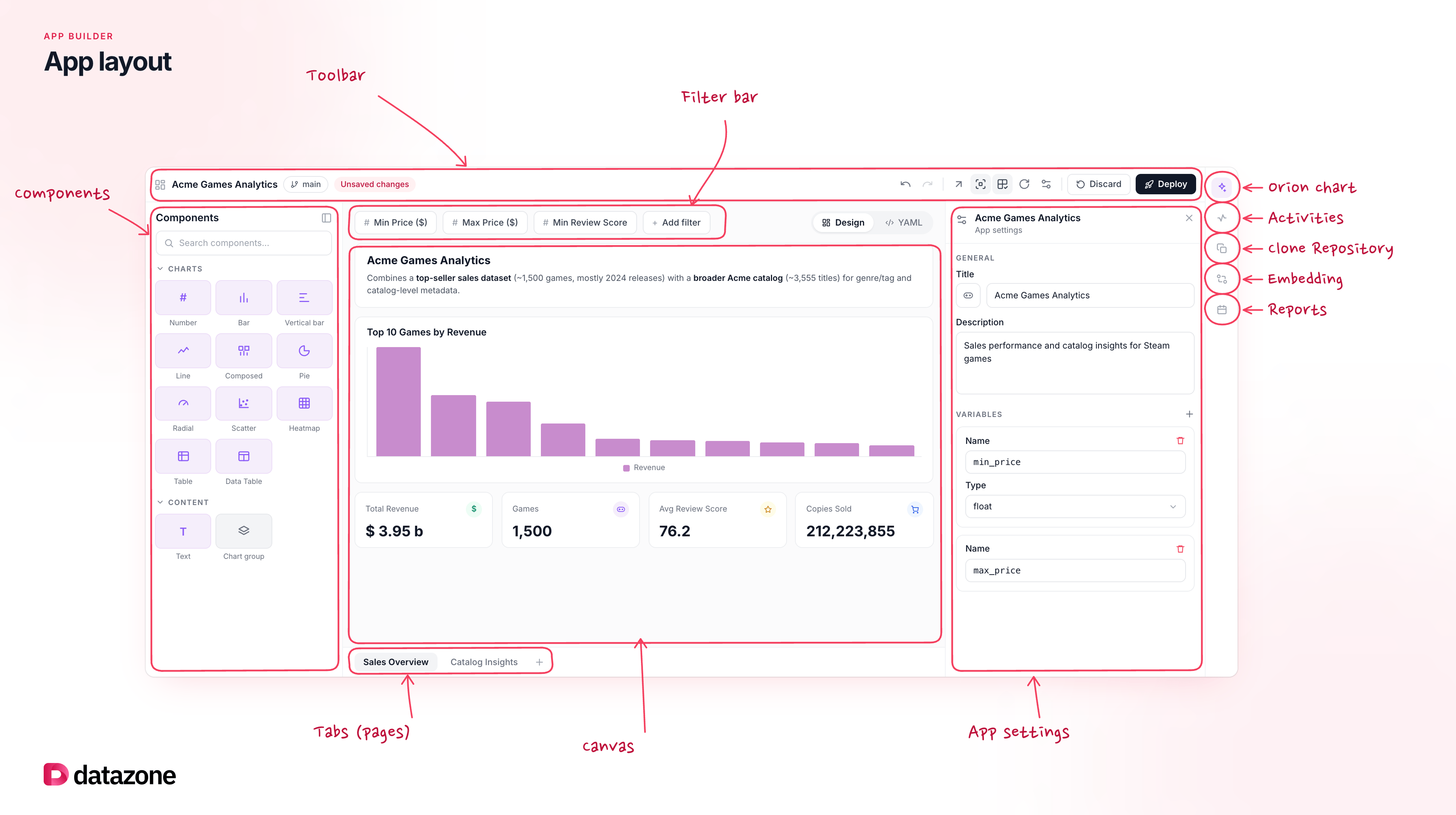 * **Palette (left):** every component type you can drop onto a page — chart types (bar, line, pie, number, composed, radial, scatter, heatmap, table, and more), filter types (dropdown, text, number, date), and a text block. Drag from here onto the canvas.
* **Canvas (center):** a live preview of the active page. Components are placed, moved, grouped, and resized here. Page tabs sit above the canvas — an app can have any number of pages, added with the **+** button, reordered by dragging, and renamed by double-clicking a tab's label. The delete-tab button is hidden while only one page remains, so an app can never end up with zero pages.
* **Inspector (right):** every setting for whatever is selected on the canvas — chart type, query, dimensions/metrics, visual options (color, labels, size), filter bindings. With nothing selected, it prompts you to pick something — or, once you open [App Settings](#app-level-settings) from the toolbar, it shows app-wide settings instead.
## Toolbar
* **Palette (left):** every component type you can drop onto a page — chart types (bar, line, pie, number, composed, radial, scatter, heatmap, table, and more), filter types (dropdown, text, number, date), and a text block. Drag from here onto the canvas.
* **Canvas (center):** a live preview of the active page. Components are placed, moved, grouped, and resized here. Page tabs sit above the canvas — an app can have any number of pages, added with the **+** button, reordered by dragging, and renamed by double-clicking a tab's label. The delete-tab button is hidden while only one page remains, so an app can never end up with zero pages.
* **Inspector (right):** every setting for whatever is selected on the canvas — chart type, query, dimensions/metrics, visual options (color, labels, size), filter bindings. With nothing selected, it prompts you to pick something — or, once you open [App Settings](#app-level-settings) from the toolbar, it shows app-wide settings instead.
## Toolbar
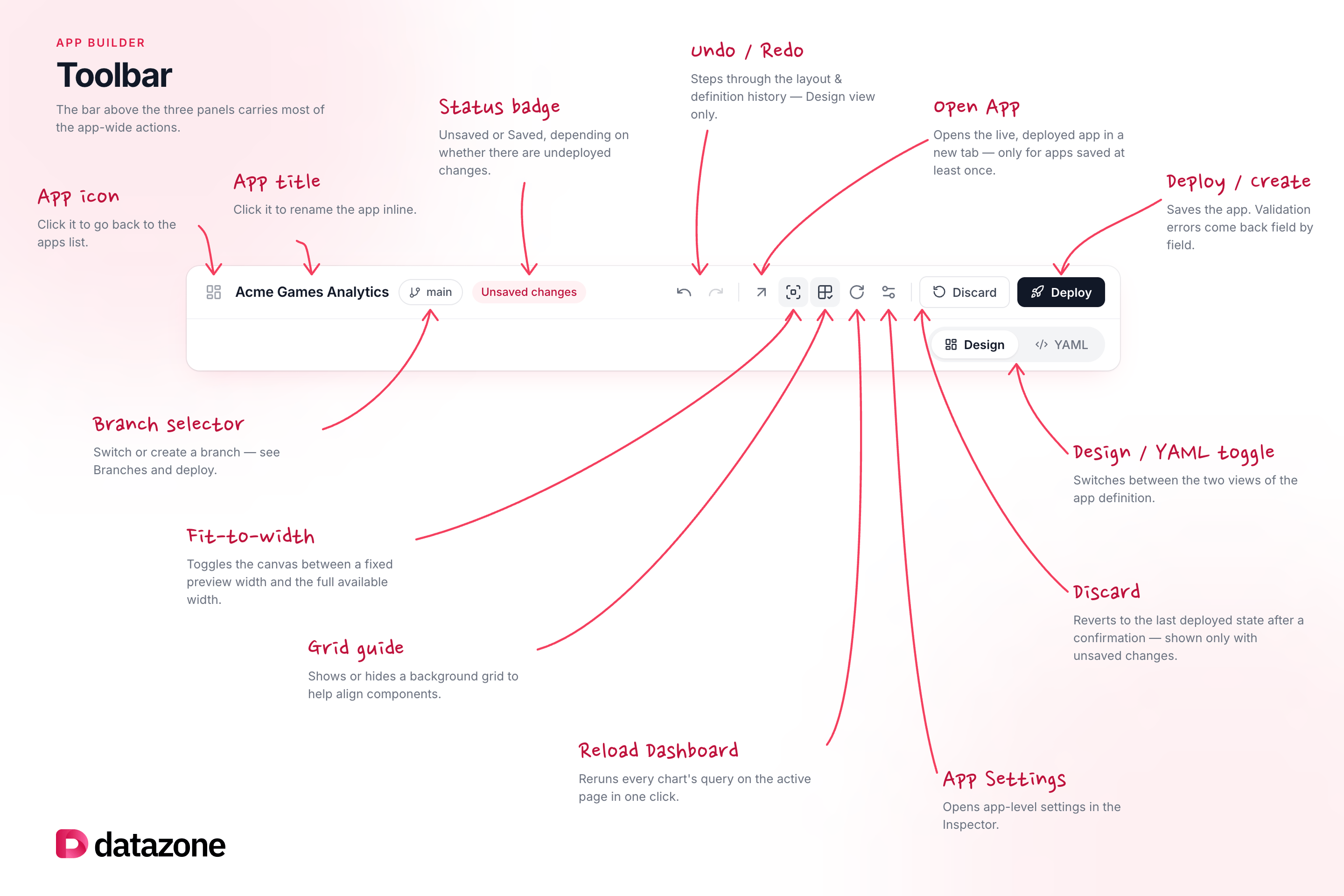 The bar above the three panels carries most of the app-wide actions:
| Control | What it does |
| ---------------------------- | ------------------------------------------------------------------------------------------------------------ |
| App icon | Click it to go back to the apps list. |
| App title | Click it to rename the app inline. |
| Status badge | Shows **Unsaved** or **Saved**, depending on whether there are undeployed changes. |
| Undo / Redo | Steps through the layout/definition history (Design view only). |
| Branch selector | Switch or create a branch — see [Branches and deploy](#branches-and-deploy). |
| Design/YAML toggle | Switches between the two views of the app definition. |
| Fit-to-width / original size | Toggles the canvas between a fixed preview width and the full available width. |
| Grid guide | Shows or hides a background grid to help align components. |
| Reload Dashboard | Reruns every chart's query on the active page in one click. |
| App Settings (gear icon) | Opens [app-level settings](#app-level-settings) in the Inspector. |
| Discard | Reverts to the last deployed state, after a confirmation — only shown when there are unsaved changes. |
| Deploy / Create | Saves the app. Validation errors come back as a specific, field-by-field list rather than a generic failure. |
| Open App | Opens the live, deployed app in a new tab — only shown for apps that have been saved at least once. |
## Side rail
Next to the Inspector, a vertical rail of icons switches what the right side of the screen shows:
| Icon | What it does |
| ---------------- | ------------------------------------------------------------------------------------------------------------------------------------------------------------------- |
| Orion chart | Opens the same Orion chat panel described in [Building with Orion](#building-with-orion) — from here it can also add or edit components, not just answer questions. |
| Activities | Shows the project's activity log, including this app's past deploys — the same drawer that opens automatically right after you Deploy or Create. |
| Clone Repository | Shows the git URL/command to clone the app's underlying repository locally. |
| Embedding | Opens embedding settings for this app. See [Embedding](/reference/intelligent-apps/embedding). |
| Reports | Schedule a snapshot of this app to be rendered and sent via Slack or email. See [Reports](/reference/platform/reports). |
## App-level settings
Opening **App Settings** from the toolbar's gear icon — or the Inspector when nothing is selected on the canvas — brings up settings for the app as a whole:
| Section | Covers |
| ------------ | ---------------------------------------------------------------------------------------------------------------------------------------- |
| General | Icon, app title, description. |
| Variables | Add a variable and its type (string, integer, float, boolean, date), usable inside chart queries. |
| App Behavior | Cache toggle and TTL, a **Chart Export Enabled** toggle (turns chart export on/off for the whole app), and which tab opens by default. |
| Visibility | Independently hide the header, filters, Insights panel, or the AI chat panel — useful for an embedded or presentation view. |
| Style | Pick from 8 built-in themes, applied live to the canvas. |
| LLM settings | Which model account and model Orion and the Insights panel use, plus separate instructions for the chat assistant and the insight agent. |
| Delete App | Removes the app — only available once it's been saved. |
These map to the `config` fields described in [Intelligent Apps: App Configuration](/reference/intelligent-apps/overview#app-configuration) — this panel is a form over the same YAML.
## Components
The Palette covers four kinds of building block:
| Component | What it does |
| ------------ | -------------------------------------------------------------------------------------------------------------------------------------------------------------------------------------------------------------------------------------------------------------- |
| **Chart** | Runs a query and visualizes the result. Its data can be exported straight from the canvas, if [Chart Export is enabled](#app-level-settings) for the app. See [Components](/reference/intelligent-apps/components) for every chart type and its configuration. |
| **Filter** | Drives one or more charts on the page — dropdown, text, number, or date. See [Filters](/reference/intelligent-apps/filters). |
| **Text** | A static text or heading block. |
| **Variable** | A value fed by filters and referenced inside chart queries. |
Each chart type has its own required fields and `chart_config` options, and the Inspector only shows what applies to the selected type — a Pie chart exposes `show_labels`/`fill_donut`/`show_legend`, a Table exposes `page_size`, and so on.
## Layout and interactions
**Drag and drop:** drag a component from the Palette onto the canvas, then reorder or move it within the page. You can also click a Palette card to add it directly, instead of dragging.
**Grouping:** select multiple components and group them (nested groups aren't supported). Shortcut: **Shift+G**.
**Resizing:** drag a chart's edge to change its height (not every chart type supports this). Dragging snaps to the height of sibling components once you're close, so lining up a row of charts is easy.
* **Multi-select:** select several components at once to move, reload, group, or delete them together.
* **Right-click menu:** select, duplicate, reload data, group, or delete a component (or the current multi-selection) from its context menu.
* **Duplicate:** copy a chart, text block, or group — available from its context menu or the Inspector.
* **Undo/Redo:** every layout and definition change can be undone or redone.
* **Unsaved changes:** any edit puts the app into an "unsaved" state until you [Deploy](#branches-and-deploy) — nothing is persisted before that. **Discard** in the toolbar reverts everything back to the last deployed state.
## Building with Orion
[Orion](/reference/intelligent-apps/orion-ai) isn't only for asking questions about a finished app — inside the App Builder, it can edit the app for you. There are two ways to use it while designing:
1. **The Orion chat panel** — a general-purpose panel where you describe a change in plain language ("add a filter," "turn this chart into a bar chart," "create a new page"). Orion produces patches to the app definition, applied live to the canvas as it works.
2. **"Add chart with Orion"** — an inline popover under the canvas, focused specifically on creating or editing a single chart. The change is applied immediately so you can see it rendered against real data, then you choose **Keep** or **Revert**.
3. **Generate query with AI** — inside a chart's query field in the Inspector, a smaller, scoped version of the same idea: describe what the query should return and Orion writes just the SQL, without touching the rest of the chart's configuration.
In both of the first two cases, when Orion creates a new chart, it runs the chart's query automatically — no need to press "Run" yourself. In the [YAML view](#yaml-view), the chat panel can edit the YAML draft directly instead of going through Design.
## YAML view
The bar above the three panels carries most of the app-wide actions:
| Control | What it does |
| ---------------------------- | ------------------------------------------------------------------------------------------------------------ |
| App icon | Click it to go back to the apps list. |
| App title | Click it to rename the app inline. |
| Status badge | Shows **Unsaved** or **Saved**, depending on whether there are undeployed changes. |
| Undo / Redo | Steps through the layout/definition history (Design view only). |
| Branch selector | Switch or create a branch — see [Branches and deploy](#branches-and-deploy). |
| Design/YAML toggle | Switches between the two views of the app definition. |
| Fit-to-width / original size | Toggles the canvas between a fixed preview width and the full available width. |
| Grid guide | Shows or hides a background grid to help align components. |
| Reload Dashboard | Reruns every chart's query on the active page in one click. |
| App Settings (gear icon) | Opens [app-level settings](#app-level-settings) in the Inspector. |
| Discard | Reverts to the last deployed state, after a confirmation — only shown when there are unsaved changes. |
| Deploy / Create | Saves the app. Validation errors come back as a specific, field-by-field list rather than a generic failure. |
| Open App | Opens the live, deployed app in a new tab — only shown for apps that have been saved at least once. |
## Side rail
Next to the Inspector, a vertical rail of icons switches what the right side of the screen shows:
| Icon | What it does |
| ---------------- | ------------------------------------------------------------------------------------------------------------------------------------------------------------------- |
| Orion chart | Opens the same Orion chat panel described in [Building with Orion](#building-with-orion) — from here it can also add or edit components, not just answer questions. |
| Activities | Shows the project's activity log, including this app's past deploys — the same drawer that opens automatically right after you Deploy or Create. |
| Clone Repository | Shows the git URL/command to clone the app's underlying repository locally. |
| Embedding | Opens embedding settings for this app. See [Embedding](/reference/intelligent-apps/embedding). |
| Reports | Schedule a snapshot of this app to be rendered and sent via Slack or email. See [Reports](/reference/platform/reports). |
## App-level settings
Opening **App Settings** from the toolbar's gear icon — or the Inspector when nothing is selected on the canvas — brings up settings for the app as a whole:
| Section | Covers |
| ------------ | ---------------------------------------------------------------------------------------------------------------------------------------- |
| General | Icon, app title, description. |
| Variables | Add a variable and its type (string, integer, float, boolean, date), usable inside chart queries. |
| App Behavior | Cache toggle and TTL, a **Chart Export Enabled** toggle (turns chart export on/off for the whole app), and which tab opens by default. |
| Visibility | Independently hide the header, filters, Insights panel, or the AI chat panel — useful for an embedded or presentation view. |
| Style | Pick from 8 built-in themes, applied live to the canvas. |
| LLM settings | Which model account and model Orion and the Insights panel use, plus separate instructions for the chat assistant and the insight agent. |
| Delete App | Removes the app — only available once it's been saved. |
These map to the `config` fields described in [Intelligent Apps: App Configuration](/reference/intelligent-apps/overview#app-configuration) — this panel is a form over the same YAML.
## Components
The Palette covers four kinds of building block:
| Component | What it does |
| ------------ | -------------------------------------------------------------------------------------------------------------------------------------------------------------------------------------------------------------------------------------------------------------- |
| **Chart** | Runs a query and visualizes the result. Its data can be exported straight from the canvas, if [Chart Export is enabled](#app-level-settings) for the app. See [Components](/reference/intelligent-apps/components) for every chart type and its configuration. |
| **Filter** | Drives one or more charts on the page — dropdown, text, number, or date. See [Filters](/reference/intelligent-apps/filters). |
| **Text** | A static text or heading block. |
| **Variable** | A value fed by filters and referenced inside chart queries. |
Each chart type has its own required fields and `chart_config` options, and the Inspector only shows what applies to the selected type — a Pie chart exposes `show_labels`/`fill_donut`/`show_legend`, a Table exposes `page_size`, and so on.
## Layout and interactions
**Drag and drop:** drag a component from the Palette onto the canvas, then reorder or move it within the page. You can also click a Palette card to add it directly, instead of dragging.
**Grouping:** select multiple components and group them (nested groups aren't supported). Shortcut: **Shift+G**.
**Resizing:** drag a chart's edge to change its height (not every chart type supports this). Dragging snaps to the height of sibling components once you're close, so lining up a row of charts is easy.
* **Multi-select:** select several components at once to move, reload, group, or delete them together.
* **Right-click menu:** select, duplicate, reload data, group, or delete a component (or the current multi-selection) from its context menu.
* **Duplicate:** copy a chart, text block, or group — available from its context menu or the Inspector.
* **Undo/Redo:** every layout and definition change can be undone or redone.
* **Unsaved changes:** any edit puts the app into an "unsaved" state until you [Deploy](#branches-and-deploy) — nothing is persisted before that. **Discard** in the toolbar reverts everything back to the last deployed state.
## Building with Orion
[Orion](/reference/intelligent-apps/orion-ai) isn't only for asking questions about a finished app — inside the App Builder, it can edit the app for you. There are two ways to use it while designing:
1. **The Orion chat panel** — a general-purpose panel where you describe a change in plain language ("add a filter," "turn this chart into a bar chart," "create a new page"). Orion produces patches to the app definition, applied live to the canvas as it works.
2. **"Add chart with Orion"** — an inline popover under the canvas, focused specifically on creating or editing a single chart. The change is applied immediately so you can see it rendered against real data, then you choose **Keep** or **Revert**.
3. **Generate query with AI** — inside a chart's query field in the Inspector, a smaller, scoped version of the same idea: describe what the query should return and Orion writes just the SQL, without touching the rest of the chart's configuration.
In both of the first two cases, when Orion creates a new chart, it runs the chart's query automatically — no need to press "Run" yourself. In the [YAML view](#yaml-view), the chat panel can edit the YAML draft directly instead of going through Design.
## YAML view
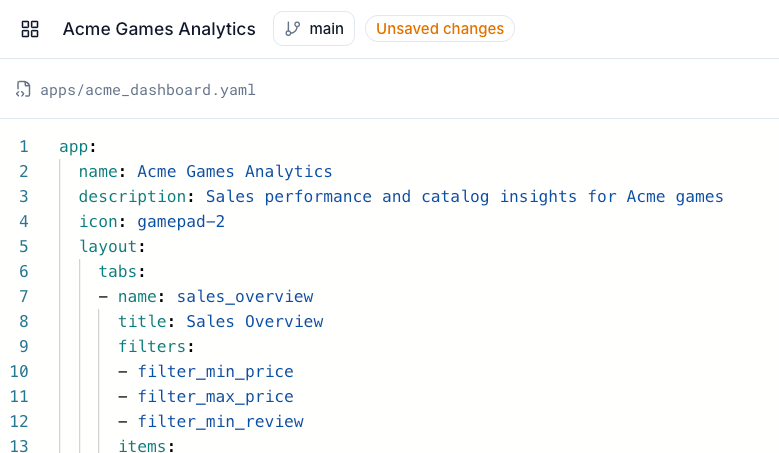 The Design and YAML tabs show the same app definition in two forms. In the YAML tab you edit the definition as text directly, in a full code editor; a **Copy** button copies the whole thing, and — for an app that's already saved — a link jumps straight to the underlying file in the repository.
Switching back to Design is what actually applies your YAML edits. If the YAML doesn't validate, you stay in the YAML tab (nothing is discarded) and get a toast naming the exact field that's wrong. Either tab marks the app "unsaved" the moment you touch it.
## Branches and deploy
Apps are held in git-like branches:
* **Switching branches:** pick an existing branch from the toolbar's branch selector. With unsaved changes, a confirmation dialog offers **Discard and switch** or **Deploy and switch**.
* **Creating a branch:** the source branch (the currently active one) is shown as a fixed label; you enter a name for the new branch. A name that's already in use is rejected. Unsaved changes at creation time trigger the same **Discard and create** / **Deploy and create** choice. Creating a branch automatically deploys the current app definition onto it (a git-level copy).
* **Deploy:** makes every change on the active branch permanent. The definition has to pass backend validation first — an invalid definition can't be deployed, and you get an error message back.
* **Deleting a branch:** removes it from the branch selector along with the app version deployed on it.
* Switching straight to a newly created branch may briefly show a loading state while the backend finishes indexing it; the app retries a few times, and if the branch genuinely can't be found, you're redirected back with a toast notification.
## Good to know
* When Orion applies several patches at once, a new chart has to land in both `components` and `layout` consistently. If those two get out of sync, the chart can still render on the canvas while the Inspector or a subsequent deploy runs into trouble.
* The fields the backend accepts (like `chart_config` options) depend on the chart type. A field the Inspector doesn't surface for a given type can still be required by the backend schema.
## Next steps
* [Components](/reference/intelligent-apps/components) — every chart type and its configuration
* [Filters](/reference/intelligent-apps/filters) — connecting filters to charts
* [Orion AI](/reference/intelligent-apps/orion-ai) — asking Orion about a deployed app
* [YAML Reference](/reference/intelligent-apps/yaml-reference) — the full app definition schema
* [Embedding](/reference/intelligent-apps/embedding) — embedding a deployed app elsewhere
* [Reports](/reference/platform/reports) — scheduling snapshots of an app via Slack or email
The Design and YAML tabs show the same app definition in two forms. In the YAML tab you edit the definition as text directly, in a full code editor; a **Copy** button copies the whole thing, and — for an app that's already saved — a link jumps straight to the underlying file in the repository.
Switching back to Design is what actually applies your YAML edits. If the YAML doesn't validate, you stay in the YAML tab (nothing is discarded) and get a toast naming the exact field that's wrong. Either tab marks the app "unsaved" the moment you touch it.
## Branches and deploy
Apps are held in git-like branches:
* **Switching branches:** pick an existing branch from the toolbar's branch selector. With unsaved changes, a confirmation dialog offers **Discard and switch** or **Deploy and switch**.
* **Creating a branch:** the source branch (the currently active one) is shown as a fixed label; you enter a name for the new branch. A name that's already in use is rejected. Unsaved changes at creation time trigger the same **Discard and create** / **Deploy and create** choice. Creating a branch automatically deploys the current app definition onto it (a git-level copy).
* **Deploy:** makes every change on the active branch permanent. The definition has to pass backend validation first — an invalid definition can't be deployed, and you get an error message back.
* **Deleting a branch:** removes it from the branch selector along with the app version deployed on it.
* Switching straight to a newly created branch may briefly show a loading state while the backend finishes indexing it; the app retries a few times, and if the branch genuinely can't be found, you're redirected back with a toast notification.
## Good to know
* When Orion applies several patches at once, a new chart has to land in both `components` and `layout` consistently. If those two get out of sync, the chart can still render on the canvas while the Inspector or a subsequent deploy runs into trouble.
* The fields the backend accepts (like `chart_config` options) depend on the chart type. A field the Inspector doesn't surface for a given type can still be required by the backend schema.
## Next steps
* [Components](/reference/intelligent-apps/components) — every chart type and its configuration
* [Filters](/reference/intelligent-apps/filters) — connecting filters to charts
* [Orion AI](/reference/intelligent-apps/orion-ai) — asking Orion about a deployed app
* [YAML Reference](/reference/intelligent-apps/yaml-reference) — the full app definition schema
* [Embedding](/reference/intelligent-apps/embedding) — embedding a deployed app elsewhere
* [Reports](/reference/platform/reports) — scheduling snapshots of an app via Slack or email