> ## Documentation Index
> Fetch the complete documentation index at: https://docs.datazone.co/llms.txt
> Use this file to discover all available pages before exploring further.
# Views
> Create optimized relational database views from your datasets with advanced partitioning and indexing
 ## Overview
Views enable you to transform your **datasets into optimized relational database structures** with advanced configurations like **partitioning, primary keys, and ordering**. This feature bridges the gap between Datazone's lakehouse architecture and traditional relational database capabilities, providing enhanced performance and flexibility for your data access patterns.
With Views, you can replicate datasets or create custom aggregations using SQL queries across multiple datasets and even other views. The resulting views are accessible through Datazone's SQL interface, endpoints, and intelligent apps.
## View Types
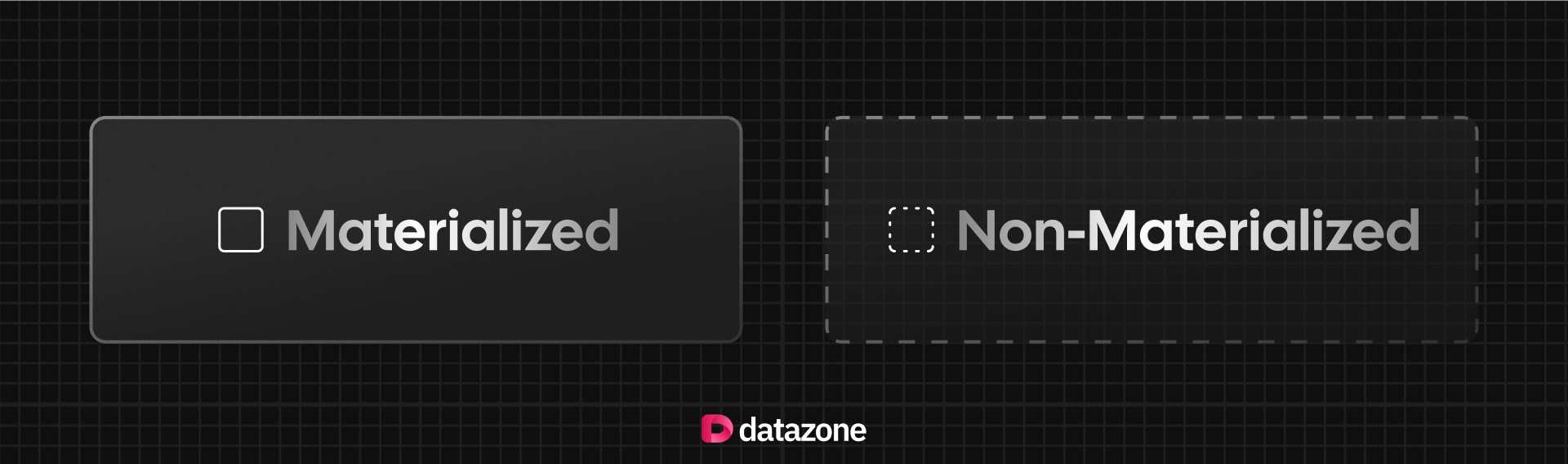
* **Materialized View**: Stores the query results in the database, so **queries are very fast** and consistent until refreshed. Best for dashboards and reports you check often.
* **Non-Materialized View**: Runs the query every time you access it, always showing the latest data. **Good for real-time needs or when you want to save storage.**
## Overview
Views enable you to transform your **datasets into optimized relational database structures** with advanced configurations like **partitioning, primary keys, and ordering**. This feature bridges the gap between Datazone's lakehouse architecture and traditional relational database capabilities, providing enhanced performance and flexibility for your data access patterns.
With Views, you can replicate datasets or create custom aggregations using SQL queries across multiple datasets and even other views. The resulting views are accessible through Datazone's SQL interface, endpoints, and intelligent apps.
## View Types
* **Materialized View**: Stores the query results in the database, so **queries are very fast** and consistent until refreshed. Best for dashboards and reports you check often.
* **Non-Materialized View**: Runs the query every time you access it, always showing the latest data. **Good for real-time needs or when you want to save storage.**
 If you create non-materialized views, keep in mind that query performance may vary based on the complexity of the underlying SQL and the size of the datasets involved. For frequently accessed views, consider using materialized views to enhance performance.
## Let's Create a View
With the intuitive interface, you can easily create and manage views to suit your data needs.
1. Go to the **Views** page by clicking on the **Views** tab in the sidebar.
2. Click on the **Create** button.
3. Choose between creating a **Materialized** or **Non-Materialized** view.
4. Select whether it's a **replicate** of a dataset or a **custom SQL** query.
5. Fill the **optimization customization options** as needed.
6. Check the preview and create the view. 🚀
## Why I Should Use Views
Let's say you have a large dataset that is frequently queried for reporting purposes. By creating a materialized view with appropriate partitioning and primary keys, you can significantly speed up query performance, reduce load times, and improve the overall user experience for your data consumers.
In the following scenario, you have a sales dataset that is regularly queried to generate monthly sales reports.
If you create non-materialized views, keep in mind that query performance may vary based on the complexity of the underlying SQL and the size of the datasets involved. For frequently accessed views, consider using materialized views to enhance performance.
## Let's Create a View
With the intuitive interface, you can easily create and manage views to suit your data needs.
1. Go to the **Views** page by clicking on the **Views** tab in the sidebar.
2. Click on the **Create** button.
3. Choose between creating a **Materialized** or **Non-Materialized** view.
4. Select whether it's a **replicate** of a dataset or a **custom SQL** query.
5. Fill the **optimization customization options** as needed.
6. Check the preview and create the view. 🚀
## Why I Should Use Views
Let's say you have a large dataset that is frequently queried for reporting purposes. By creating a materialized view with appropriate partitioning and primary keys, you can significantly speed up query performance, reduce load times, and improve the overall user experience for your data consumers.
In the following scenario, you have a sales dataset that is regularly queried to generate monthly sales reports.
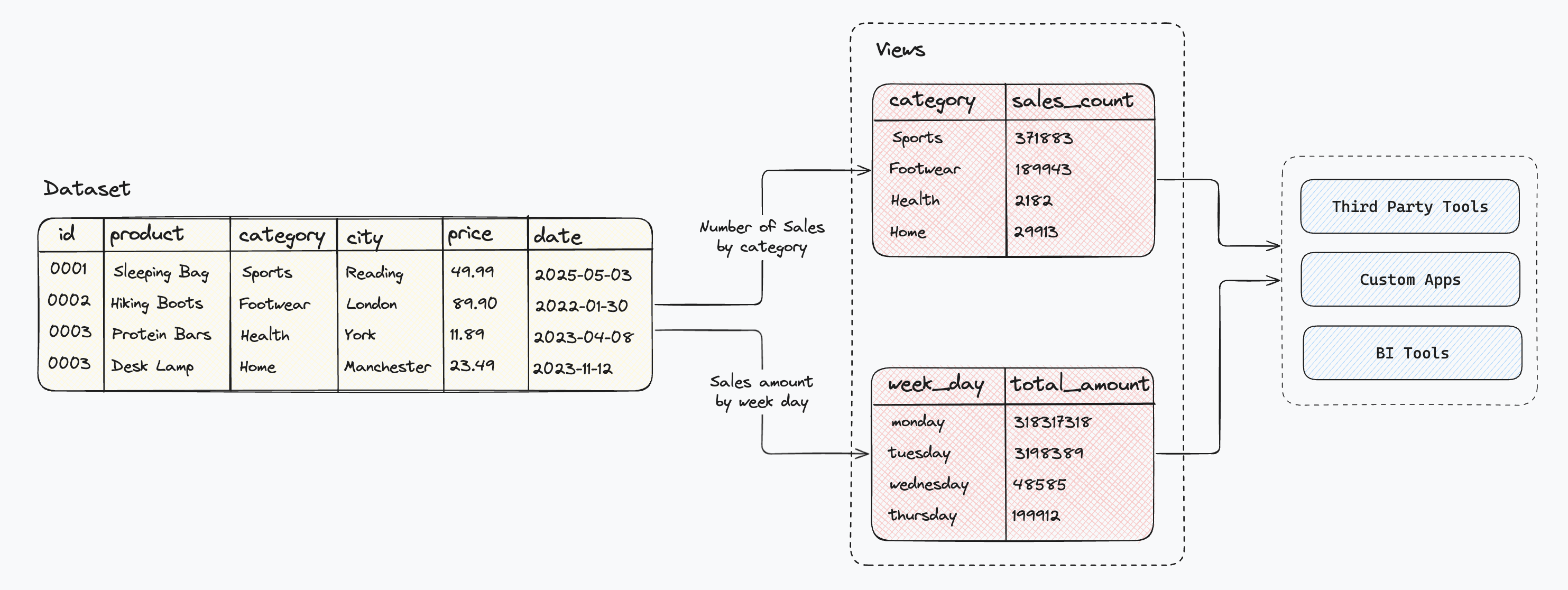 By creating a materialized view that aggregates sales data by category or day of week, you can optimize the performance of these queries, making report generation faster and more efficient.
## Next Steps
Learn how to query views using SQL
Expose views through secure APIs
Build dashboards using views
Understand source datasets
By creating a materialized view that aggregates sales data by category or day of week, you can optimize the performance of these queries, making report generation faster and more efficient.
## Next Steps
Learn how to query views using SQL
Expose views through secure APIs
Build dashboards using views
Understand source datasets