> ## Documentation Index
> Fetch the complete documentation index at: https://docs.datazone.co/llms.txt
> Use this file to discover all available pages before exploring further.
# Azure AD (Entra ID) SAML Setup
> Configure SAML authentication with Microsoft Azure Active Directory
 ## Prerequisites
* Administrator access to the [Azure Portal](https://portal.azure.com)
* Your Datazone instance domain (e.g., `app.datazone.co`)
## Configuration Steps
### 1. Access Azure Portal
Log into the [Azure Portal](https://portal.azure.com) with administrator privileges.
### 2. Create a New Enterprise Application
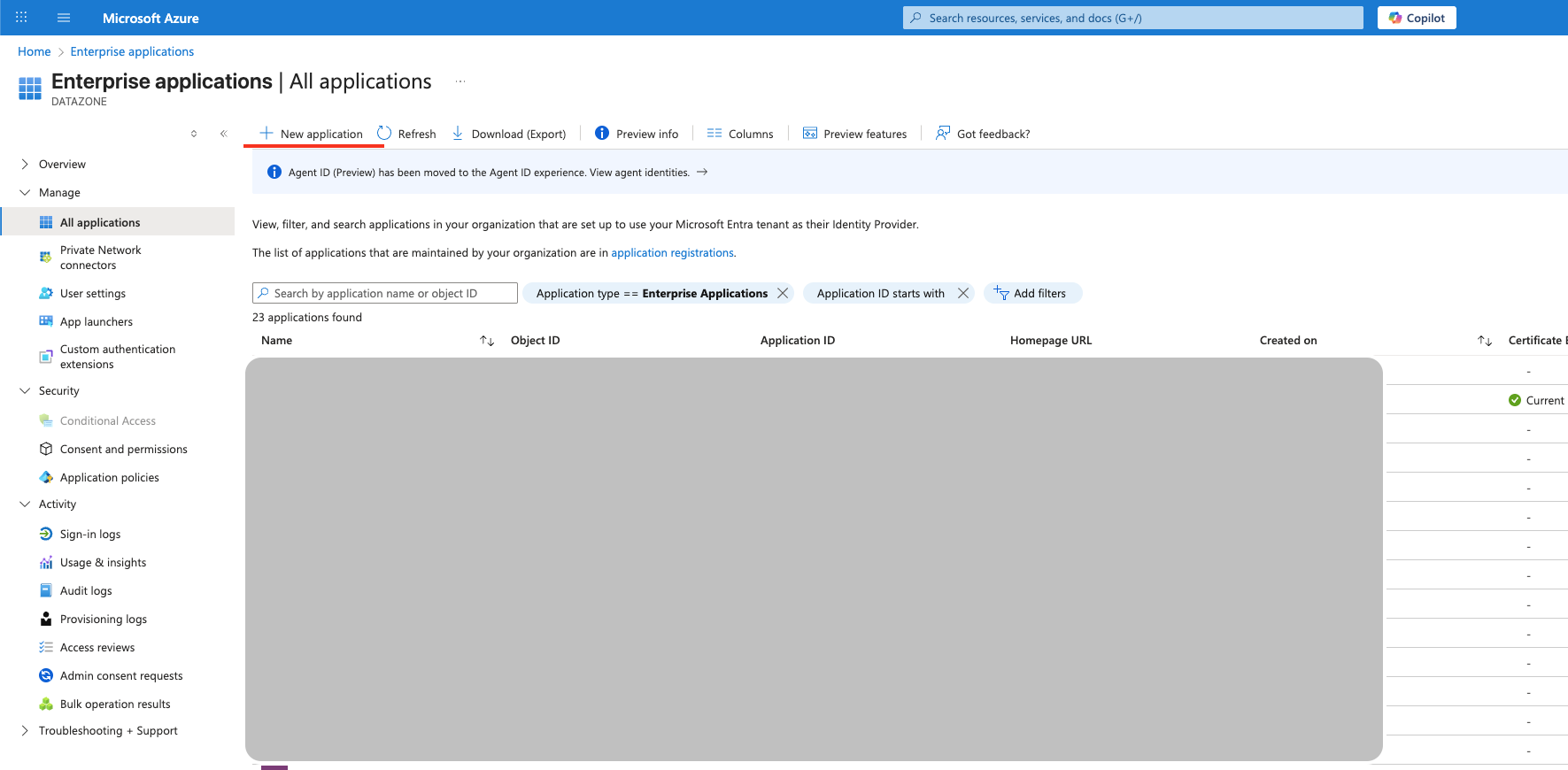
Navigate to **Enterprise applications** and click **New application**.
## Prerequisites
* Administrator access to the [Azure Portal](https://portal.azure.com)
* Your Datazone instance domain (e.g., `app.datazone.co`)
## Configuration Steps
### 1. Access Azure Portal
Log into the [Azure Portal](https://portal.azure.com) with administrator privileges.
### 2. Create a New Enterprise Application
Navigate to **Enterprise applications** and click **New application**.
 ### 3. Create Custom Application
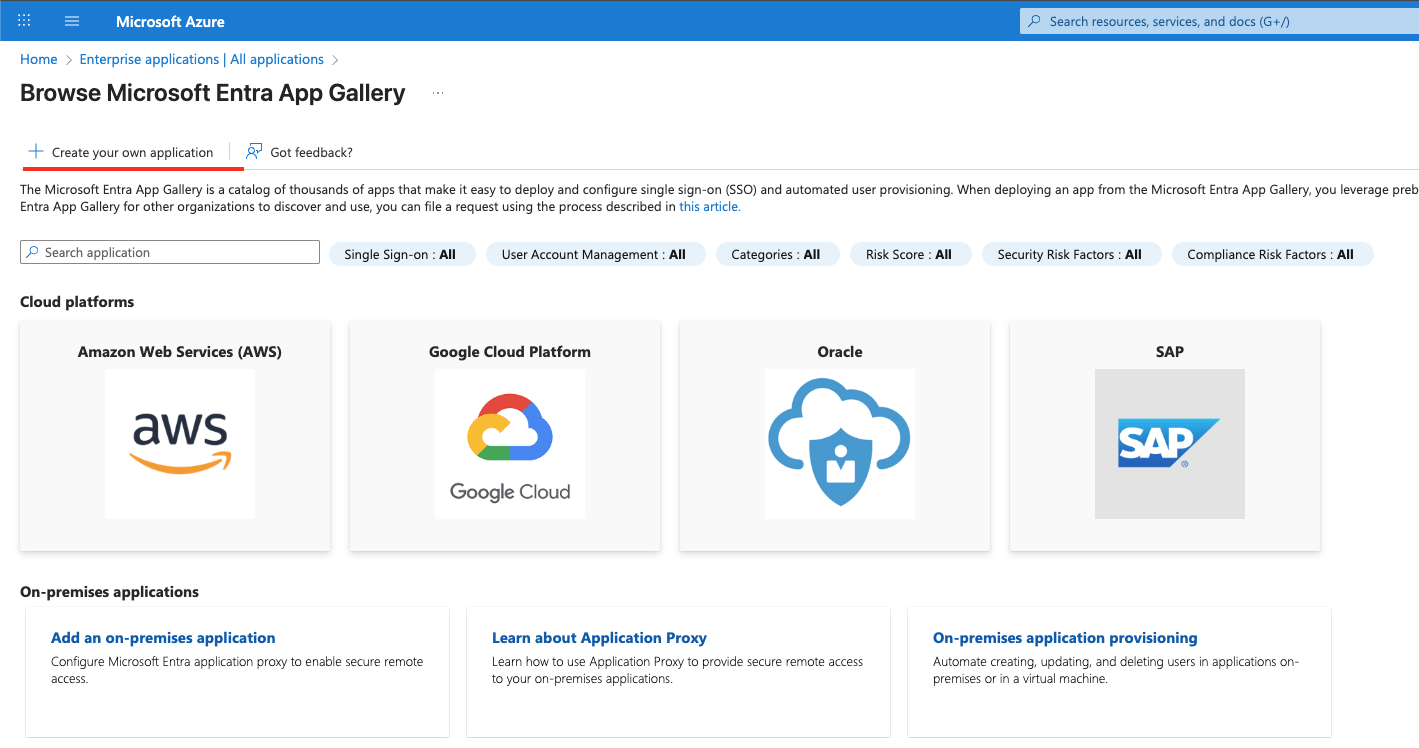
Select **Create your own application**, provide a name (e.g., "Datazone SSO"), and choose **Integrate any other application you don't find in the gallery (Non-gallery)**.
### 3. Create Custom Application
Select **Create your own application**, provide a name (e.g., "Datazone SSO"), and choose **Integrate any other application you don't find in the gallery (Non-gallery)**.
 ### 4. Configure SAML Sign-On
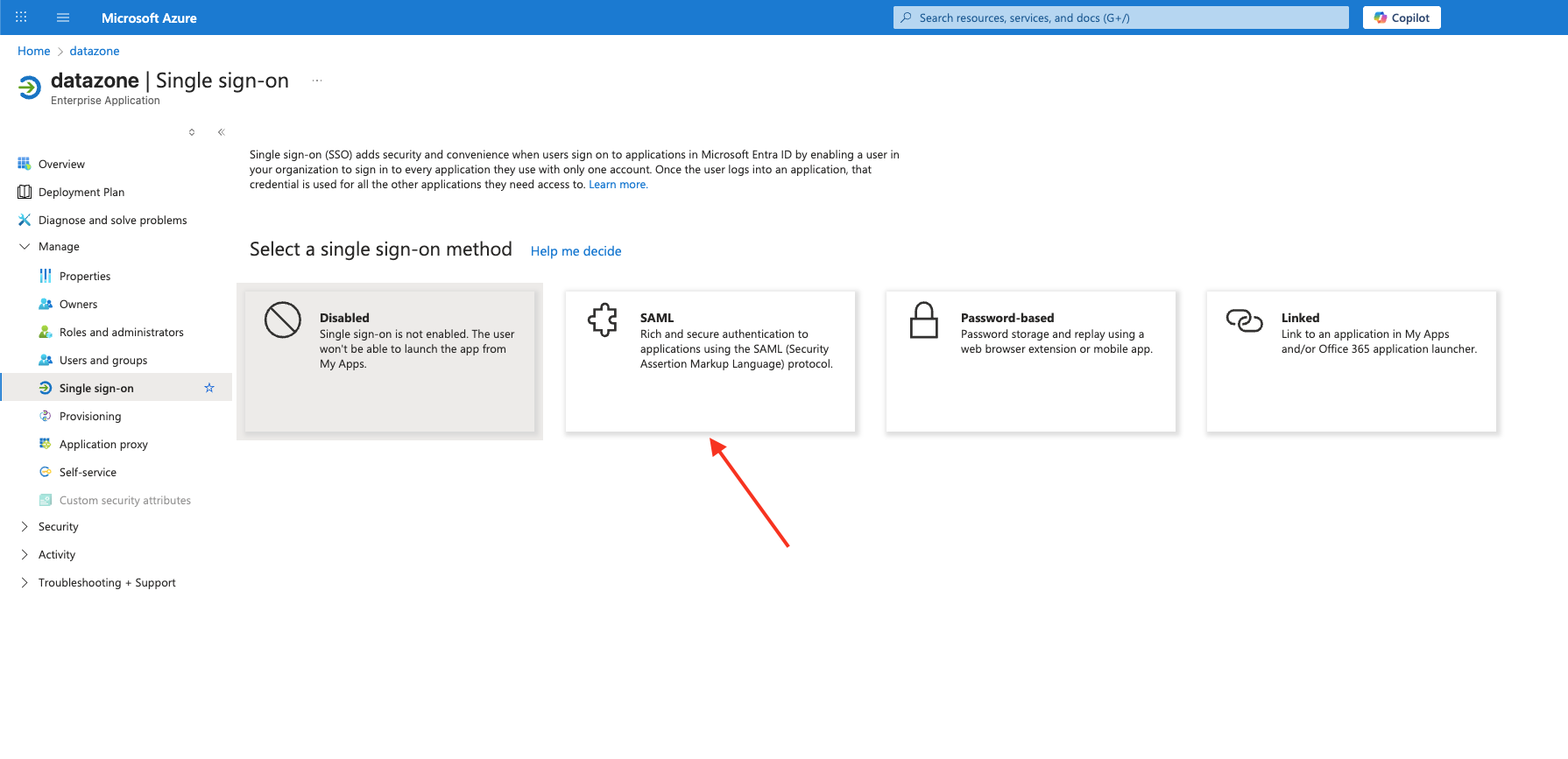
In the application overview, go to **Single sign-on** and select **SAML** as the sign-on method.
### 4. Configure SAML Sign-On
In the application overview, go to **Single sign-on** and select **SAML** as the sign-on method.
 ### 5. Configure Basic SAML Settings
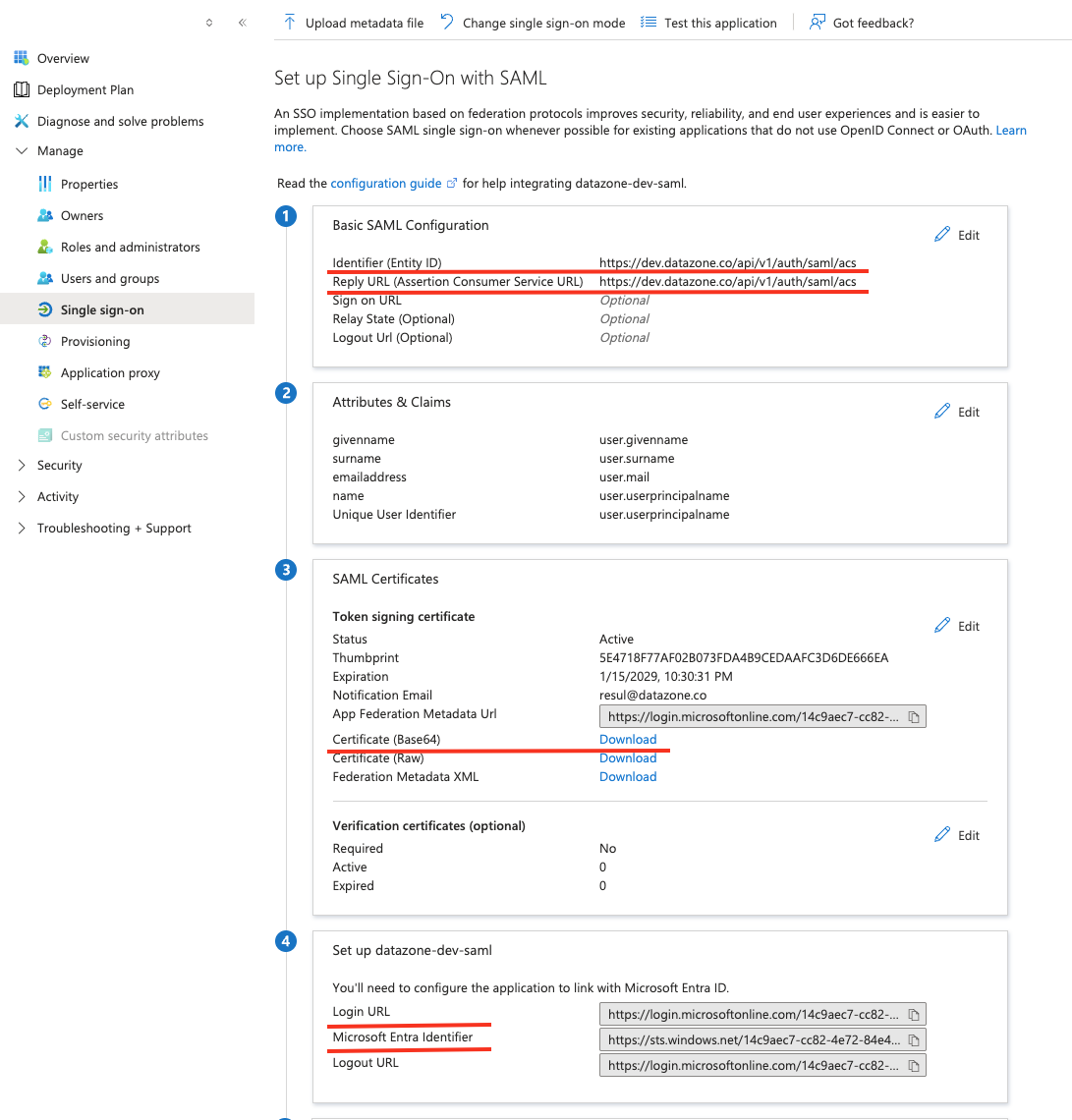
In the **Basic SAML Configuration** section, click **Edit** and set the following parameters:
* **Identifier (Entity ID)**: `https://YOUR_DATAZONE_DOMAIN/api/v1/auth/saml/acs`
* **Reply URL (Assertion Consumer Service URL)**: `https://YOUR_DATAZONE_DOMAIN/api/v1/auth/saml/acs`
Replace `YOUR_DATAZONE_DOMAIN` with your actual Datazone instance domain.
Save the configuration.
### 6. Collect Azure AD Configuration Details
From the **SAML Signing Certificate** section, gather the following information:
* **Login URL**: Found in the SAML configuration
* **Azure AD Identifier**: Found in the SAML configuration
* **Certificate (Base64)**: Download the certificate
### 5. Configure Basic SAML Settings
In the **Basic SAML Configuration** section, click **Edit** and set the following parameters:
* **Identifier (Entity ID)**: `https://YOUR_DATAZONE_DOMAIN/api/v1/auth/saml/acs`
* **Reply URL (Assertion Consumer Service URL)**: `https://YOUR_DATAZONE_DOMAIN/api/v1/auth/saml/acs`
Replace `YOUR_DATAZONE_DOMAIN` with your actual Datazone instance domain.
Save the configuration.
### 6. Collect Azure AD Configuration Details
From the **SAML Signing Certificate** section, gather the following information:
* **Login URL**: Found in the SAML configuration
* **Azure AD Identifier**: Found in the SAML configuration
* **Certificate (Base64)**: Download the certificate
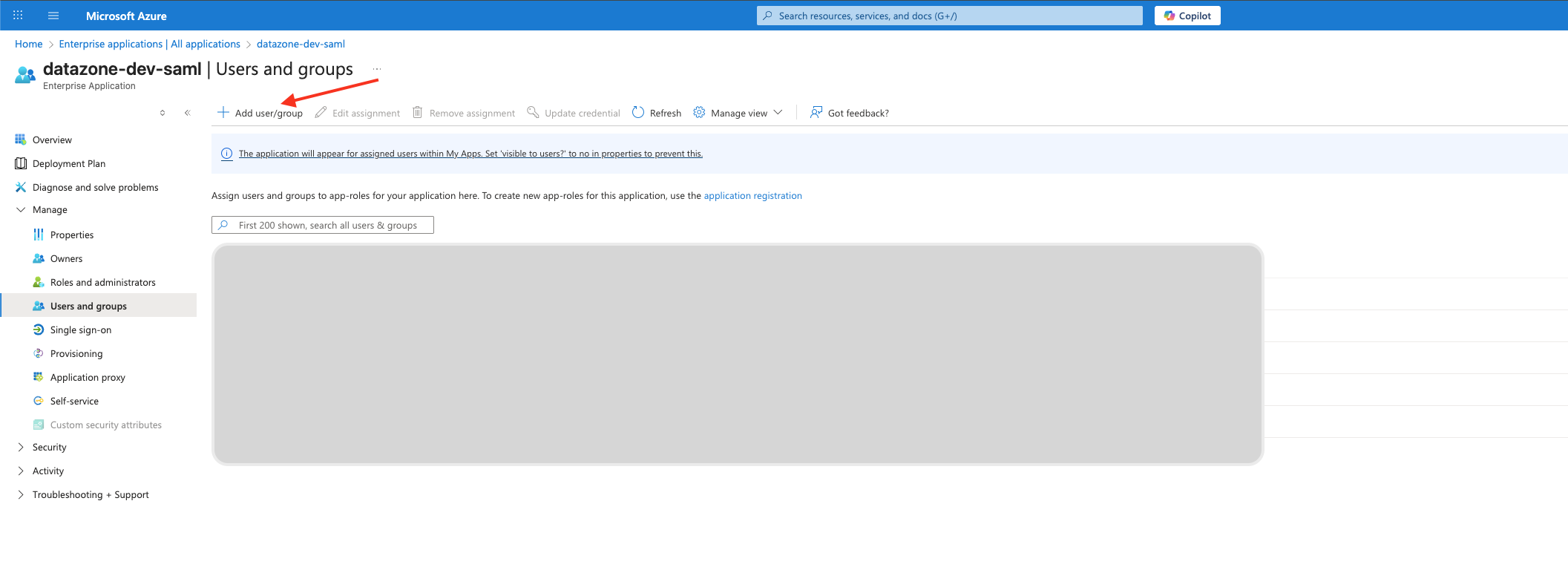
 ### 7. Configure User Attributes (Optional)
You can assign users or groups to the application in the **Users and groups** section. Ensure that the `email` attribute is mapped correctly for user identification.
### 7. Configure User Attributes (Optional)
You can assign users or groups to the application in the **Users and groups** section. Ensure that the `email` attribute is mapped correctly for user identification.
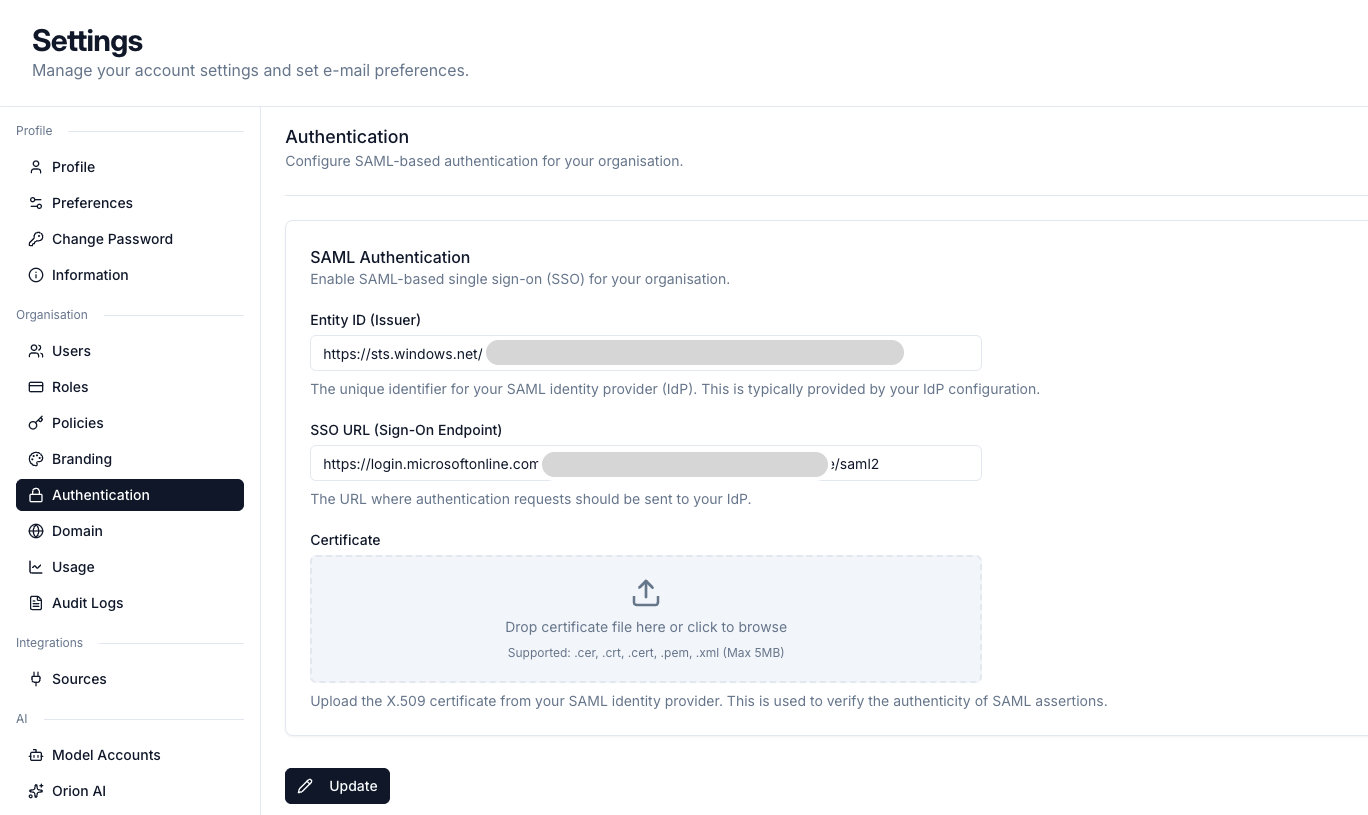
 ### 8. Enter Configuration in Datazone
Finally, enter the collected information into the Datazone SAML configuration settings as described in the [SAML Overview](overview) guide:
* **Entity ID (Issuer)**: Use the **Azure AD Identifier** from Azure
* **SSO URL**: Use the **Login URL** from Azure
* **Certificate**: Upload the downloaded **Certificate (Base64)**
### 8. Enter Configuration in Datazone
Finally, enter the collected information into the Datazone SAML configuration settings as described in the [SAML Overview](overview) guide:
* **Entity ID (Issuer)**: Use the **Azure AD Identifier** from Azure
* **SSO URL**: Use the **Login URL** from Azure
* **Certificate**: Upload the downloaded **Certificate (Base64)**
 ## Testing Your Configuration
After completing the setup:
1. Navigate to your Datazone login page
2. Click on the SSO/SAML login option
3. You should be redirected to Microsoft for authentication
4. Upon successful authentication, you'll be redirected back to Datazone
If you encounter any issues during setup, refer to the [SAML troubleshooting
guide](overview#troubleshooting) or contact support at [support@datazone.co](mailto:support@datazone.co)
## Testing Your Configuration
After completing the setup:
1. Navigate to your Datazone login page
2. Click on the SSO/SAML login option
3. You should be redirected to Microsoft for authentication
4. Upon successful authentication, you'll be redirected back to Datazone
If you encounter any issues during setup, refer to the [SAML troubleshooting
guide](overview#troubleshooting) or contact support at [support@datazone.co](mailto:support@datazone.co)