> ## Documentation Index
> Fetch the complete documentation index at: https://docs.datazone.co/llms.txt
> Use this file to discover all available pages before exploring further.
# Vectors
> Transform your data into searchable embeddings for AI-powered applications
 Datazone Vectors enable you to **transform your data into embeddings** and store them in a vector database. This allows you to build **AI-powered search**, **RAG (Retrieval Augmented Generation)** applications, and **semantic similarity** features on top of your data.
## What are Vectors?
Vectors convert your text data into **numerical representations** (embeddings) that capture **semantic meaning**. This enables:
* **Semantic search** - Find relevant content based on meaning, not just keywords
* **RAG applications** - Enhance AI agents with contextual information from your data
* **Similarity matching** - Identify related documents or records
Datazone Vectors enable you to **transform your data into embeddings** and store them in a vector database. This allows you to build **AI-powered search**, **RAG (Retrieval Augmented Generation)** applications, and **semantic similarity** features on top of your data.
## What are Vectors?
Vectors convert your text data into **numerical representations** (embeddings) that capture **semantic meaning**. This enables:
* **Semantic search** - Find relevant content based on meaning, not just keywords
* **RAG applications** - Enhance AI agents with contextual information from your data
* **Similarity matching** - Identify related documents or records
 Unlike traditional keyword search, vector-based search understands **context and intent**, delivering more accurate and relevant results.
## Creating a Vector Index
1. Navigate to your **Project** page
2. Click the **Add** button (+ icon)
3. Select **Vector** from the dropdown
The vector creation flow guides you through **configuring your vector index**:
### Step 1: Choose Data Source
Unlike traditional keyword search, vector-based search understands **context and intent**, delivering more accurate and relevant results.
## Creating a Vector Index
1. Navigate to your **Project** page
2. Click the **Add** button (+ icon)
3. Select **Vector** from the dropdown
The vector creation flow guides you through **configuring your vector index**:
### Step 1: Choose Data Source
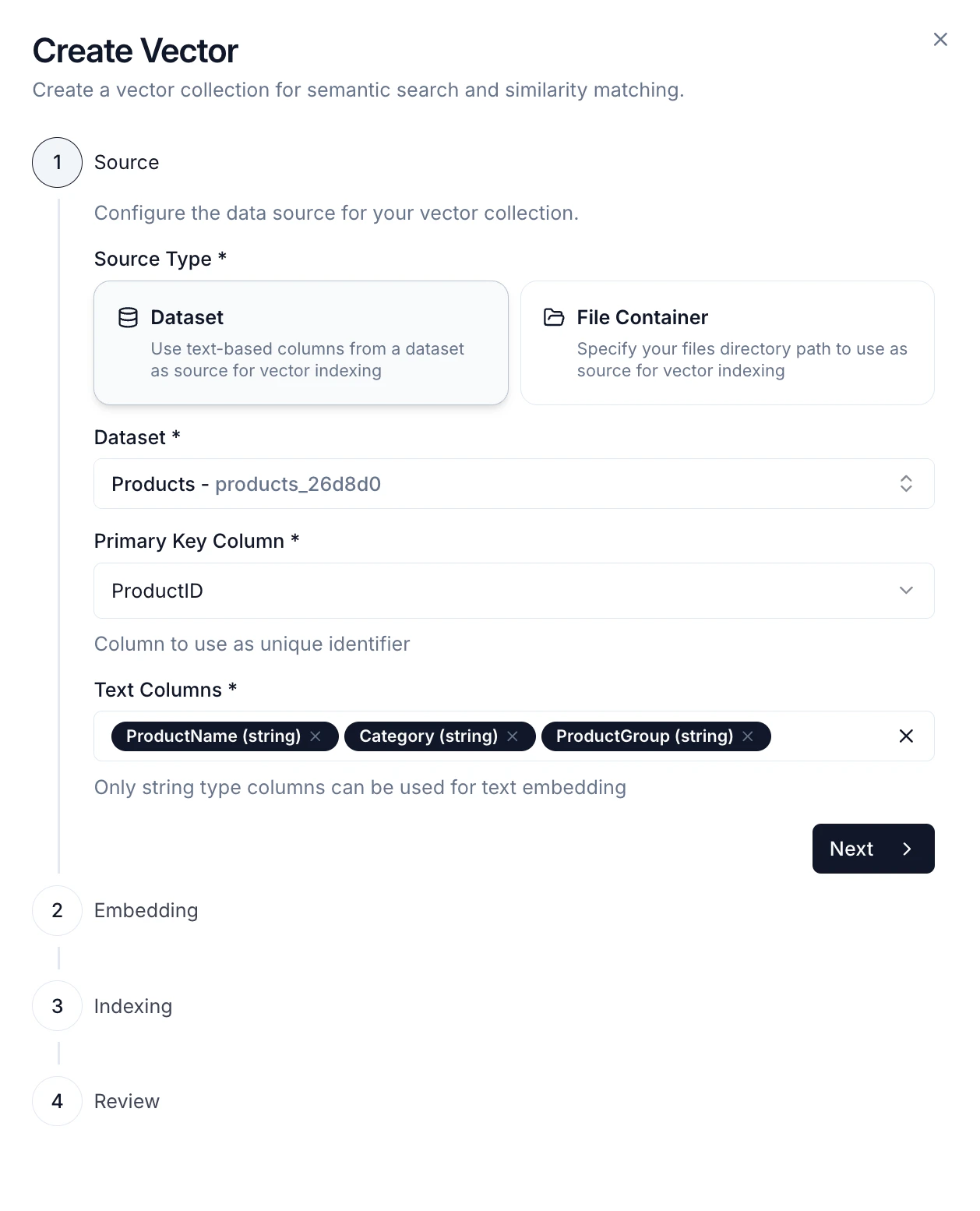 Select what data to vectorize:
* **Dataset** - Index data from a dataset (CSV format)
* Select the dataset you want to vectorize
* Choose a **primary key column** to uniquely identify records
* Select one or more **text columns** to embed
* **File Container** - Index files from a file container path
* Supported formats: **PDF**, **CSV**, **DOCX**, **XLSX**, **Markdown**, **TXT**
* Files will be automatically processed and chunked
For large datasets, consider using **Views** or filtered datasets to index only the most relevant data.
### Step 2: Embedding Configuration
Select what data to vectorize:
* **Dataset** - Index data from a dataset (CSV format)
* Select the dataset you want to vectorize
* Choose a **primary key column** to uniquely identify records
* Select one or more **text columns** to embed
* **File Container** - Index files from a file container path
* Supported formats: **PDF**, **CSV**, **DOCX**, **XLSX**, **Markdown**, **TXT**
* Files will be automatically processed and chunked
For large datasets, consider using **Views** or filtered datasets to index only the most relevant data.
### Step 2: Embedding Configuration
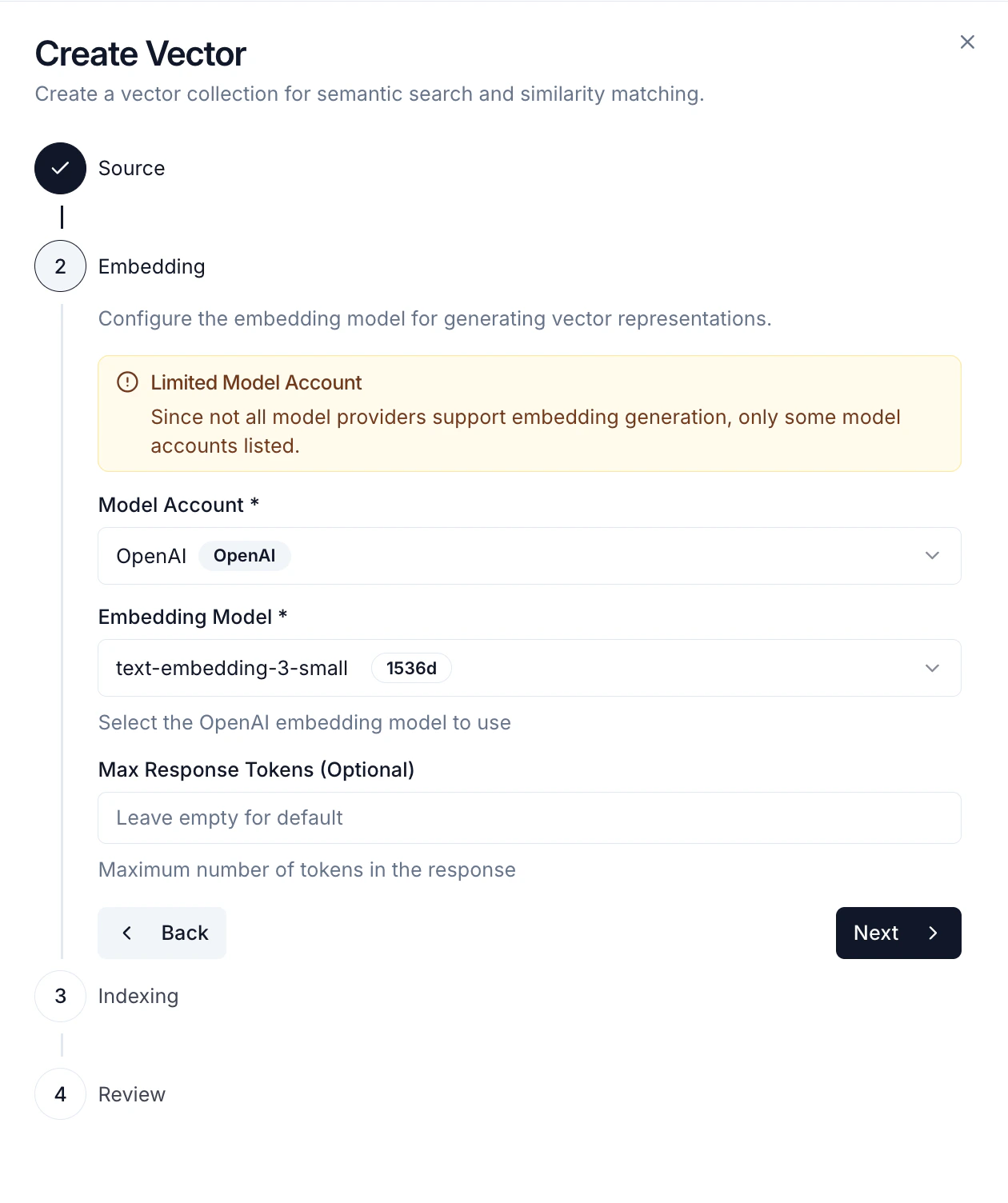 Configure how your data will be embedded:
* **Model Account** - Select a configured [Model Account](/reference/development/model-accounts) with embedding support
* **Embedding Model** - Choose the embedding model (e.g., `text-embedding-3-small`, `text-embedding-ada-002`)
* **Vector Dimension** - Embedding dimension (typically 1536 for OpenAI models)
### Step 3: Chunking Strategy
Configure how your text is split into chunks before embedding:
* **Text Splitting** - Split by character count
* **Chunk Size** - Number of characters per chunk
* **Chunk Overlap** - Characters shared between chunks (helps maintain context)
* **Length Splitting** - Split by token count using a specific encoding
* **Encoding Name** - Tokenizer to use (e.g., `cl100k_base` for GPT models)
* **Chunk Size** - Number of tokens per chunk
* **Chunk Overlap** - Tokens shared between chunks
* **Document Splitting** - Split based on document structure
* **Document Type** - Choose format: Markdown, JSON, Code, or HTML
* Preserves logical document boundaries
Smaller chunks provide more precise search results but may lose broader context. Larger chunks retain more context but may be less specific. A typical chunk size is **500-1000 characters** with **10-20% overlap**.
After completing configuration, click **Create** to start the indexing process.
## Indexing Process
Once created, your vector index goes through several states:
1. **Not Indexed** - Initial state after creation
2. **Scheduled** - Queued for indexing
3. **Indexing** - Currently processing and embedding your data
4. **Indexed** - Successfully completed, ready to use
5. **Failed** - Error occurred during indexing (check error details)
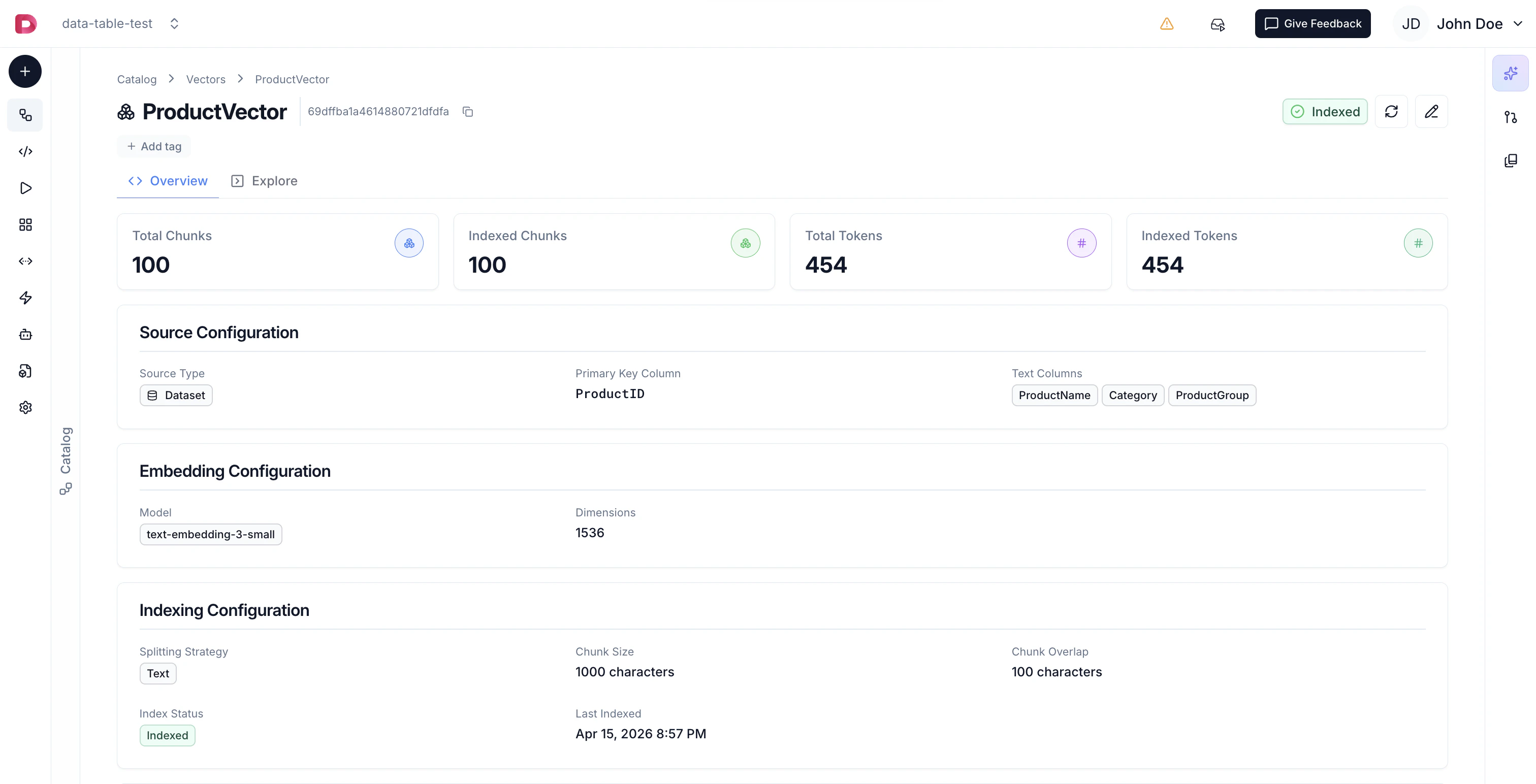
You can monitor the **indexing status** and view **statistics** including:
* Total chunks created
* Total chunks indexed
* Total tokens processed
## Using Vectors
Once indexed, your vectors can be used for:
### Semantic Search
Configure how your data will be embedded:
* **Model Account** - Select a configured [Model Account](/reference/development/model-accounts) with embedding support
* **Embedding Model** - Choose the embedding model (e.g., `text-embedding-3-small`, `text-embedding-ada-002`)
* **Vector Dimension** - Embedding dimension (typically 1536 for OpenAI models)
### Step 3: Chunking Strategy
Configure how your text is split into chunks before embedding:
* **Text Splitting** - Split by character count
* **Chunk Size** - Number of characters per chunk
* **Chunk Overlap** - Characters shared between chunks (helps maintain context)
* **Length Splitting** - Split by token count using a specific encoding
* **Encoding Name** - Tokenizer to use (e.g., `cl100k_base` for GPT models)
* **Chunk Size** - Number of tokens per chunk
* **Chunk Overlap** - Tokens shared between chunks
* **Document Splitting** - Split based on document structure
* **Document Type** - Choose format: Markdown, JSON, Code, or HTML
* Preserves logical document boundaries
Smaller chunks provide more precise search results but may lose broader context. Larger chunks retain more context but may be less specific. A typical chunk size is **500-1000 characters** with **10-20% overlap**.
After completing configuration, click **Create** to start the indexing process.
## Indexing Process
Once created, your vector index goes through several states:
1. **Not Indexed** - Initial state after creation
2. **Scheduled** - Queued for indexing
3. **Indexing** - Currently processing and embedding your data
4. **Indexed** - Successfully completed, ready to use
5. **Failed** - Error occurred during indexing (check error details)
You can monitor the **indexing status** and view **statistics** including:
* Total chunks created
* Total chunks indexed
* Total tokens processed
## Using Vectors
Once indexed, your vectors can be used for:
### Semantic Search
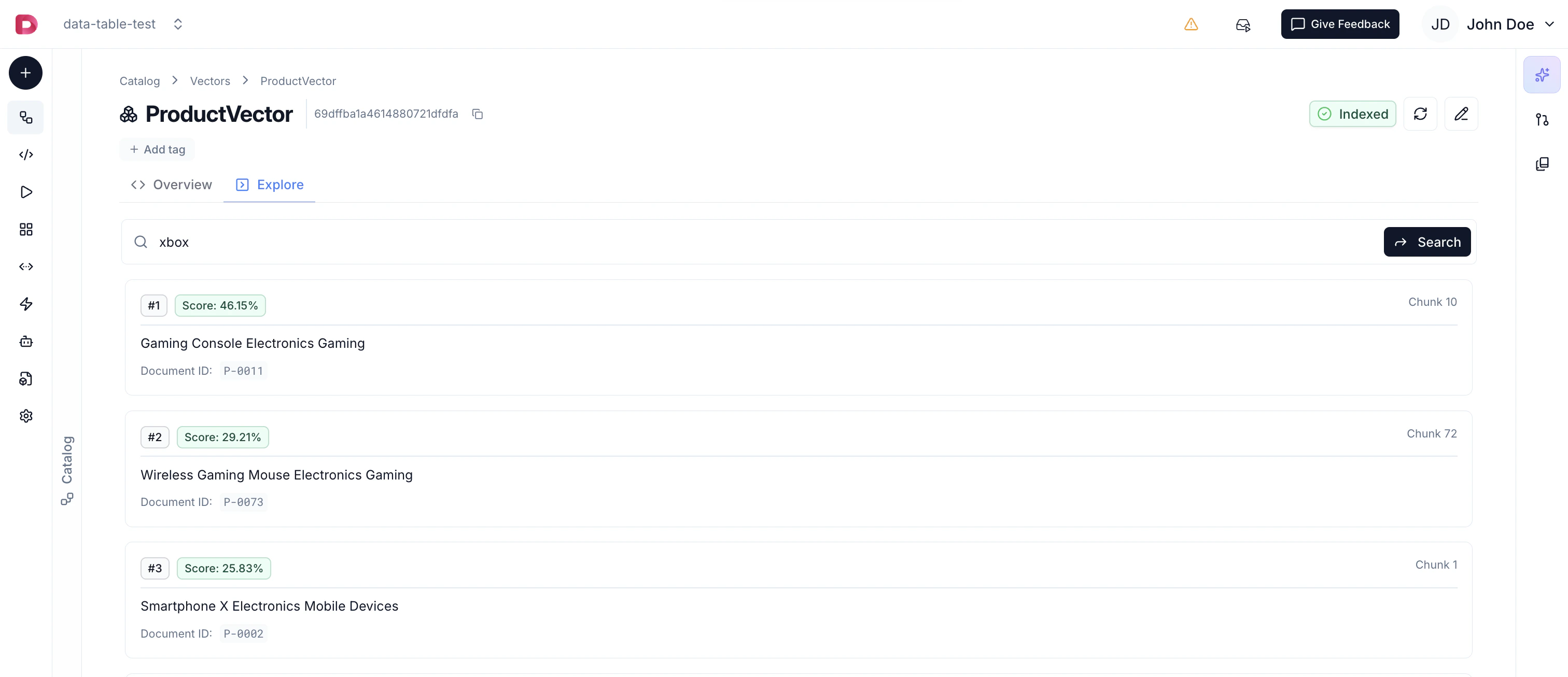 Search your data using **natural language queries** that understand meaning and context, not just exact keyword matches. The **Explore** tab provides an interface to:
* Enter search queries in natural language
* View semantically similar results ranked by relevance
* See matching chunks with their context and metadata
* Test and refine your vector search results
### Agent RAG
Attach vectors as data sources for your [Agents](/reference/agents/overview), enabling them to retrieve relevant context from your data to provide more accurate and informed responses. Agents can automatically perform semantic search when answering questions.
### Similarity Endpoints
Create [API endpoints](/reference/integration/endpoints#vector-based-endpoints) that return similar records based on vector similarity, enabling semantic search in your applications. Perfect for building search features or recommendation systems.
## Best Practices
1. **Choose the Right Source** - Use datasets for structured data and file containers for documents
2. **Optimize Chunk Size** - Balance between context (larger chunks) and precision (smaller chunks)
3. **Add Overlap** - Include 10-20% overlap to maintain context across chunk boundaries
4. **Select Appropriate Models** - Smaller embedding models are faster and cheaper, larger models may provide better quality
5. **Use Cosine Similarity** - Works well for most text similarity use cases
6. **Monitor Indexing** - Check indexing status and statistics to ensure successful processing
## Next Steps
* [Configure Model Accounts](/reference/development/model-accounts) for embedding models
* [Create Agents](/reference/agents/overview) to leverage your vectors
* [File Containers](/reference/development/file-container) for document management
Search your data using **natural language queries** that understand meaning and context, not just exact keyword matches. The **Explore** tab provides an interface to:
* Enter search queries in natural language
* View semantically similar results ranked by relevance
* See matching chunks with their context and metadata
* Test and refine your vector search results
### Agent RAG
Attach vectors as data sources for your [Agents](/reference/agents/overview), enabling them to retrieve relevant context from your data to provide more accurate and informed responses. Agents can automatically perform semantic search when answering questions.
### Similarity Endpoints
Create [API endpoints](/reference/integration/endpoints#vector-based-endpoints) that return similar records based on vector similarity, enabling semantic search in your applications. Perfect for building search features or recommendation systems.
## Best Practices
1. **Choose the Right Source** - Use datasets for structured data and file containers for documents
2. **Optimize Chunk Size** - Balance between context (larger chunks) and precision (smaller chunks)
3. **Add Overlap** - Include 10-20% overlap to maintain context across chunk boundaries
4. **Select Appropriate Models** - Smaller embedding models are faster and cheaper, larger models may provide better quality
5. **Use Cosine Similarity** - Works well for most text similarity use cases
6. **Monitor Indexing** - Check indexing status and statistics to ensure successful processing
## Next Steps
* [Configure Model Accounts](/reference/development/model-accounts) for embedding models
* [Create Agents](/reference/agents/overview) to leverage your vectors
* [File Containers](/reference/development/file-container) for document management