> ## Documentation Index
> Fetch the complete documentation index at: https://docs.datazone.co/llms.txt
> Use this file to discover all available pages before exploring further.
# Model Accounts
> Configure and manage AI model provider credentials for building intelligent applications with Datazone
## Overview
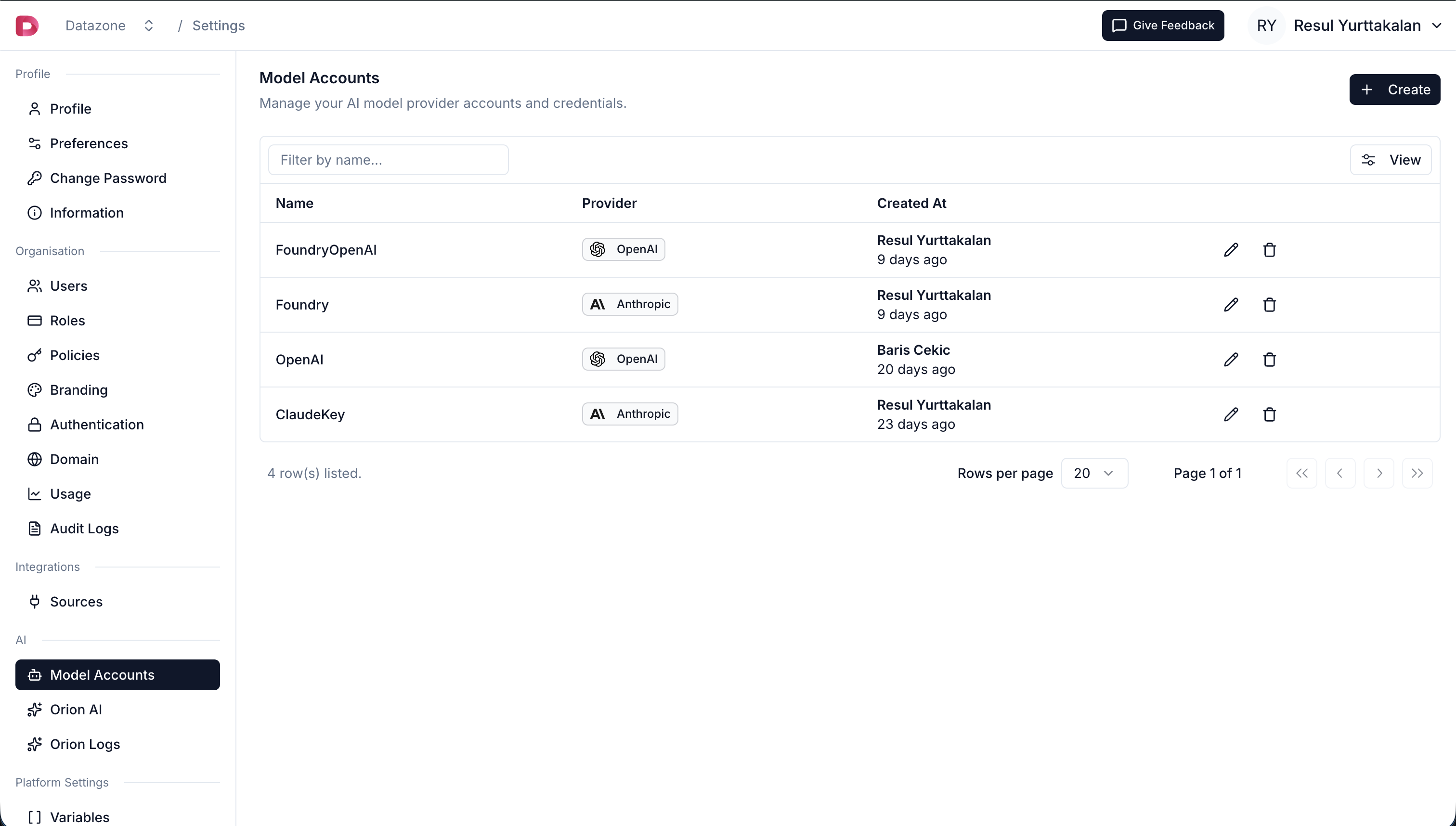
Model Accounts allow you to securely store and manage API credentials for AI model providers like OpenAI, Anthropic (Claude), and AWS Bedrock. Once configured, these credentials can be used across your Datazone projects to build intelligent applications, data pipelines with AI capabilities, and automated workflows.
 ## Supported Providers
Datazone supports the following AI model providers:
| Provider | Description | Required Credentials |
| --------------- | ------------------------------------------------- | -------------------------------------------- |
| **OpenAI** | Access to GPT models (GPT-4, GPT-3.5, etc.) | API Key |
| **Anthropic** | Access to Claude models (Claude 3.5 Sonnet, etc.) | API Key |
| **AWS Bedrock** | Access to multiple models via AWS Bedrock service | AWS Access Key ID, Secret Access Key, Region |
## Creating a Model Account
1. Click **Settings** in the top right corner session context menu.
2. Click **Model Accounts** in the left sidebar.
3. Click **Create Model Account** to add a new provider.
## Supported Providers
Datazone supports the following AI model providers:
| Provider | Description | Required Credentials |
| --------------- | ------------------------------------------------- | -------------------------------------------- |
| **OpenAI** | Access to GPT models (GPT-4, GPT-3.5, etc.) | API Key |
| **Anthropic** | Access to Claude models (Claude 3.5 Sonnet, etc.) | API Key |
| **AWS Bedrock** | Access to multiple models via AWS Bedrock service | AWS Access Key ID, Secret Access Key, Region |
## Creating a Model Account
1. Click **Settings** in the top right corner session context menu.
2. Click **Model Accounts** in the left sidebar.
3. Click **Create Model Account** to add a new provider.
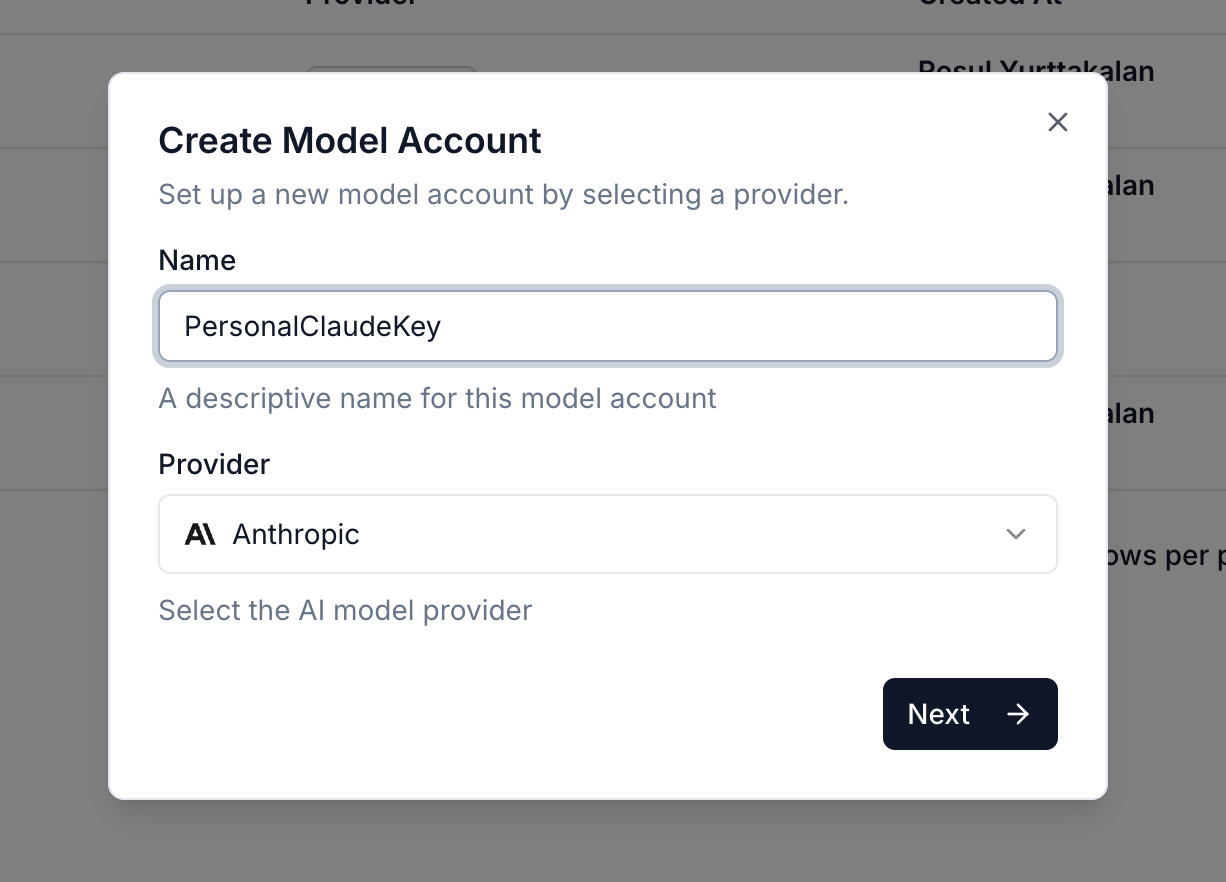 4. Enter a descriptive name for your model account (e.g., "Production OpenAI", "Development Claude").
5. Select your AI provider from the dropdown.
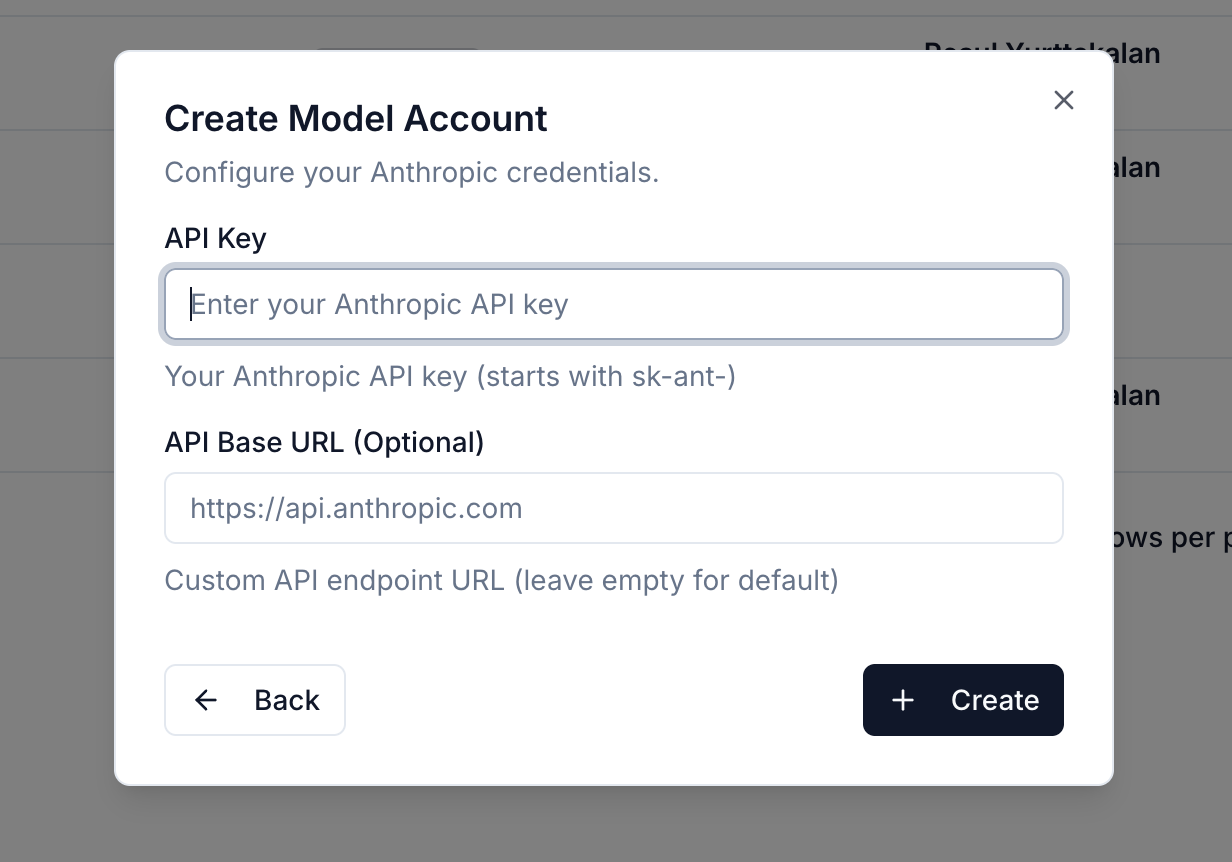
6. Enter the required credentials based on the provider:
4. Enter a descriptive name for your model account (e.g., "Production OpenAI", "Development Claude").
5. Select your AI provider from the dropdown.
6. Enter the required credentials based on the provider:
 ### OpenAI Configuration
* **API Key** (required): Your OpenAI API key starting with `sk-`
* **API Base** (optional): Custom API endpoint if using a proxy or Azure OpenAI
### Anthropic Configuration
* **API Key** (required): Your Anthropic API key starting with `sk-ant-`
* **API Base** (optional): Custom API endpoint if needed
### AWS Bedrock Configuration
* **AWS Access Key ID** (required): Your AWS access key
* **AWS Secret Access Key** (required): Your AWS secret access key
* **AWS Region** (required): The AWS region for Bedrock (e.g., `us-east-1`, `us-west-2`)
* **AWS Session Token** (optional): Temporary session token if using STS
7. Click **Create** to save your model account.
## Security
Datazone takes security seriously when handling your AI provider credentials:
* **Encrypted Storage**: All API keys and sensitive credentials are encrypted at rest using industry-standard encryption.
* **Access Control**: Only organization members with MANAGE permissions can view or modify model accounts.
* **Organization Isolation**: Model accounts are scoped to your organization and cannot be accessed by other organizations.
Never share your API keys or credentials publicly. Each model account is tied to your organization, so treat credentials with the same care as database passwords.
## Managing Model Accounts
### Viewing Model Accounts
All your configured model accounts are listed in the Model Accounts page. Each entry shows:
* Account name
* Provider type
* Creation date
* Last updated date
### Updating Credentials
To update a model account:
1. Click on the account you want to update.
2. Modify the account name or credentials as needed.
3. Click **Update** to save changes.
Updating credentials will affect all projects and pipelines currently using this model account. Ensure the new credentials are valid before saving.
### Deleting Model Accounts
To delete a model account:
1. Click on the account you want to remove.
2. Click the **Delete** button.
3. Confirm the deletion.
Deleting a model account is permanent. Any projects or pipelines using this account will fail until reconfigured with a different model account.
## Next Steps
* [Build Intelligent Apps](/reference/intelligent-apps/overview) powered by AI
* [Create Data Pipelines](/reference/development/pipeline) with AI transformations
* [Manage Variables](/reference/development/variables) to reference model accounts in projects
### OpenAI Configuration
* **API Key** (required): Your OpenAI API key starting with `sk-`
* **API Base** (optional): Custom API endpoint if using a proxy or Azure OpenAI
### Anthropic Configuration
* **API Key** (required): Your Anthropic API key starting with `sk-ant-`
* **API Base** (optional): Custom API endpoint if needed
### AWS Bedrock Configuration
* **AWS Access Key ID** (required): Your AWS access key
* **AWS Secret Access Key** (required): Your AWS secret access key
* **AWS Region** (required): The AWS region for Bedrock (e.g., `us-east-1`, `us-west-2`)
* **AWS Session Token** (optional): Temporary session token if using STS
7. Click **Create** to save your model account.
## Security
Datazone takes security seriously when handling your AI provider credentials:
* **Encrypted Storage**: All API keys and sensitive credentials are encrypted at rest using industry-standard encryption.
* **Access Control**: Only organization members with MANAGE permissions can view or modify model accounts.
* **Organization Isolation**: Model accounts are scoped to your organization and cannot be accessed by other organizations.
Never share your API keys or credentials publicly. Each model account is tied to your organization, so treat credentials with the same care as database passwords.
## Managing Model Accounts
### Viewing Model Accounts
All your configured model accounts are listed in the Model Accounts page. Each entry shows:
* Account name
* Provider type
* Creation date
* Last updated date
### Updating Credentials
To update a model account:
1. Click on the account you want to update.
2. Modify the account name or credentials as needed.
3. Click **Update** to save changes.
Updating credentials will affect all projects and pipelines currently using this model account. Ensure the new credentials are valid before saving.
### Deleting Model Accounts
To delete a model account:
1. Click on the account you want to remove.
2. Click the **Delete** button.
3. Confirm the deletion.
Deleting a model account is permanent. Any projects or pipelines using this account will fail until reconfigured with a different model account.
## Next Steps
* [Build Intelligent Apps](/reference/intelligent-apps/overview) powered by AI
* [Create Data Pipelines](/reference/development/pipeline) with AI transformations
* [Manage Variables](/reference/development/variables) to reference model accounts in projects