> ## Documentation Index
> Fetch the complete documentation index at: https://docs.datazone.co/llms.txt
> Use this file to discover all available pages before exploring further.
# File Container
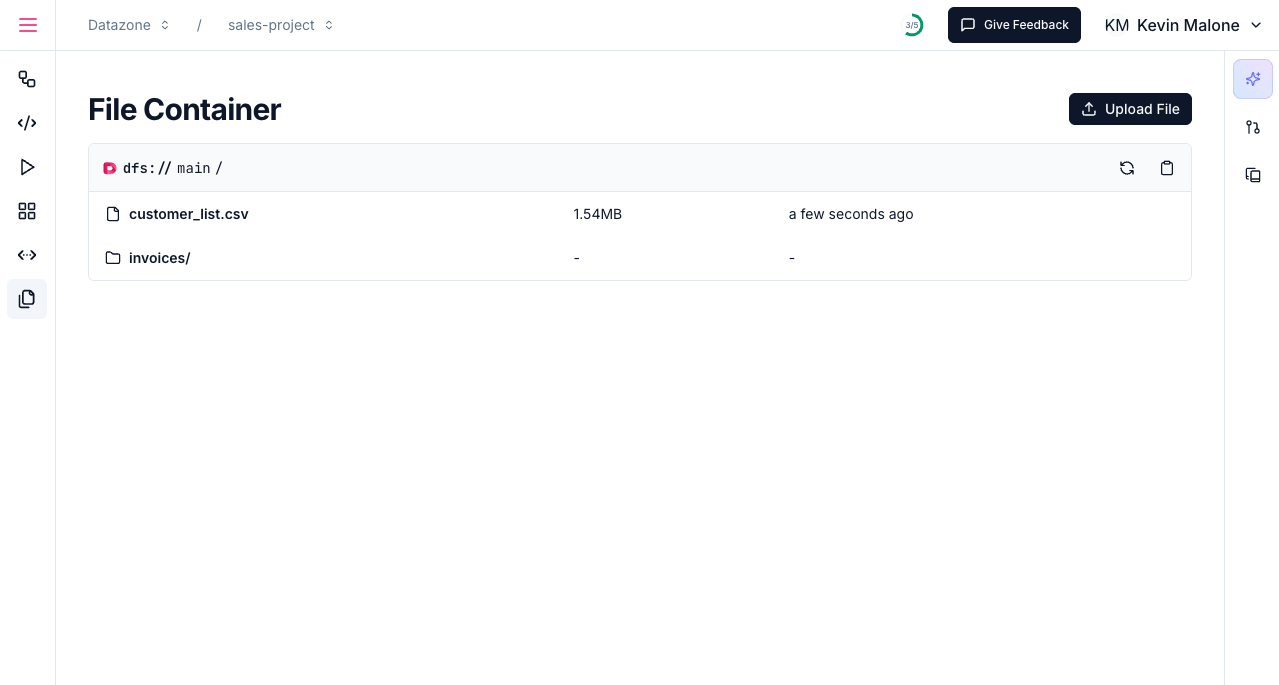
> File Container is a storage solution in the Datazone platform that allows you to manage and store files. You can create, update, and delete file containers, and use them to store data for your pipelines and notebooks.
 ## Overview
File Containers allows you to manage and store files. Each project has its own isolated file container. You can interact with file containers like **AWS S3 buckets** or **Google Cloud Storage buckets**.
Also, Datazone provides **toolkits** to interact with file containers. You can use the `FileContainerClient` in notebooks and pipelines to interact with file containers.
1. Click **Projects** in the left sidebar.
2. Choose a project from the card list.
3. Click **File Containers** tab in the left sidebar.
## Overview
File Containers allows you to manage and store files. Each project has its own isolated file container. You can interact with file containers like **AWS S3 buckets** or **Google Cloud Storage buckets**.
Also, Datazone provides **toolkits** to interact with file containers. You can use the `FileContainerClient` in notebooks and pipelines to interact with file containers.
1. Click **Projects** in the left sidebar.
2. Choose a project from the card list.
3. Click **File Containers** tab in the left sidebar.
 ## Client Usage
The `FileContainerClient` provides a convenient interface to interact with file containers using S3-compatible storage. It handles authentication and bucket management automatically.
The `FileContainerClient` is **only available in the execution environment** (pipelines and notebooks running on Datazone). For **local development and external applications**, see the [Local Access](#local-access) section below.
You can access the `FileContainerClient` in your **pipelines** and **notebooks** like this:
```python theme={null}
from datazone import FileContainerClient
```
#### `list_objects`
Lists objects in the file container with an optional prefix filter.
```python theme={null}
from datazone import FileContainerClient
# List all objects
objects = FileContainerClient.list_objects()
# List objects with a specific prefix
documents = FileContainerClient.list_objects("documents/")
```
**Parameters:**
* `prefix` (str): Optional prefix to filter objects by path
**Returns:**
* `list`: List of object metadata dictionaries. Example:
```
[
{
'Key': 'customer_list.csv',
'LastModified': datetime.datetime(2025, 7, 24, 19, 44, 12, 475000, tzinfo=tzlocal()),
'ETag': '"bf36dc829c4229254b7df3c428d0a349"',
'Size': 18311622,
'StorageClass': 'STANDARD'
}
]
```
#### `get_object`
Retrieves an object from the file container by its key.
```python theme={null}
# Get a file's content
file_data = FileContainerClient.get_object("data/sample.csv")
# Convert bytes to string for text files
content = file_data.decode('utf-8')
```
**Parameters:**
* `key` (str): The key/path of the object to retrieve
**Returns:**
* `bytes`: The object's raw data
Objects are stored as bytes, so you may need to encode/decode text data appropriately
#### `put_object`
Stores data in the file container at the specified key.
```python theme={null}
# Store text data
text_data = "Hello, World!".encode('utf-8')
FileContainerClient.put_object("messages/hello.txt", text_data)
# Store binary data
with open("local_file.pdf", "rb") as f:
file_data = f.read()
FileContainerClient.put_object("documents/file.pdf", file_data)
```
**Parameters:**
* `key` (str): The key/path where the object will be stored
* `data` (bytes): The data to store
#### `delete_object`
Removes an object from the file container.
```python theme={null}
# Delete a specific file
FileContainerClient.delete_object("temp/old_file.txt")
```
**Parameters:**
* `key` (str): The key/path of the object to delete
## Examples
### Periodically Uploading Files in a Pipeline
You can use the FileContainerClient to periodically upload files to your file container. This can be useful for tasks like logging, data collection, or backups.
```python theme={null}
from datazone import transform, FileContainerClient
import requests
from datetime import datetime
import io
@transform
def fetch_and_store_llm_data():
# URL to fetch the data from
url = "https://docs.datazone.co/llms-full.txt"
# Get the current timestamp in ISO format
timestamp_as_iso = datetime.now().isoformat()
# Fetch the data from the URL
response = requests.get(url)
# Check if the request was successful
if response.status_code == 200:
# Get the content
content = response.text
# Store the content in the file system
FileContainerClient.put_object(f"daily_llm/{timestamp_as_iso}/llm.txt", io.BytesIO(content.encode('utf-8')))
return f"Successfully stored LLM data with timestamp {timestamp_as_iso}"
else:
raise Exception(f"Failed to fetch data: HTTP {response.status_code}")
```
### Read a Parquet File in a Notebook
```python theme={null}
import io
import pandas as pd
from datazone import FileContainerClient
# Read a Parquet file from the file container
data = FileContainerClient.get_object("datasets/sample.parquet")
# Convert bytes to a Pandas DataFrame
df = pd.read_parquet(io.BytesIO(data))
```
## Local Access
For **local development** and **external applications**, you can access File Containers using **S3-compatible tools** and SDKs. This requires **Access Keys** for authentication.
### Prerequisites
Before connecting locally, you need:
1. **Access Keys** - Create from your project settings ([Learn how](/reference/development/access-keys))
2. **Endpoint URL** - Your Datazone instance URL (e.g., `your-instance.datazone.co:3333`)
3. **Project Path** - Format: `{project-name}/main/file-container/`
### AWS CLI
#### Install AWS CLI
```bash theme={null}
# macOS
brew install awscli
# Linux
curl "https://awscli.amazonaws.com/awscli-exe-linux-x86_64.zip" -o "awscliv2.zip"
unzip awscliv2.zip
sudo ./aws/install
# Windows
msiexec.exe /i https://awscli.amazonaws.com/AWSCLIV2.msi
```
#### Configure Credentials
Set your **access keys** as environment variables:
```bash theme={null}
export AWS_ACCESS_KEY_ID="your-access-key-id"
export AWS_SECRET_ACCESS_KEY="your-secret-access-key"
```
#### List Files
```bash theme={null}
aws s3 ls --endpoint-url https://your-instance.datazone.co:3333 \
your-project-bucket/main/file-container/
```
#### Upload a File
```bash theme={null}
aws s3 cp local-file.txt \
--endpoint-url https://your-instance.datazone.co:3333 \
s3://your-project-bucket/main/file-container/local-file.txt
```
#### Download a File
```bash theme={null}
aws s3 cp --endpoint-url https://your-instance.datazone.co:3333 \
s3://your-project-bucket/main/file-container/remote-file.txt \
local-file.txt
```
#### Sync Directory
```bash theme={null}
# Upload entire directory
aws s3 sync ./local-folder \
--endpoint-url https://your-instance.datazone.co:3333 \
s3://your-project-bucket/main/file-container/remote-folder/
# Download entire directory
aws s3 sync --endpoint-url https://your-instance.datazone.co:3333 \
s3://your-project-bucket/main/file-container/remote-folder/ \
./local-folder
```
### Python (boto3)
#### Install boto3
```bash theme={null}
pip install boto3
```
#### Configure S3 Client
```python theme={null}
import boto3
s3_client = boto3.client(
's3',
endpoint_url='https://your-instance.datazone.co:3333',
aws_access_key_id='your-access-key-id',
aws_secret_access_key='your-secret-access-key'
)
bucket_name = 'your-project-bucket'
prefix = 'main/file-container/'
```
#### List Files
```python theme={null}
response = s3_client.list_objects_v2(
Bucket=bucket_name,
Prefix=prefix
)
for obj in response.get('Contents', []):
print(obj['Key'])
```
#### Upload a File
```python theme={null}
s3_client.upload_file(
'local-file.txt',
bucket_name,
f'{prefix}local-file.txt'
)
print('File uploaded successfully')
```
#### Download a File
```python theme={null}
s3_client.download_file(
bucket_name,
f'{prefix}remote-file.txt',
'local-file.txt'
)
print('File downloaded successfully')
```
#### Upload with Metadata
```python theme={null}
s3_client.upload_file(
'data.csv',
bucket_name,
f'{prefix}data.csv',
ExtraArgs={
'Metadata': {
'source': 'analytics',
'date': '2026-01-20'
}
}
)
```
### JavaScript (AWS SDK)
#### Install AWS SDK
```bash theme={null}
npm install aws-sdk
```
#### Configure S3 Client
```javascript theme={null}
const AWS = require('aws-sdk');
const s3 = new AWS.S3({
endpoint: 'https://your-instance.datazone.co:3333',
accessKeyId: 'your-access-key-id',
secretAccessKey: 'your-secret-access-key',
s3ForcePathStyle: true,
signatureVersion: 'v4'
});
const bucketName = 'your-project-bucket';
const prefix = 'main/file-container/';
```
#### List Files
```javascript theme={null}
s3.listObjectsV2({
Bucket: bucketName,
Prefix: prefix
}, (err, data) => {
if (err) console.error(err);
else {
data.Contents.forEach(obj => {
console.log(obj.Key);
});
}
});
```
#### Upload a File
```javascript theme={null}
const fs = require('fs');
const fileContent = fs.readFileSync('local-file.txt');
s3.putObject({
Bucket: bucketName,
Key: `${prefix}local-file.txt`,
Body: fileContent
}, (err, data) => {
if (err) console.error(err);
else console.log('File uploaded successfully');
});
```
#### Download a File
```javascript theme={null}
s3.getObject({
Bucket: bucketName,
Key: `${prefix}remote-file.txt`
}, (err, data) => {
if (err) console.error(err);
else {
fs.writeFileSync('local-file.txt', data.Body);
console.log('File downloaded successfully');
}
});
```
### Java (AWS SDK)
#### Add Dependency
```xml theme={null}
com.amazonaws
aws-java-sdk-s3
1.12.400
```
#### Configure S3 Client
```java theme={null}
import com.amazonaws.auth.AWSStaticCredentialsProvider;
import com.amazonaws.auth.BasicAWSCredentials;
import com.amazonaws.client.builder.AwsClientBuilder;
import com.amazonaws.services.s3.AmazonS3;
import com.amazonaws.services.s3.AmazonS3ClientBuilder;
import com.amazonaws.services.s3.model.*;
import java.io.File;
BasicAWSCredentials credentials = new BasicAWSCredentials(
"your-access-key-id",
"your-secret-access-key"
);
AmazonS3 s3Client = AmazonS3ClientBuilder.standard()
.withEndpointConfiguration(
new AwsClientBuilder.EndpointConfiguration(
"https://your-instance.datazone.co:3333",
"us-east-1"
)
)
.withCredentials(new AWSStaticCredentialsProvider(credentials))
.withPathStyleAccessEnabled(true)
.build();
String bucketName = "your-project-bucket";
String prefix = "main/file-container/";
```
#### List Files
```java theme={null}
ListObjectsV2Request listRequest = new ListObjectsV2Request()
.withBucketName(bucketName)
.withPrefix(prefix);
ListObjectsV2Result result = s3Client.listObjectsV2(listRequest);
for (S3ObjectSummary objectSummary : result.getObjectSummaries()) {
System.out.println(objectSummary.getKey());
}
```
#### Upload a File
```java theme={null}
File file = new File("local-file.txt");
s3Client.putObject(
bucketName,
prefix + "local-file.txt",
file
);
System.out.println("File uploaded successfully");
```
#### Download a File
```java theme={null}
S3Object s3Object = s3Client.getObject(
bucketName,
prefix + "remote-file.txt"
);
S3ObjectInputStream inputStream = s3Object.getObjectContent();
// Save to file or process the input stream
System.out.println("File downloaded successfully");
```
## Common Operations
### Check if File Exists
**Python:**
```python theme={null}
try:
s3_client.head_object(Bucket=bucket_name, Key=f'{prefix}file.txt')
print('File exists')
except:
print('File does not exist')
```
### Delete a File
**AWS CLI:**
```bash theme={null}
aws s3 rm --endpoint-url https://your-instance.datazone.co:3333 \
s3://your-project-bucket/main/file-container/file.txt
```
**Python:**
```python theme={null}
s3_client.delete_object(
Bucket=bucket_name,
Key=f'{prefix}file.txt'
)
```
### Get File Metadata
**Python:**
```python theme={null}
response = s3_client.head_object(
Bucket=bucket_name,
Key=f'{prefix}file.txt'
)
print(f"Size: {response['ContentLength']} bytes")
print(f"Last Modified: {response['LastModified']}")
```
## Best Practices
1. **Use Environment Variables** - Never hardcode credentials in code
2. **Handle Errors** - Always wrap operations in try-catch blocks
3. **Stream Large Files** - Use streaming uploads/downloads for large files
4. **Set Timeouts** - Configure appropriate timeouts for your use case
5. **Clean Up** - Delete temporary files after processing
6. **Monitor Usage** - Track file operations for cost management
## Next Steps
* [Create Access Keys](/reference/development/access-keys)
* [AWS S3 CLI Reference](https://awscli.amazonaws.com/v2/documentation/api/latest/reference/s3/index.html)
* [boto3 Documentation](https://boto3.amazonaws.com/v1/documentation/api/latest/reference/services/s3.html)
## Client Usage
The `FileContainerClient` provides a convenient interface to interact with file containers using S3-compatible storage. It handles authentication and bucket management automatically.
The `FileContainerClient` is **only available in the execution environment** (pipelines and notebooks running on Datazone). For **local development and external applications**, see the [Local Access](#local-access) section below.
You can access the `FileContainerClient` in your **pipelines** and **notebooks** like this:
```python theme={null}
from datazone import FileContainerClient
```
#### `list_objects`
Lists objects in the file container with an optional prefix filter.
```python theme={null}
from datazone import FileContainerClient
# List all objects
objects = FileContainerClient.list_objects()
# List objects with a specific prefix
documents = FileContainerClient.list_objects("documents/")
```
**Parameters:**
* `prefix` (str): Optional prefix to filter objects by path
**Returns:**
* `list`: List of object metadata dictionaries. Example:
```
[
{
'Key': 'customer_list.csv',
'LastModified': datetime.datetime(2025, 7, 24, 19, 44, 12, 475000, tzinfo=tzlocal()),
'ETag': '"bf36dc829c4229254b7df3c428d0a349"',
'Size': 18311622,
'StorageClass': 'STANDARD'
}
]
```
#### `get_object`
Retrieves an object from the file container by its key.
```python theme={null}
# Get a file's content
file_data = FileContainerClient.get_object("data/sample.csv")
# Convert bytes to string for text files
content = file_data.decode('utf-8')
```
**Parameters:**
* `key` (str): The key/path of the object to retrieve
**Returns:**
* `bytes`: The object's raw data
Objects are stored as bytes, so you may need to encode/decode text data appropriately
#### `put_object`
Stores data in the file container at the specified key.
```python theme={null}
# Store text data
text_data = "Hello, World!".encode('utf-8')
FileContainerClient.put_object("messages/hello.txt", text_data)
# Store binary data
with open("local_file.pdf", "rb") as f:
file_data = f.read()
FileContainerClient.put_object("documents/file.pdf", file_data)
```
**Parameters:**
* `key` (str): The key/path where the object will be stored
* `data` (bytes): The data to store
#### `delete_object`
Removes an object from the file container.
```python theme={null}
# Delete a specific file
FileContainerClient.delete_object("temp/old_file.txt")
```
**Parameters:**
* `key` (str): The key/path of the object to delete
## Examples
### Periodically Uploading Files in a Pipeline
You can use the FileContainerClient to periodically upload files to your file container. This can be useful for tasks like logging, data collection, or backups.
```python theme={null}
from datazone import transform, FileContainerClient
import requests
from datetime import datetime
import io
@transform
def fetch_and_store_llm_data():
# URL to fetch the data from
url = "https://docs.datazone.co/llms-full.txt"
# Get the current timestamp in ISO format
timestamp_as_iso = datetime.now().isoformat()
# Fetch the data from the URL
response = requests.get(url)
# Check if the request was successful
if response.status_code == 200:
# Get the content
content = response.text
# Store the content in the file system
FileContainerClient.put_object(f"daily_llm/{timestamp_as_iso}/llm.txt", io.BytesIO(content.encode('utf-8')))
return f"Successfully stored LLM data with timestamp {timestamp_as_iso}"
else:
raise Exception(f"Failed to fetch data: HTTP {response.status_code}")
```
### Read a Parquet File in a Notebook
```python theme={null}
import io
import pandas as pd
from datazone import FileContainerClient
# Read a Parquet file from the file container
data = FileContainerClient.get_object("datasets/sample.parquet")
# Convert bytes to a Pandas DataFrame
df = pd.read_parquet(io.BytesIO(data))
```
## Local Access
For **local development** and **external applications**, you can access File Containers using **S3-compatible tools** and SDKs. This requires **Access Keys** for authentication.
### Prerequisites
Before connecting locally, you need:
1. **Access Keys** - Create from your project settings ([Learn how](/reference/development/access-keys))
2. **Endpoint URL** - Your Datazone instance URL (e.g., `your-instance.datazone.co:3333`)
3. **Project Path** - Format: `{project-name}/main/file-container/`
### AWS CLI
#### Install AWS CLI
```bash theme={null}
# macOS
brew install awscli
# Linux
curl "https://awscli.amazonaws.com/awscli-exe-linux-x86_64.zip" -o "awscliv2.zip"
unzip awscliv2.zip
sudo ./aws/install
# Windows
msiexec.exe /i https://awscli.amazonaws.com/AWSCLIV2.msi
```
#### Configure Credentials
Set your **access keys** as environment variables:
```bash theme={null}
export AWS_ACCESS_KEY_ID="your-access-key-id"
export AWS_SECRET_ACCESS_KEY="your-secret-access-key"
```
#### List Files
```bash theme={null}
aws s3 ls --endpoint-url https://your-instance.datazone.co:3333 \
your-project-bucket/main/file-container/
```
#### Upload a File
```bash theme={null}
aws s3 cp local-file.txt \
--endpoint-url https://your-instance.datazone.co:3333 \
s3://your-project-bucket/main/file-container/local-file.txt
```
#### Download a File
```bash theme={null}
aws s3 cp --endpoint-url https://your-instance.datazone.co:3333 \
s3://your-project-bucket/main/file-container/remote-file.txt \
local-file.txt
```
#### Sync Directory
```bash theme={null}
# Upload entire directory
aws s3 sync ./local-folder \
--endpoint-url https://your-instance.datazone.co:3333 \
s3://your-project-bucket/main/file-container/remote-folder/
# Download entire directory
aws s3 sync --endpoint-url https://your-instance.datazone.co:3333 \
s3://your-project-bucket/main/file-container/remote-folder/ \
./local-folder
```
### Python (boto3)
#### Install boto3
```bash theme={null}
pip install boto3
```
#### Configure S3 Client
```python theme={null}
import boto3
s3_client = boto3.client(
's3',
endpoint_url='https://your-instance.datazone.co:3333',
aws_access_key_id='your-access-key-id',
aws_secret_access_key='your-secret-access-key'
)
bucket_name = 'your-project-bucket'
prefix = 'main/file-container/'
```
#### List Files
```python theme={null}
response = s3_client.list_objects_v2(
Bucket=bucket_name,
Prefix=prefix
)
for obj in response.get('Contents', []):
print(obj['Key'])
```
#### Upload a File
```python theme={null}
s3_client.upload_file(
'local-file.txt',
bucket_name,
f'{prefix}local-file.txt'
)
print('File uploaded successfully')
```
#### Download a File
```python theme={null}
s3_client.download_file(
bucket_name,
f'{prefix}remote-file.txt',
'local-file.txt'
)
print('File downloaded successfully')
```
#### Upload with Metadata
```python theme={null}
s3_client.upload_file(
'data.csv',
bucket_name,
f'{prefix}data.csv',
ExtraArgs={
'Metadata': {
'source': 'analytics',
'date': '2026-01-20'
}
}
)
```
### JavaScript (AWS SDK)
#### Install AWS SDK
```bash theme={null}
npm install aws-sdk
```
#### Configure S3 Client
```javascript theme={null}
const AWS = require('aws-sdk');
const s3 = new AWS.S3({
endpoint: 'https://your-instance.datazone.co:3333',
accessKeyId: 'your-access-key-id',
secretAccessKey: 'your-secret-access-key',
s3ForcePathStyle: true,
signatureVersion: 'v4'
});
const bucketName = 'your-project-bucket';
const prefix = 'main/file-container/';
```
#### List Files
```javascript theme={null}
s3.listObjectsV2({
Bucket: bucketName,
Prefix: prefix
}, (err, data) => {
if (err) console.error(err);
else {
data.Contents.forEach(obj => {
console.log(obj.Key);
});
}
});
```
#### Upload a File
```javascript theme={null}
const fs = require('fs');
const fileContent = fs.readFileSync('local-file.txt');
s3.putObject({
Bucket: bucketName,
Key: `${prefix}local-file.txt`,
Body: fileContent
}, (err, data) => {
if (err) console.error(err);
else console.log('File uploaded successfully');
});
```
#### Download a File
```javascript theme={null}
s3.getObject({
Bucket: bucketName,
Key: `${prefix}remote-file.txt`
}, (err, data) => {
if (err) console.error(err);
else {
fs.writeFileSync('local-file.txt', data.Body);
console.log('File downloaded successfully');
}
});
```
### Java (AWS SDK)
#### Add Dependency
```xml theme={null}
com.amazonaws
aws-java-sdk-s3
1.12.400
```
#### Configure S3 Client
```java theme={null}
import com.amazonaws.auth.AWSStaticCredentialsProvider;
import com.amazonaws.auth.BasicAWSCredentials;
import com.amazonaws.client.builder.AwsClientBuilder;
import com.amazonaws.services.s3.AmazonS3;
import com.amazonaws.services.s3.AmazonS3ClientBuilder;
import com.amazonaws.services.s3.model.*;
import java.io.File;
BasicAWSCredentials credentials = new BasicAWSCredentials(
"your-access-key-id",
"your-secret-access-key"
);
AmazonS3 s3Client = AmazonS3ClientBuilder.standard()
.withEndpointConfiguration(
new AwsClientBuilder.EndpointConfiguration(
"https://your-instance.datazone.co:3333",
"us-east-1"
)
)
.withCredentials(new AWSStaticCredentialsProvider(credentials))
.withPathStyleAccessEnabled(true)
.build();
String bucketName = "your-project-bucket";
String prefix = "main/file-container/";
```
#### List Files
```java theme={null}
ListObjectsV2Request listRequest = new ListObjectsV2Request()
.withBucketName(bucketName)
.withPrefix(prefix);
ListObjectsV2Result result = s3Client.listObjectsV2(listRequest);
for (S3ObjectSummary objectSummary : result.getObjectSummaries()) {
System.out.println(objectSummary.getKey());
}
```
#### Upload a File
```java theme={null}
File file = new File("local-file.txt");
s3Client.putObject(
bucketName,
prefix + "local-file.txt",
file
);
System.out.println("File uploaded successfully");
```
#### Download a File
```java theme={null}
S3Object s3Object = s3Client.getObject(
bucketName,
prefix + "remote-file.txt"
);
S3ObjectInputStream inputStream = s3Object.getObjectContent();
// Save to file or process the input stream
System.out.println("File downloaded successfully");
```
## Common Operations
### Check if File Exists
**Python:**
```python theme={null}
try:
s3_client.head_object(Bucket=bucket_name, Key=f'{prefix}file.txt')
print('File exists')
except:
print('File does not exist')
```
### Delete a File
**AWS CLI:**
```bash theme={null}
aws s3 rm --endpoint-url https://your-instance.datazone.co:3333 \
s3://your-project-bucket/main/file-container/file.txt
```
**Python:**
```python theme={null}
s3_client.delete_object(
Bucket=bucket_name,
Key=f'{prefix}file.txt'
)
```
### Get File Metadata
**Python:**
```python theme={null}
response = s3_client.head_object(
Bucket=bucket_name,
Key=f'{prefix}file.txt'
)
print(f"Size: {response['ContentLength']} bytes")
print(f"Last Modified: {response['LastModified']}")
```
## Best Practices
1. **Use Environment Variables** - Never hardcode credentials in code
2. **Handle Errors** - Always wrap operations in try-catch blocks
3. **Stream Large Files** - Use streaming uploads/downloads for large files
4. **Set Timeouts** - Configure appropriate timeouts for your use case
5. **Clean Up** - Delete temporary files after processing
6. **Monitor Usage** - Track file operations for cost management
## Next Steps
* [Create Access Keys](/reference/development/access-keys)
* [AWS S3 CLI Reference](https://awscli.amazonaws.com/v2/documentation/api/latest/reference/s3/index.html)
* [boto3 Documentation](https://boto3.amazonaws.com/v1/documentation/api/latest/reference/services/s3.html)