> ## Documentation Index
> Fetch the complete documentation index at: https://docs.datazone.co/llms.txt
> Use this file to discover all available pages before exploring further.
# Overview
> Create custom AI agents to interact with your data through natural language
# Datazone Agents
Datazone Agents are **custom AI assistants** that can interact with your data through **natural language conversations**. Each agent is configured with specific **data sources**, **tools**, and **models** to help users explore, analyze, and extract insights from their data.
 ## What is an Agent?
An agent is an AI-powered assistant that:
* **Understands natural language** - Ask questions in any language
* **Accesses your data** - Queries datasets and views you've configured
* **Uses tools** - Executes SQL queries, runs Python code, creates charts, and more
* **Provides insights** - Analyzes data and delivers actionable answers
## What is an Agent?
An agent is an AI-powered assistant that:
* **Understands natural language** - Ask questions in any language
* **Accesses your data** - Queries datasets and views you've configured
* **Uses tools** - Executes SQL queries, runs Python code, creates charts, and more
* **Provides insights** - Analyzes data and delivers actionable answers
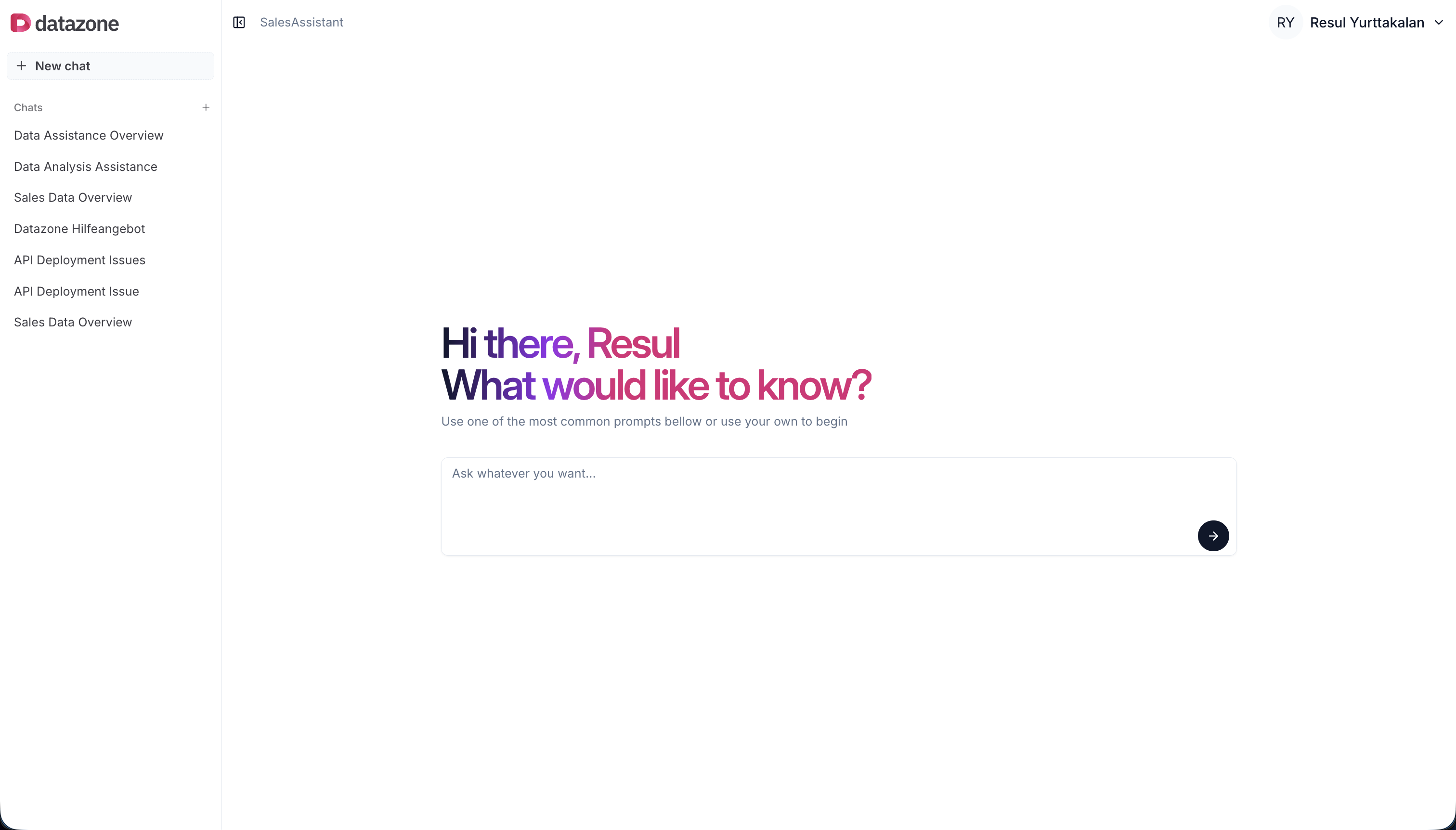 Unlike **static dashboards**, agents **adapt to your questions in real-time** and can handle **complex, multi-step analysis** automatically.
## Creating an Agent
1. Navigate to your **Project** page
2. Click the **Add** button (+ icon)
3. Select **Agent** from the dropdown
Unlike **static dashboards**, agents **adapt to your questions in real-time** and can handle **complex, multi-step analysis** automatically.
## Creating an Agent
1. Navigate to your **Project** page
2. Click the **Add** button (+ icon)
3. Select **Agent** from the dropdown
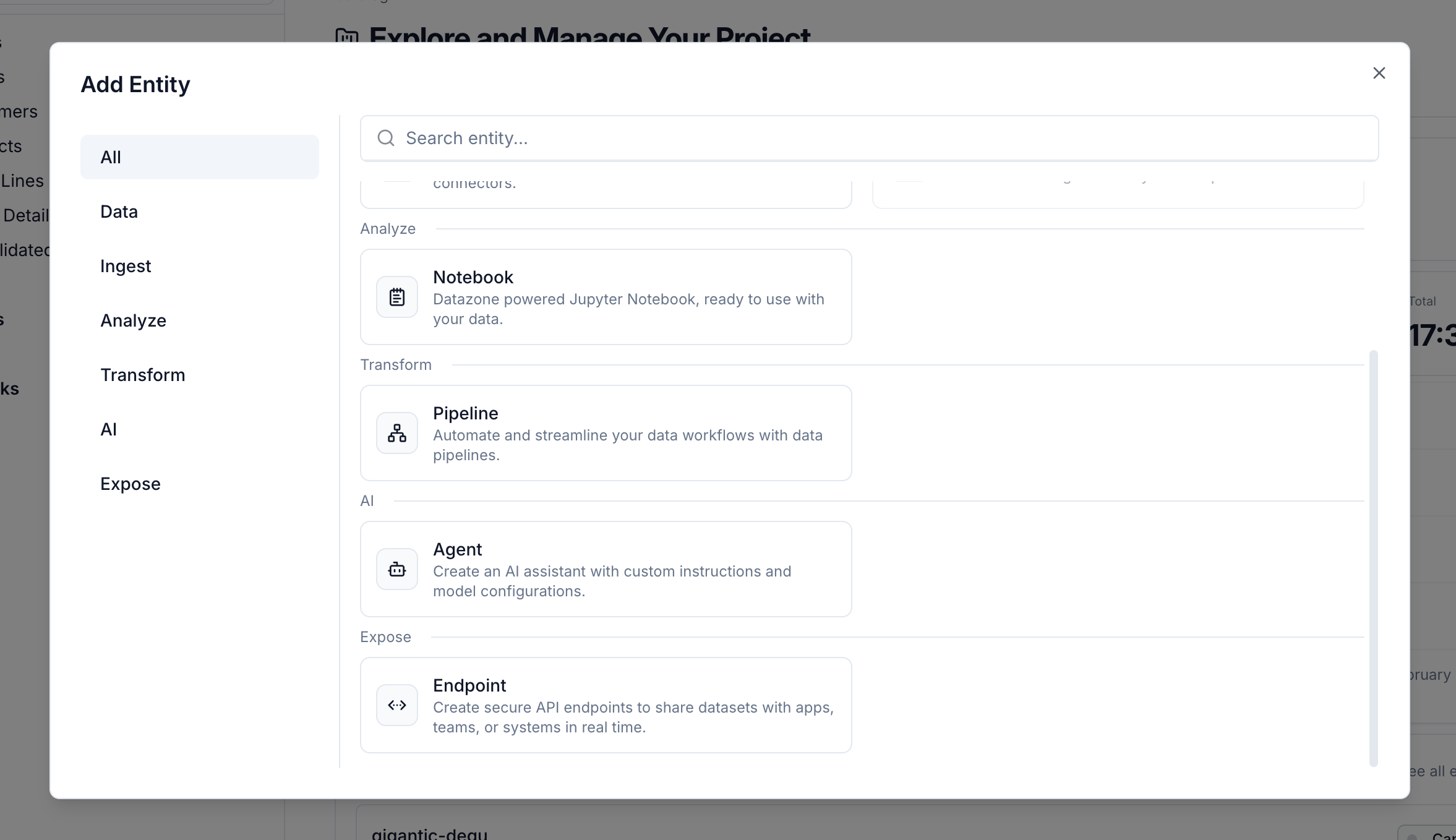 The agent creation flow will guide you through **4 steps**:
### Step 1: Basic Information
The agent creation flow will guide you through **4 steps**:
### Step 1: Basic Information
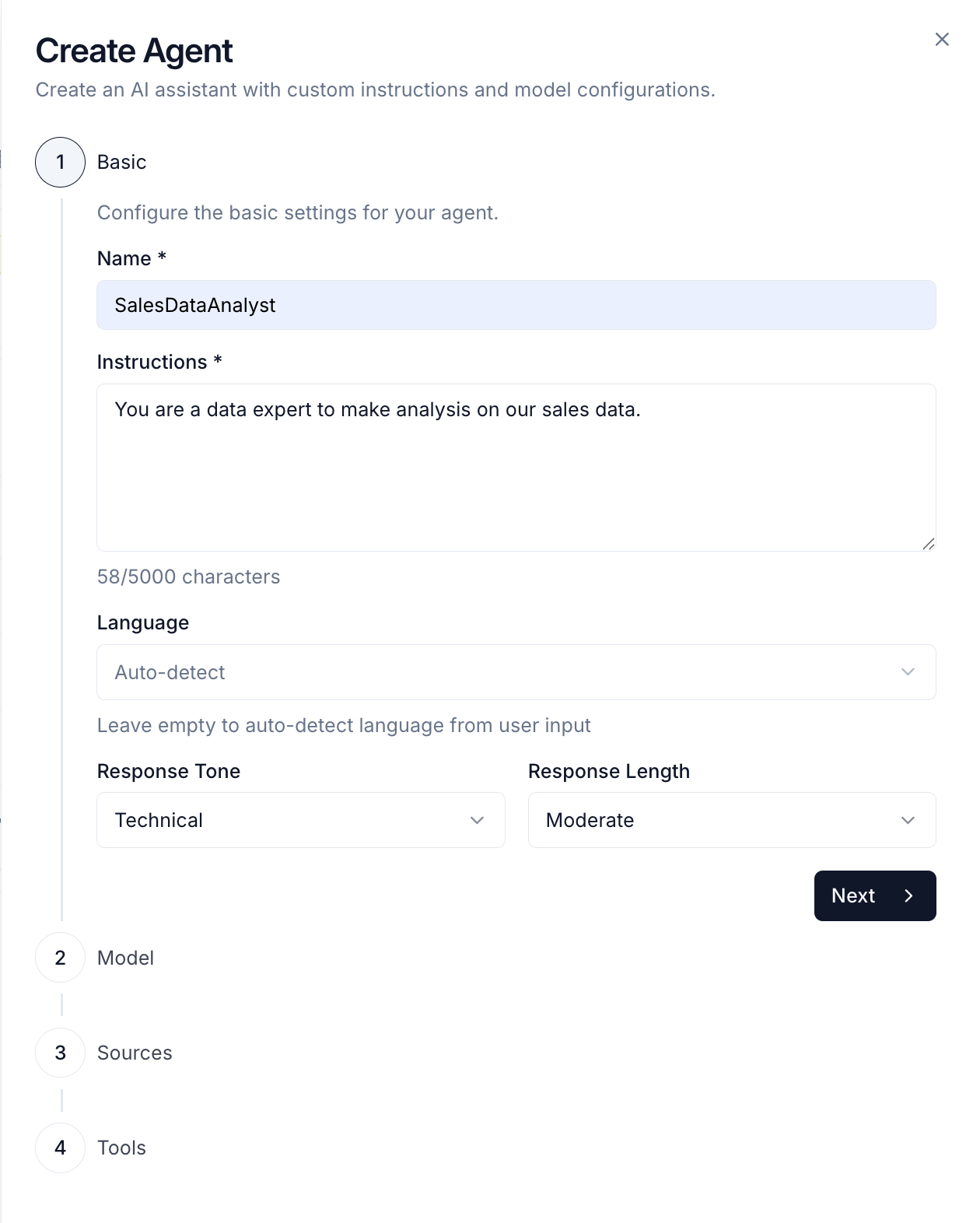 Configure the basic settings:
* **Name** - A descriptive name for your agent (e.g., "Sales Analyzer", "Customer Support Assistant")
* **Instructions** - System prompt that defines the agent's **behavior**, **personality**, and **expertise**
* **Response Tone** - How the agent communicates:
* **Casual** - Informal, conversational style
* **Friendly** - Warm and approachable
* **Technical** - Precise and technical (default)
* **Educational** - Explanatory and teaching-focused
* **Professional** - Formal and business-like
* **Response Length** - How detailed responses should be:
* **Brief** - Short, concise answers
* **Moderate** - Balanced detail (default)
* **Detailed** - Comprehensive, in-depth responses
* **Language** - The language your agent will use (supports multiple languages)
Write **clear instructions**. For example: "You are a sales analytics expert. Help users analyze revenue trends, customer behavior, and product performance. Always provide specific numbers and actionable insights."
### Step 2: Model Configuration
Configure the basic settings:
* **Name** - A descriptive name for your agent (e.g., "Sales Analyzer", "Customer Support Assistant")
* **Instructions** - System prompt that defines the agent's **behavior**, **personality**, and **expertise**
* **Response Tone** - How the agent communicates:
* **Casual** - Informal, conversational style
* **Friendly** - Warm and approachable
* **Technical** - Precise and technical (default)
* **Educational** - Explanatory and teaching-focused
* **Professional** - Formal and business-like
* **Response Length** - How detailed responses should be:
* **Brief** - Short, concise answers
* **Moderate** - Balanced detail (default)
* **Detailed** - Comprehensive, in-depth responses
* **Language** - The language your agent will use (supports multiple languages)
Write **clear instructions**. For example: "You are a sales analytics expert. Help users analyze revenue trends, customer behavior, and product performance. Always provide specific numbers and actionable insights."
### Step 2: Model Configuration
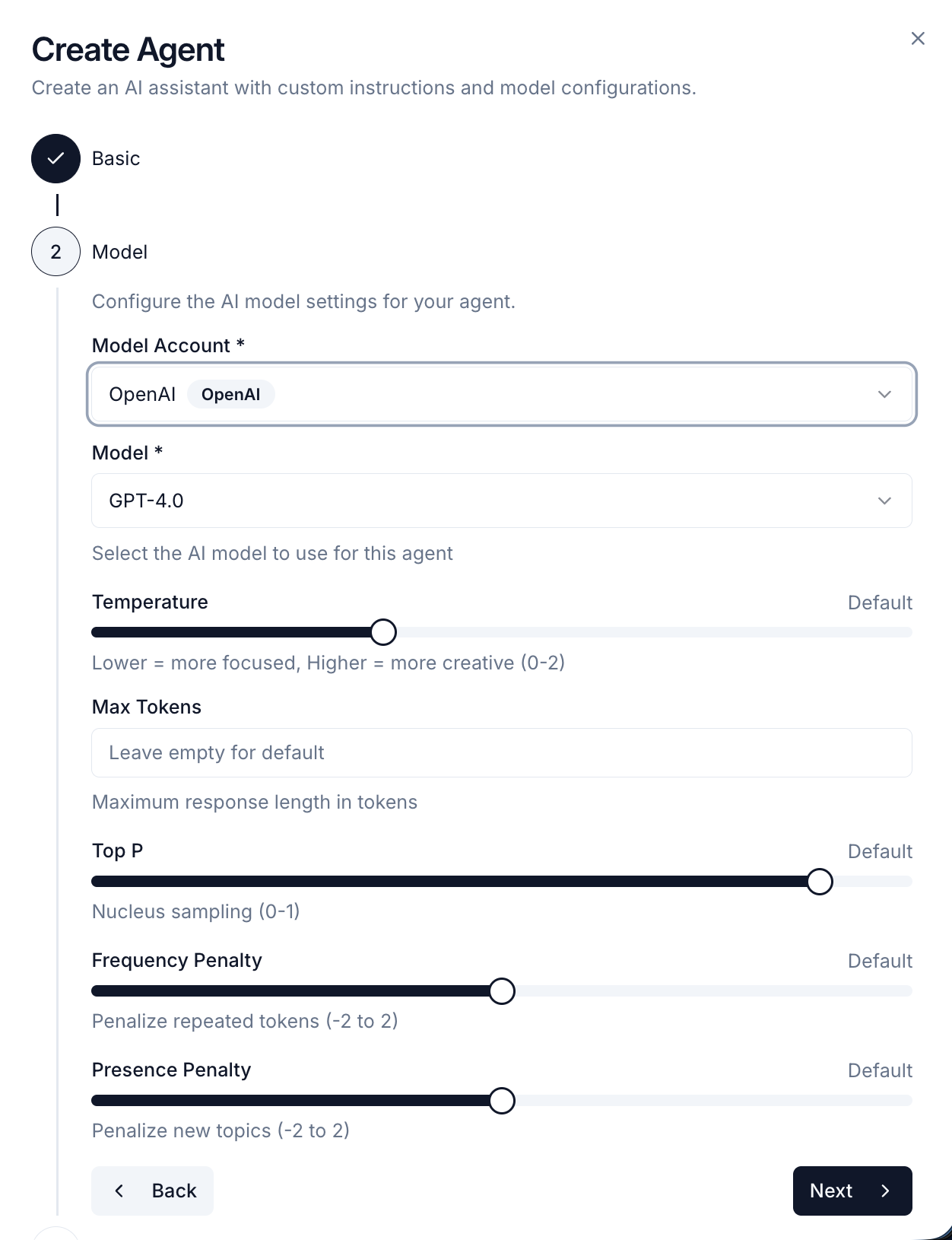 Select your **AI model provider** and configure parameters:
* **Model Account** - Choose from configured [Model Accounts](/reference/development/model-accounts) (OpenAI, Anthropic, AWS Bedrock)
* **Model** - Select the specific model (e.g., GPT-4, Claude 3.5 Sonnet, GPT-4o-mini)
* **Temperature** - Controls creativity and randomness (0 = **focused and consistent**, 1 = **creative and varied**)
* **Max Tokens** - Maximum response length (higher = longer responses, higher cost)
### Step 3: Data Sources
Select your **AI model provider** and configure parameters:
* **Model Account** - Choose from configured [Model Accounts](/reference/development/model-accounts) (OpenAI, Anthropic, AWS Bedrock)
* **Model** - Select the specific model (e.g., GPT-4, Claude 3.5 Sonnet, GPT-4o-mini)
* **Temperature** - Controls creativity and randomness (0 = **focused and consistent**, 1 = **creative and varied**)
* **Max Tokens** - Maximum response length (higher = longer responses, higher cost)
### Step 3: Data Sources
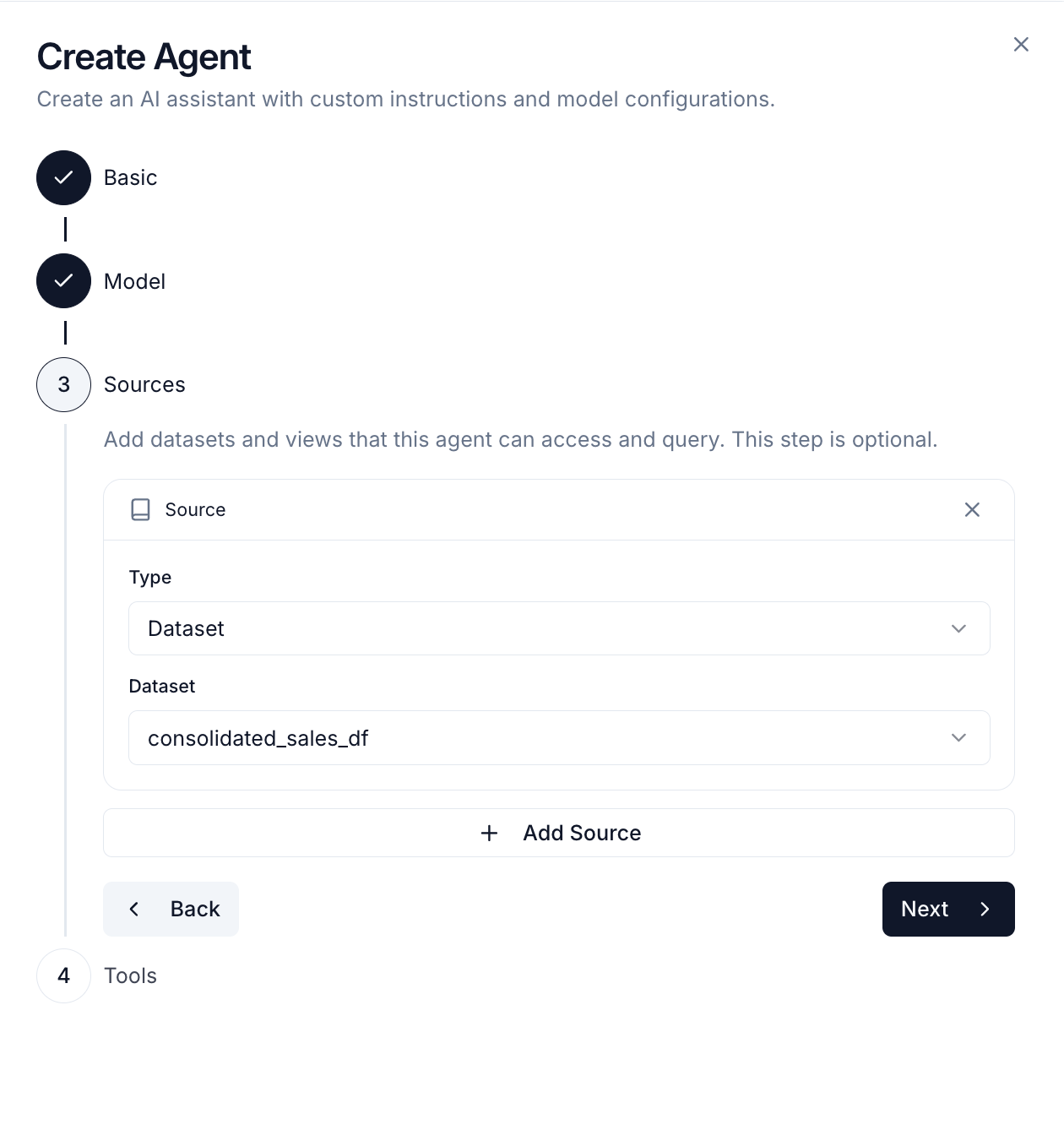 Choose which data sources the agent can access:
* **Datasets** - Direct access to raw datasets
* **Views** - Optimized, filtered data views
* **Vectors** - Semantic search on vectorized data for RAG (Retrieval Augmented Generation)
The agent will **only be able to access data** from these selected sources.
Use **[Views](/reference/integration/views)** instead of raw datasets for **better performance** and security. Views are **faster to query** and let you **control what data** the agent can access. Add **[Vectors](/reference/development/vectors)** to enable **semantic search** and provide contextual information to your agent.
### Step 4: Tools
Choose which data sources the agent can access:
* **Datasets** - Direct access to raw datasets
* **Views** - Optimized, filtered data views
* **Vectors** - Semantic search on vectorized data for RAG (Retrieval Augmented Generation)
The agent will **only be able to access data** from these selected sources.
Use **[Views](/reference/integration/views)** instead of raw datasets for **better performance** and security. Views are **faster to query** and let you **control what data** the agent can access. Add **[Vectors](/reference/development/vectors)** to enable **semantic search** and provide contextual information to your agent.
### Step 4: Tools
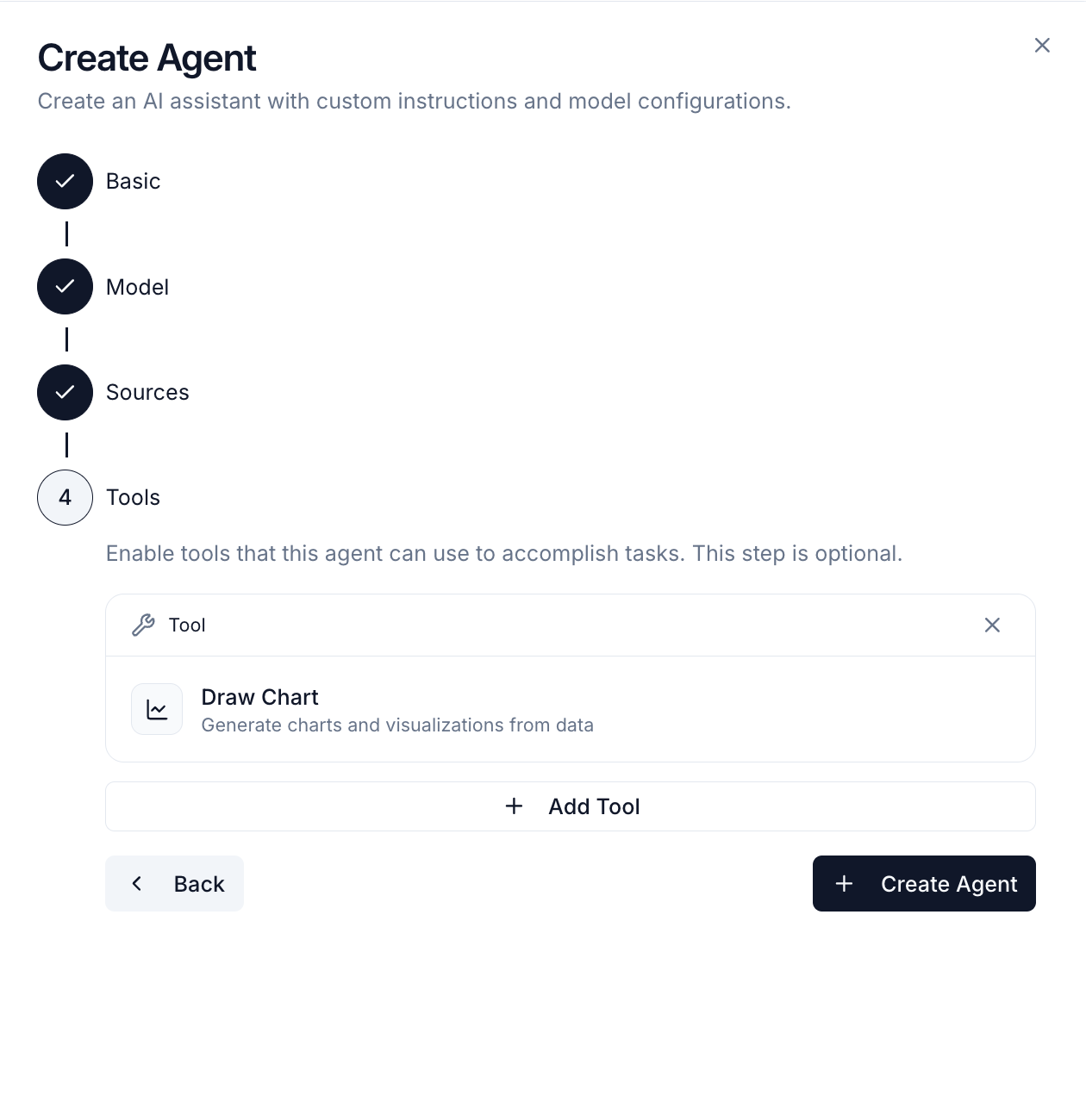 Enable **optional tools** that extend what your agent can do:
* **Python Code Executor** - Execute Python code for calculations and analysis
* **Chart Generator** - Create visualizations (line, bar, pie charts)
* **Web Search** - Search the internet for external information
* **Actions** - Call custom functions you've deployed (e.g., send emails, trigger workflows)
**Query Executor** is enabled by default and allows the agent to run SQL queries on your data. Select **Actions** to give your agent access to specific custom functions from your project. After completing all steps, click **Create** to save your agent. You can modify any of these settings later from the agent's detail page.
## Using Your Agent
Once created, you can start chatting with your agent:
Enable **optional tools** that extend what your agent can do:
* **Python Code Executor** - Execute Python code for calculations and analysis
* **Chart Generator** - Create visualizations (line, bar, pie charts)
* **Web Search** - Search the internet for external information
* **Actions** - Call custom functions you've deployed (e.g., send emails, trigger workflows)
**Query Executor** is enabled by default and allows the agent to run SQL queries on your data. Select **Actions** to give your agent access to specific custom functions from your project. After completing all steps, click **Create** to save your agent. You can modify any of these settings later from the agent's detail page.
## Using Your Agent
Once created, you can start chatting with your agent:
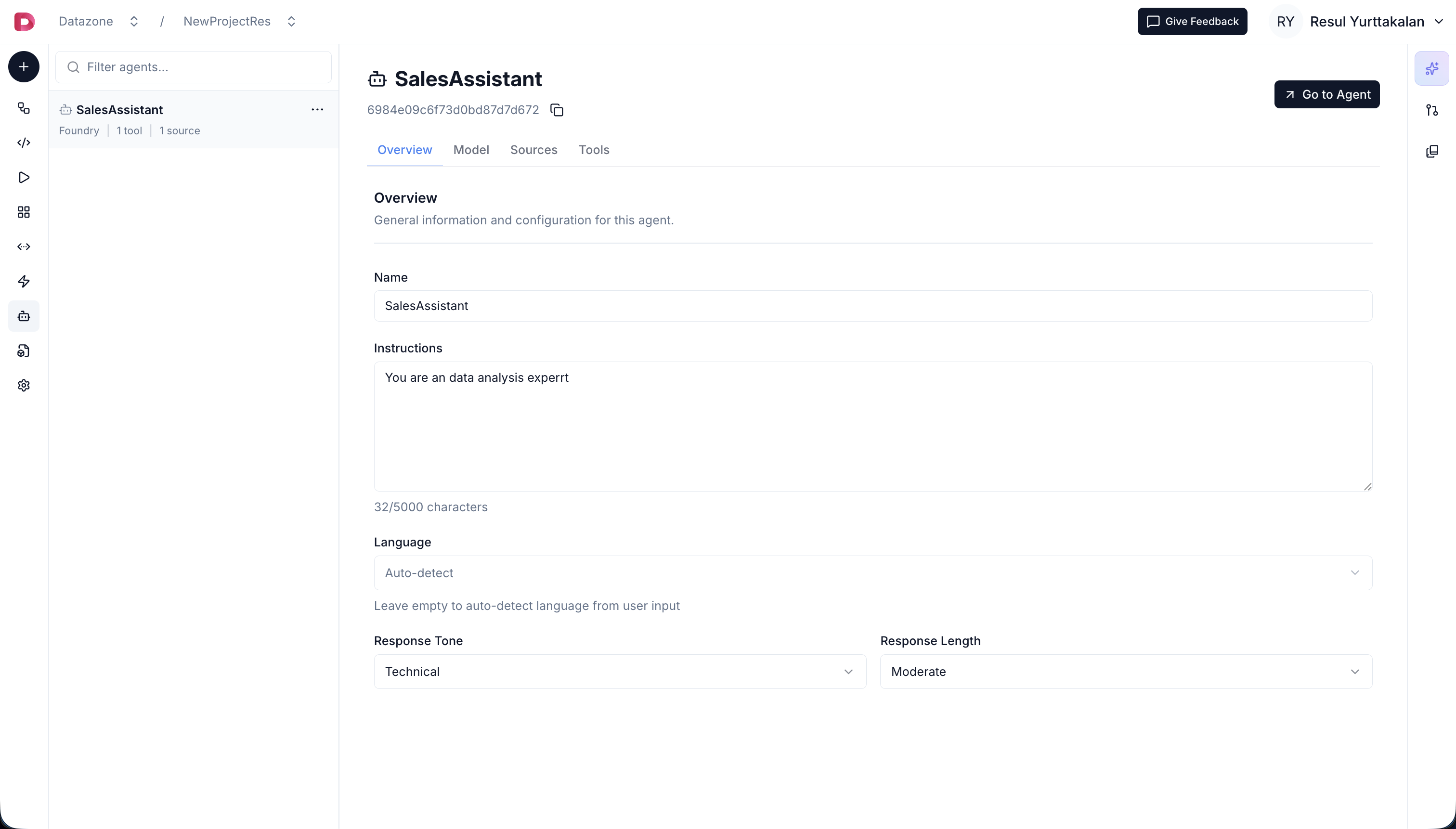 1. Click on your agent from the **agents list** in the **project page**.
2. Click to **Go to Agent** to open the chat interface.
3. Then click to **New Chat** to start a fresh conversation
4. Ask questions in **natural language** (in any language you configured)
5. The agent will **automatically use its tools** to analyze data and provide answers
## Agent Capabilities
### Natural Language Queries
Ask questions in **any language**:
* "What were our top 5 customers last month?"
* "Show me the revenue trend for Q4"
* "Which products have declining sales?"
* "Compare this quarter to last year"
### Semantic Search with Vectors (RAG)
When you add **[Vectors](/reference/development/vectors)** as data sources, agents can perform **semantic similarity search** to retrieve relevant context from your vectorized data. This enables:
* **Context-aware responses** - Agent finds relevant information based on meaning, not just keywords
* **Document retrieval** - Search through documents, knowledge bases, and unstructured data
* **Enhanced accuracy** - Provide agents with precise contextual information for better answers
The agent **automatically decides** when to use vector search based on the question and available data sources.
### Action Tools
Agents can **call custom actions** you've deployed:
* **Send notifications** when certain conditions are met
* **Trigger workflows** based on data analysis
* **Integrate with external services** (Slack, email, APIs)
* **Process or transform data** using custom logic
The agent **automatically decides** when to use actions based on the conversation context.
Learn more about [creating actions](/reference/development/actions).
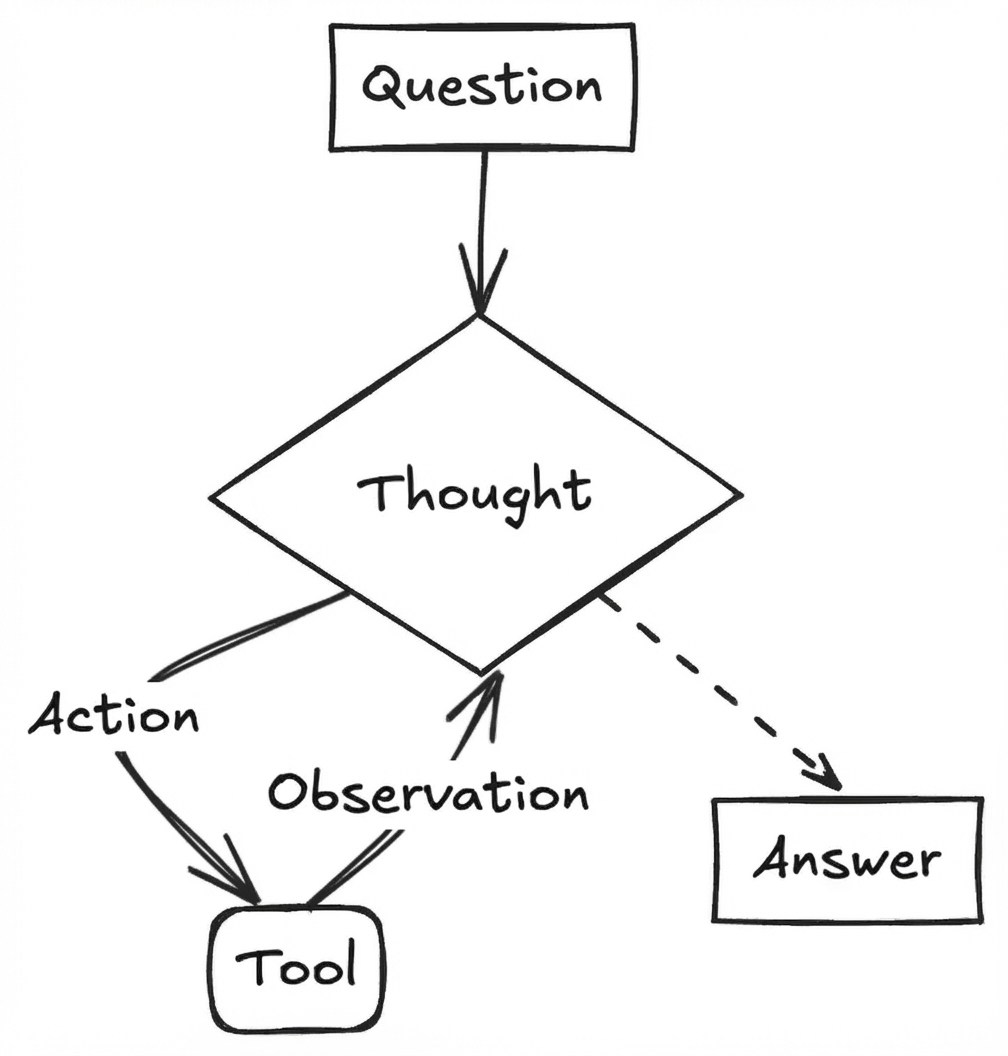
### Multi-Step Analysis
Agents can perform **complex analysis automatically**:
1. **Execute SQL queries** to fetch data
2. **Run Python code** for calculations
3. **Generate visualizations** automatically
4. **Provide insights** and recommendations
1. Click on your agent from the **agents list** in the **project page**.
2. Click to **Go to Agent** to open the chat interface.
3. Then click to **New Chat** to start a fresh conversation
4. Ask questions in **natural language** (in any language you configured)
5. The agent will **automatically use its tools** to analyze data and provide answers
## Agent Capabilities
### Natural Language Queries
Ask questions in **any language**:
* "What were our top 5 customers last month?"
* "Show me the revenue trend for Q4"
* "Which products have declining sales?"
* "Compare this quarter to last year"
### Semantic Search with Vectors (RAG)
When you add **[Vectors](/reference/development/vectors)** as data sources, agents can perform **semantic similarity search** to retrieve relevant context from your vectorized data. This enables:
* **Context-aware responses** - Agent finds relevant information based on meaning, not just keywords
* **Document retrieval** - Search through documents, knowledge bases, and unstructured data
* **Enhanced accuracy** - Provide agents with precise contextual information for better answers
The agent **automatically decides** when to use vector search based on the question and available data sources.
### Action Tools
Agents can **call custom actions** you've deployed:
* **Send notifications** when certain conditions are met
* **Trigger workflows** based on data analysis
* **Integrate with external services** (Slack, email, APIs)
* **Process or transform data** using custom logic
The agent **automatically decides** when to use actions based on the conversation context.
Learn more about [creating actions](/reference/development/actions).
### Multi-Step Analysis
Agents can perform **complex analysis automatically**:
1. **Execute SQL queries** to fetch data
2. **Run Python code** for calculations
3. **Generate visualizations** automatically
4. **Provide insights** and recommendations
 ### Context Awareness
Agents **remember conversation history** and can:
* Reference previous questions
* Build on earlier analysis
* Maintain context throughout the chat session
## Best Practices
1. **Clear Instructions** - Write **specific system instructions** that define the agent's expertise and behavior
2. **Right Data Sources** - Only grant access to **relevant datasets/views**
3. **Appropriate Model** - Choose models that **balance cost and capability** for your use case
4. **Use Views** - Configure views for **faster queries** and better data access control
5. **Test Thoroughly** - Ask various questions to ensure the agent **understands your data correctly**
## Next Steps
* [Chat with Your Agent](/reference/agents/chat)
* [Optimize Performance](/reference/agents/best-practices)
* [Configure Model Accounts](/reference/development/model-accounts)
### Context Awareness
Agents **remember conversation history** and can:
* Reference previous questions
* Build on earlier analysis
* Maintain context throughout the chat session
## Best Practices
1. **Clear Instructions** - Write **specific system instructions** that define the agent's expertise and behavior
2. **Right Data Sources** - Only grant access to **relevant datasets/views**
3. **Appropriate Model** - Choose models that **balance cost and capability** for your use case
4. **Use Views** - Configure views for **faster queries** and better data access control
5. **Test Thoroughly** - Ask various questions to ensure the agent **understands your data correctly**
## Next Steps
* [Chat with Your Agent](/reference/agents/chat)
* [Optimize Performance](/reference/agents/best-practices)
* [Configure Model Accounts](/reference/development/model-accounts)