The container `` is only needed for the **full** widget. The **bot** and **drawer** widgets render their own floating UI and ignore the container.
## Embedding Parameters
The JWT token payload can include the following parameters:
| Parameter | Type | Description |
| ------------------ | ------ | -------------------------------------------------------------------------------- |
| `agent_id` | string | **Required.** The ID of your agent. |
| `email` | string | Email of the user interacting with the agent (for access control and analytics). |
| `user_id` | string | Optional, instead of email — a unique identifier for the user. |
| `embedding_config` | object | Configuration for how the widget renders. See below. |
### `embedding_config` Options
| Option | Type | Description |
| -------- | ------ | -------------------------------------------------- |
| `widget` | string | The widget type: `"full"`, `"bot"`, or `"drawer"`. |
## Example: Full Server-Side Implementation
Here's a more complete example using Node.js / Express:
```javascript theme={null}
const express = require("express");
const jwt = require("jsonwebtoken");
const app = express();
// Configuration
const DATAZONE_SITE_URL = "https://dev.datazone.co";
const DATAZONE_SECRET_KEY = process.env.DATAZONE_SECRET_KEY; // Store in environment variables
app.get("/agent", (req, res) => {
// Get user information from your auth system
const currentUser = req.user;
// Create the token
const payload = {
agent_id: "6a0e502103bdcc40271925f1",
email: currentUser.email,
embedding_config: {
widget: "drawer",
},
};
const token = jwt.sign(payload, DATAZONE_SECRET_KEY);
const scriptUrl = DATAZONE_SITE_URL + "/app/api/widget/agent?token=" + token;
// Render your page with the script URL
res.render("agent", { scriptUrl });
});
app.listen(3000, () => console.log("Server running on port 3000"));
```
## Security Considerations
* Keep your Datazone secret key secure and **never expose it in client-side code**.
* Generate tokens **server-side** and pass the complete script URL to your frontend.
* Use the `email` or `user_id` field to scope access and track usage per user.
* Set appropriate content security policies for embedding.
## Troubleshooting
If your embedded agent isn't loading correctly:
1. Check that your token is signed correctly with the right secret key.
2. Verify that the agent ID is correct.
3. For the **full** widget, ensure the `datazone-agent-embed-container` div exists on the page.
4. Look for CORS or CSP issues in your browser's developer tools.
## Next Steps
* [Agents Overview](/reference/agents/overview) - Learn how to create and configure agents
* [Chat Interface](/reference/agents/chat) - Explore the conversational experience
* [Contact Support](mailto:support@datazone.co) - Get help with embedding setup
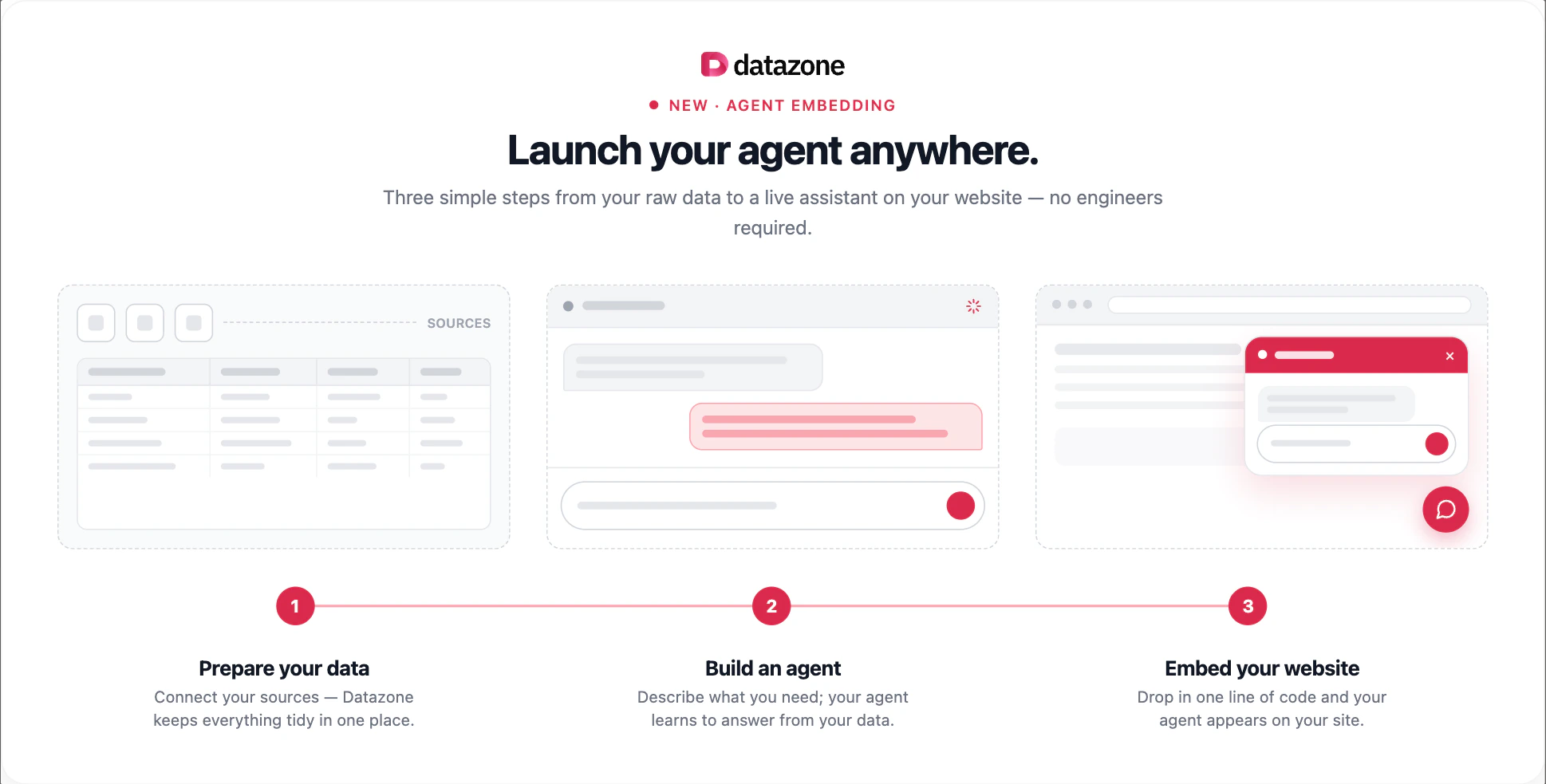
 The embedded agent connects to the **same data sources, tools, and model configuration** you set up in Datazone, so your users get the full conversational experience without ever leaving your product.
 ## Overview
Embedding works through a secure, token-based mechanism:
1. Your server generates a **signed JWT token** containing the agent ID and embedding configuration.
2. The token is used to build a **signed script URL**.
3. You drop a single `
```
Replace `{scriptUrl}` with the signed URL generated on your server.
## Overview
Embedding works through a secure, token-based mechanism:
1. Your server generates a **signed JWT token** containing the agent ID and embedding configuration.
2. The token is used to build a **signed script URL**.
3. You drop a single `
```
Replace `{scriptUrl}` with the signed URL generated on your server.